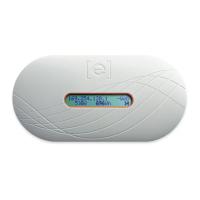
Connecting to Envoy-S
There are several ways to connect with the Envoy-S to check status or do configuration tasks:
Connect wirelessly using Installer Toolkit
Connect remotely using Enlighten
Connect using a computer or mobile device with the Envoy-S local interface
Connect Using the Installer Toolkit App
The Enphase Installer Toolkit is a mobile app that provides installers with onsite system configuration
capabilities.
Options for establishing a connection between the Installer Toolkit app and the Envoy-S are:
Connect the mobile device to the same LAN as the Envoy-S using the site’s wireless router.
Use the Envoy-S to create a wireless Access Point (AP).
Method A: Use the Site’s Wireless Router to Connect to the Envoy-S
To use the site’s wireless router, select Settings on your mobile device and then select Wi-Fi. Tap the
network you want to join from the list of available networks.
Method B: Create a Wireless Access Point
You can connect to Envoy without using the onsite router by creating a wireless Access Point (AP). Use
the Envoy-S built-in Wi-Fi functionality to do this. AP mode supports use of a mobile device and times out
after eight hours. The AP Mode LED lights solid green when AP mode is active. AP Mode allows you
to connect the Envoy-S to Installer Toolkit so that you can track system installation progress.
To start an AP session:
1. Briefly press the AP Mode button to start an 8-hour AP session on the Envoy-S. The AP Mode
LED lights solid green when AP mode is active.
2. The AP Mode LED remains solid green when AP mode is enabled and active. AP mode times
out after eight hours. This LED is usually off during normal Envoy-S operation.



 To Next Page
 Loading...