12
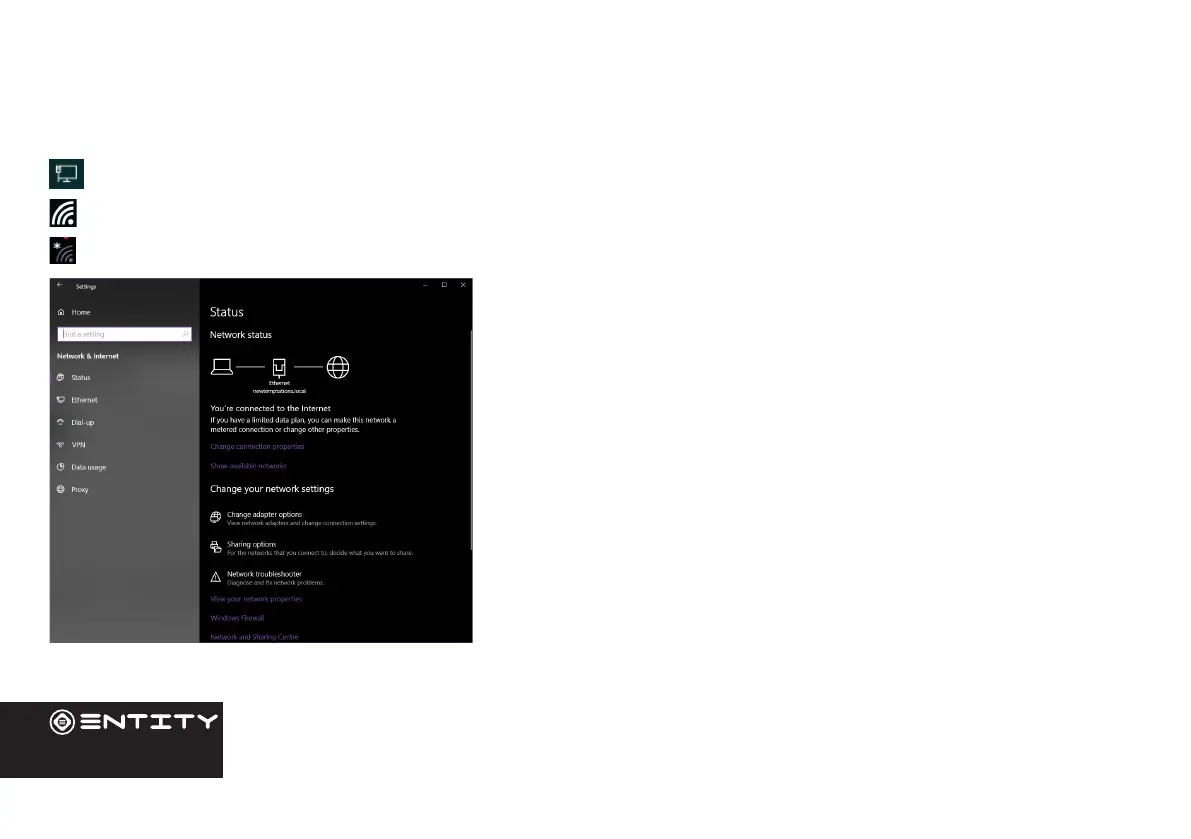
The Nocaon bar displays icons that indicate your Computer’s Internet status.
Connected Via Ethernet.
Connected to a Wi-Fi network (waves indicate connecon strength).
There are no Wi-Fi networks in range, or the Wi-Fi is not connected.
Open the Sengs menu by pressing the start buon and clicking on the
cog/sengs icon.
Open the Network and Internet menu and turn the WiFi on before
selecng the network you wish to join.
When Wi-Fi is on, the Computer will look for and display a list of available
networks.
NOTE: You can also acess the WiFi sengs by clicking on the icon on the taskbar near the
date and me
In the same Wi-Fi sengs menu above, touch a network in the list. If the
network is open,the Computer will prompt you to conrm connecon
to the network. Touch Connect to conrm. If the network is secured
(as indicated by a Lock icon), the Computer will prompt you to enter a
password or other credenals.
Connections
WiFi


 To Next Page