13
Start Menu
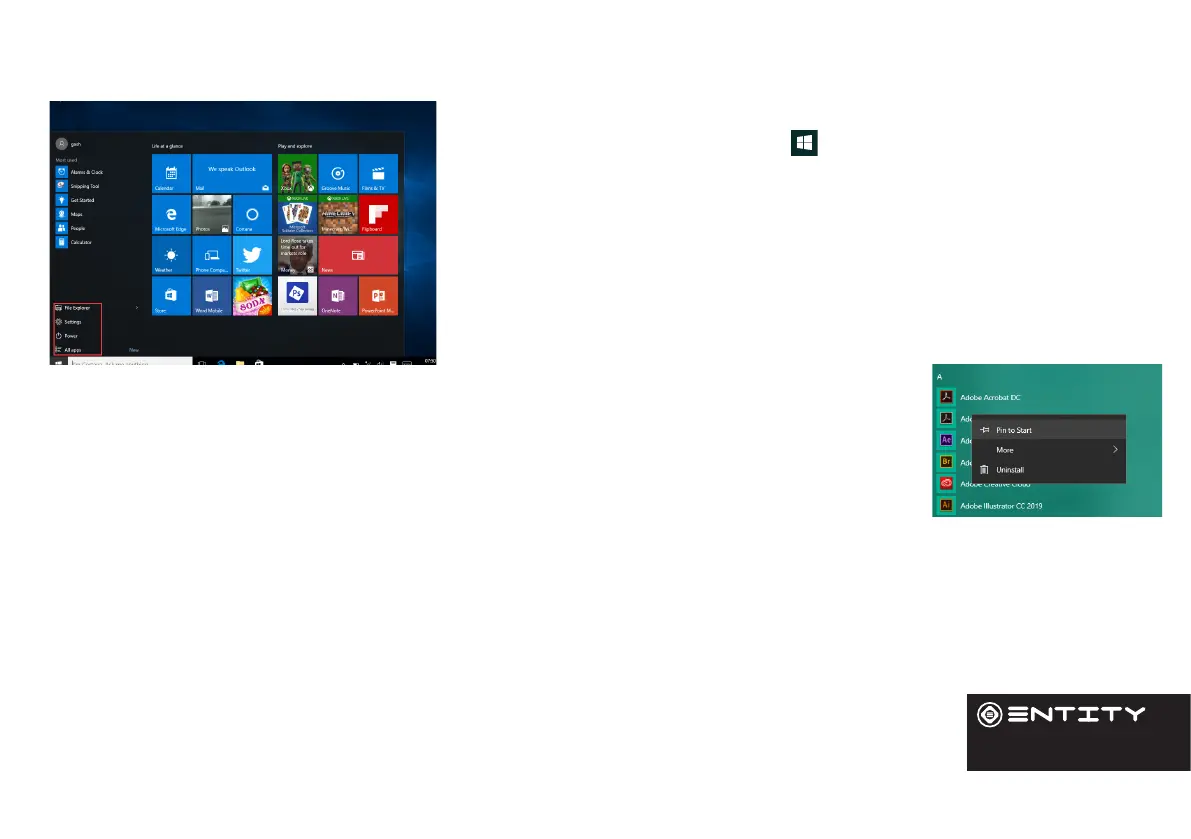
To open the start menu select the icon in the boom le hand corner of
the Computer desktop. Once the menu has been opened you will be greeted
with a variety of opons.
Applicaons
Once in the start menu, a list of all installed applicaons is visible, sorted
alphabecally. Tiled shortcuts will appear on the right for selected pre-
installed applicaons. There is also the opon to add le shortcuts for easier
access to your most used applicaons.
Adding a shortcut le to start menu
Click the start buon. Right click on an applicaon icon and select pin to start. This will create a le
in the start menu for the selected programme.
Removing shortcut le from start menu
Click the start buon. Right click on an applicaon le and select unpin from start. This will remove
the desired program from the start menu but not from your Computer.
Adding shortcut to the taskbar
Click the start buon. Right click on an applicaon le and select pin to taskbar. This will add the applicaon icon to the
taskbar at the boom of your screen.
User Interface


 To Next Page