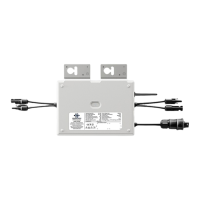
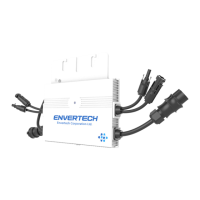
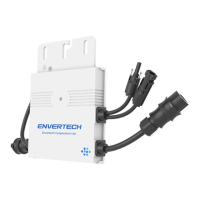
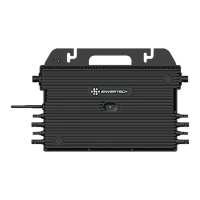
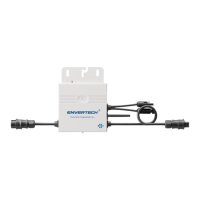
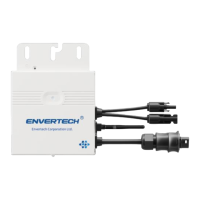
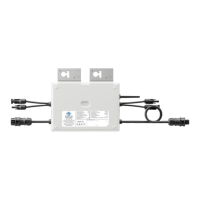
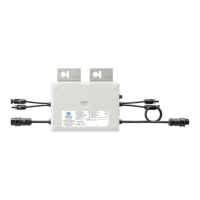
For Device S/N, you can find S/N labeling on EVT800 or outer
packaging. Enter the last 8 digits of it or scan the corresponding
barcode.
2)
MI Binding
Option 1. Use EnverView app to bind MI
Step 1. Log in your account on your mobile phone. Then go to
“Settings”.
Step 2. Under “Device Management”, click “+” and enter the SN of
EVT800.
Step 3. Click “Confirm” to finish adding the MI.
Note: Please ensure that both EVT800 and your phone are in the
same router network.
Option 2. Use EnverView app to bind MI (Local mode)
Note: Please ensure that both EVT800 and your phone are in same router
network.
Step 1. Launch EnverView app, and enter Local Mode. Connect your EVT800.
Step 2. On EVB Overview page, enter Settings. Click Add MI you could choose
enter MI SN manually or click the grid icon to scan the MI SN automatically.
Option 3. Use EnverPortal to bind MI
a. Login www.envertecportal.com with the newly-registered account, go
to Settings--Management.
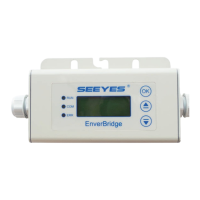
b. Click Add, then enter the SN of EnverBridge, click OK to finfish adding
monitor.
c. Click“+” button behind the EnverBridge SN, then enter the SN of the
EVT800, click OK to finish binding.


 To Next Page