14
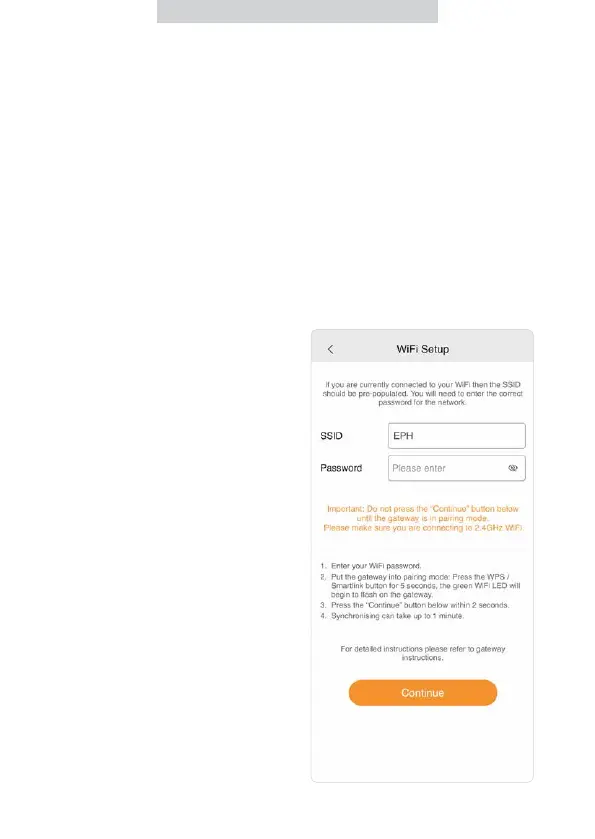
4. Enter WiFi router password –
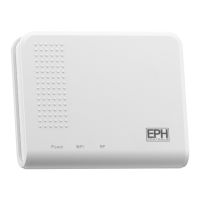
5. On the gateway:
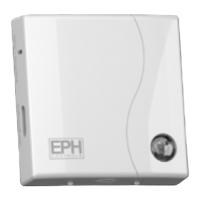
Hold the WPS / Smartlink button
for 5 seconds.
The green light will begin to ash
on the gateway.
6. On your mobile device:
Immediately press ‘Continue’.
When successful the lights on the
gateway will be solid green and
you will progress to the Gateway
Code screen.
Synchronising can take up to 30
seconds.
7. If pairing is unsuccessful, please
repeat steps 5 & 6.
8. The Gateway now needs to be
associated with your mobile
device.
Note: It is recommended to allow location
permission on devices running IOS 13 /
Android 9 or above. This will allow EMBER
to automatically populate the WiFi (SSID)
information during Setup. Without giving
this permission, you will have to enter
your WiFi (SSID) details manually.
Pairing your gateway to
your wireless internet (Continued)
- - NOTE - -
After entering the WiFi router password in
Step 4, do not press the continue button.
Complete step 5 and then press continue
button as per step 6.
3. Ensure your mobile device
is connected to the same
network that the gateway will
be connected to. This will
ensure that the SSID will be
automatically populated with the
correct information.


 To Next Page