93
The app connects the HPAC 2.0 to the local Wi-Fi network you selected and the main
screen to manage the HPAC 2.0 will appear again on the smartphone/tablet.
Now you can use the app anywhere there is an Internet connection.
When the device is displayed in the cloud it may happen that the display of “Temp” is the name
for the device. In this specifi c case, the device failed to restart, the communication works correctly
but the name is incorrect. To solve, it is necessary to rewind the HPAC 2.0 (removing and returning
power).
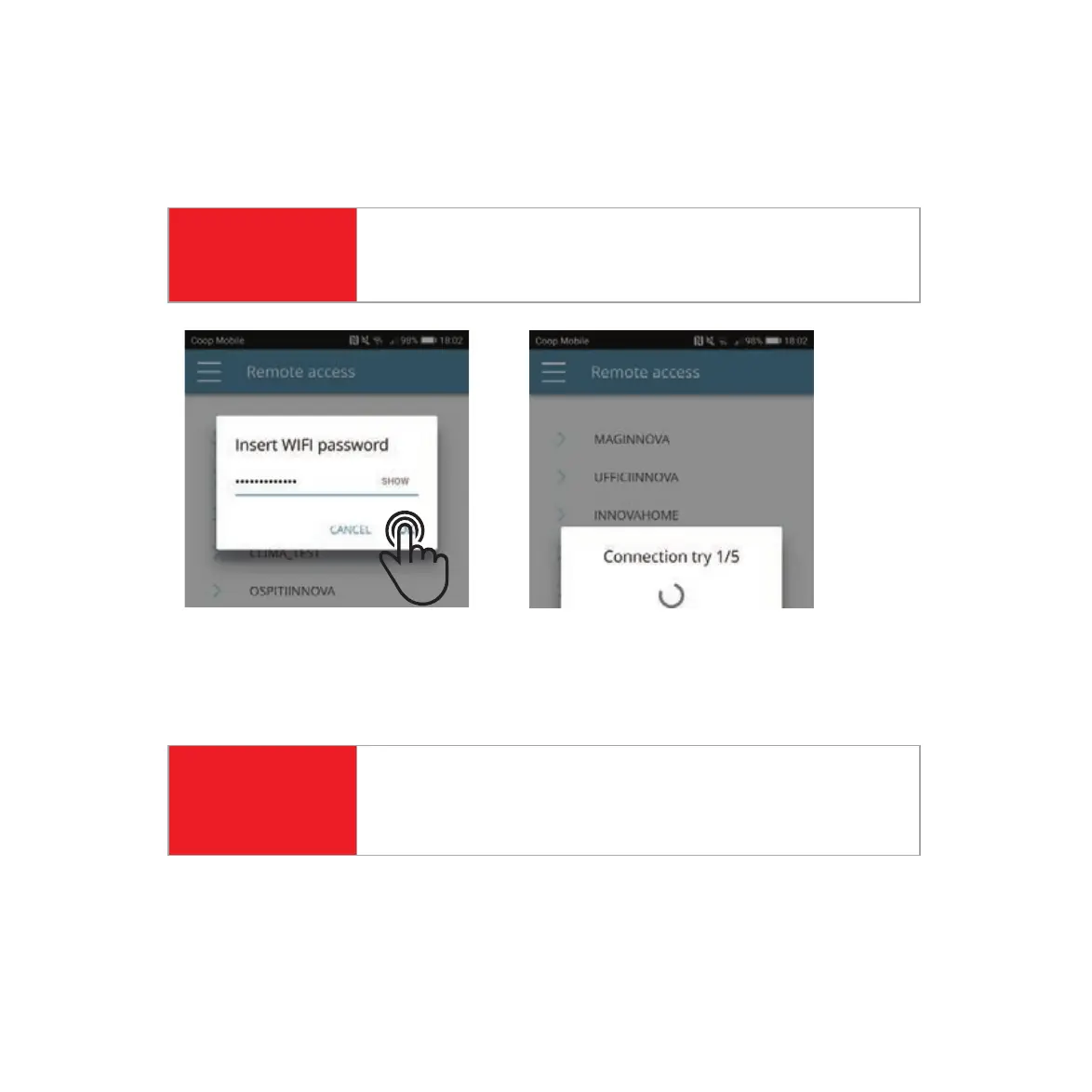
Then enter the Wi-Fi network password and confi rm it.
ENABLING REMOTE ACCESS
STEP 4
STEP 5
STEP 6
The password can contain only alphanumeric characters from “A”
to “Z” (uppercase and lowercase), from “0” to “9”, “-”, “_”, “.”. Special
characters are not permitted.
In the event that the procedure is not successful, the smartphone/
tablet will automatically reconnect to the local network of the 2.0.
Therefore, repeat the procedure, rechecking the password entered
and the name of the network.
ATTENTION
ATTENTION



 To Next Page