Custom Printing
3-24
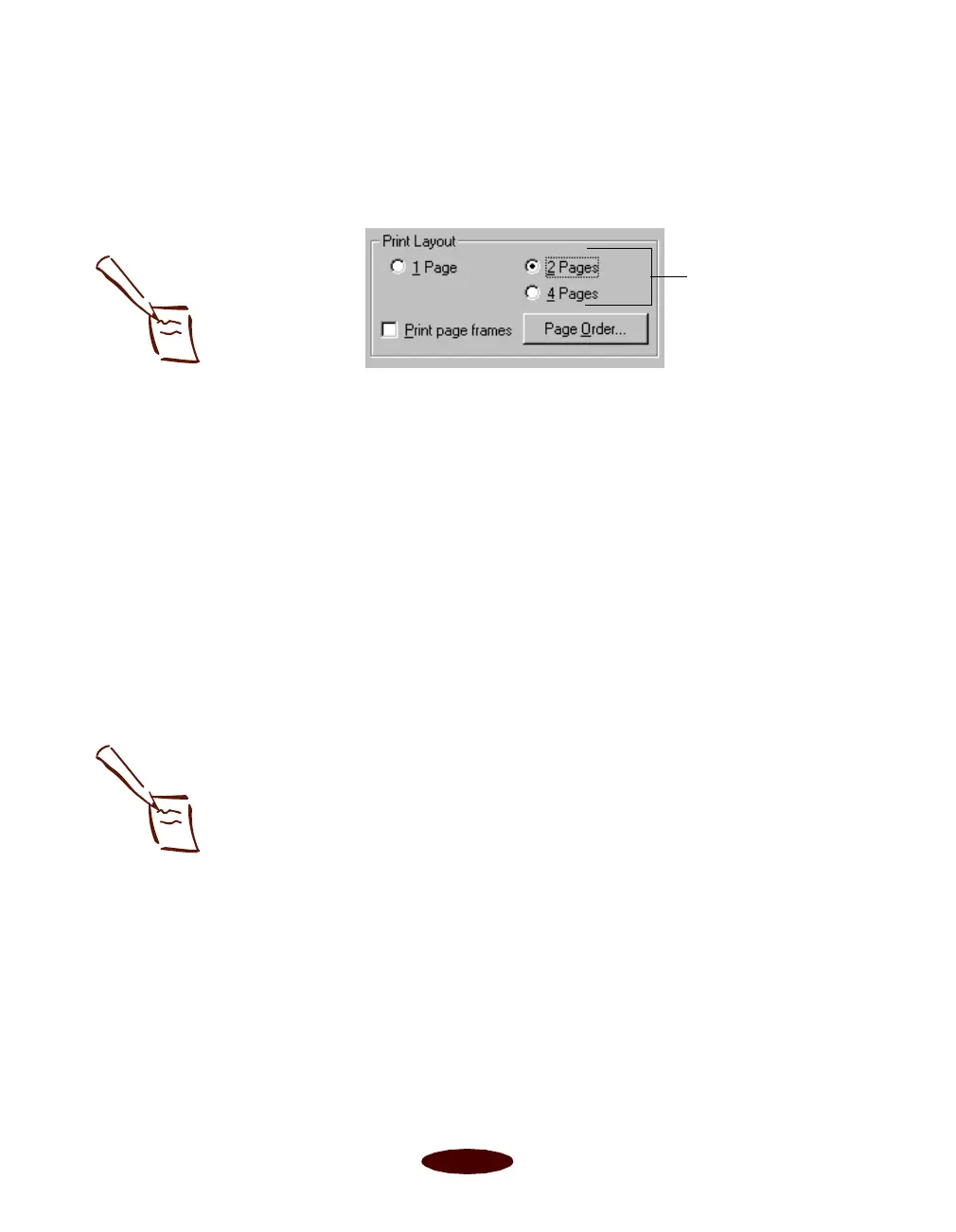
Follow these steps to use the Print Layout options:
1. To print multiple pages of your document on one sheet of
paper, select either the 2 Pages or 4 Pages radio button.
2. If the page order of the layout shown in the printer graphic
is how you want your document printed, go to step 3.
To change the page order, click the
Page Order button.
Then select the page order you want to use from the Print
Layout dialog box that appears.
3. If you want to frame each page’s contents with a black line,
one dot wide, click the
Print page frames checkbox.
4. If you’re finished selecting Layout options, click
OK.
If you want to select more options, see the next section.
Adding a Watermark
You can add a watermark to each page in your document to
emphasize its purpose or indicate how the document should be
handled. For example, you may want to add a watermark of the
word “Confidential” to documents you don’t want distributed
to other parties. Or you can add a custom bitmap of your
company logo so your document looks like printed letterhead.
Click a button to
select a multiple
page print layout
Note:
You can select a page
order only if it works with
the proportion of your
selected Paper Size
and/or your current
orientation setting, either
Portrait or Landscape.
Note:
To add a custom
watermark, you must first
create the watermark as a
bitmap in an application
program that can create
bitmap files. See your
application’s
documentation for
instructions.
Easch3.fm5 Page 24 Tuesday, March 24, 1998 1:14 PM



 To Next Page