95
Saving a Scan as an Office Format File - Windows
You can use Document Capture Pro (Windows) to save your scans in one of the following Microsoft
Office file formats: Microsoft Word (.docx), Microsoft Excel (.xlsx), or Microsoft PowerPoint (.pptx).
1. Load your original in the scanner.
2. Do one of the following to start Document Capture Pro:
• Windows 10: Click and select Epson Software > Document Capture Pro.
• Windows 8.x: Navigate to the Apps screen and select Document Capture Pro.
• Windows (other versions): Click or Start, and select All Programs or Programs. Select
Epson Software > Document Capture Pro.
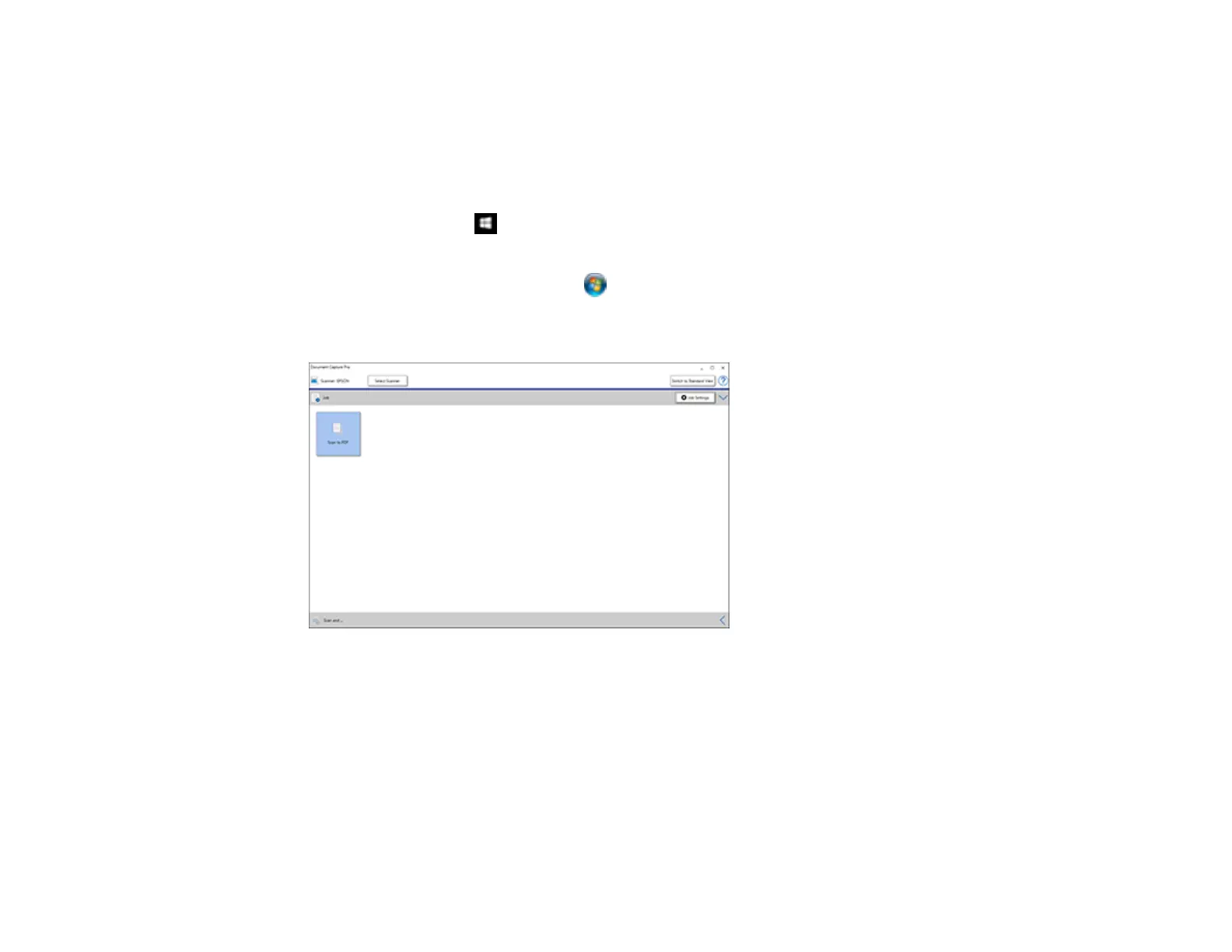
You see this window:
Note: Click Switch to Simple View, if necessary.
3. Click the < at the bottom right corner of the screen.


 To Next Page