Note: Banding may also occur if your print head nozzles need cleaning.
Aligning the Print Head Using the Product Control Panel
Aligning the Print Head Using a Computer Utility
Parent topic: Adjusting Print Quality
Aligning the Print Head Using the Product Control Panel
You can align the print head using the control panel on your product.
1. Load a few sheets of plain paper in the product.
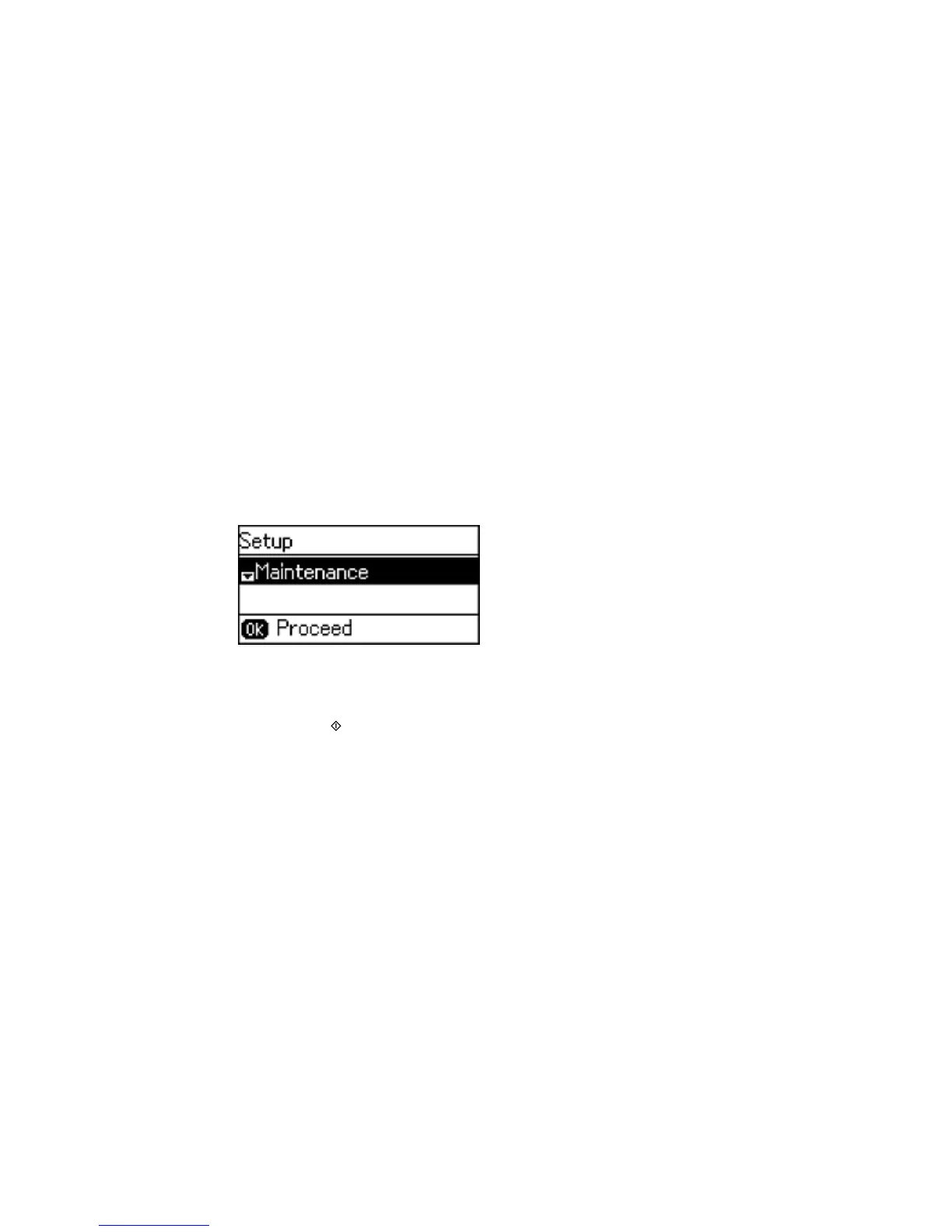
2. Press the up or down arrow button, select Setup, and press the OK button.
You see this screen:
3. Select Maintenance and press the OK button.
4. Select Print Head Alignment and press the OK button.
5. Press the Start Color button to print an alignment sheet.
Note: Do not cancel printing while you are printing a head alignment pattern.
6. Check the printed pattern and press the up or down arrow button to choose the number representing
the best printed pattern for each set. Press the OK button after each selection.
Parent topic: Print Head Alignment
Related tasks
Loading Paper in the Sheet Feeder
207


 To Next Page