EasyManua.ls Logo

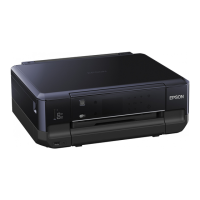
Epson Expression Premium XP-800 - User Manual

Epson Expression Premium XP-800
188 pages
Print Icon
To Next Page IconTo Next Page
Loading...
© 2012 Seiko Epson Corporation. All rights reserved.
Printed in XXXXXX

Table of Contents

Other manuals for Epson Expression Premium XP-800

Questions and Answers

  • U
    uthomasJul 26, 2025
    What to do if my Epson Expression Premium XP-800 Printer shows a printer error?
    • C
      Christopher JonesJul 26, 2025
      If your Epson Printer displays a printer error, turn the printer off and then back on. Also, ensure that no paper remains inside the printer. If the error persists, contact Epson support for further assistance.
  • R
    Robert WarrenJul 30, 2025
    How to exit Recovery Mode on Epson Expression Premium XP-800?
    • F
      fordkristinJul 31, 2025
      If your Epson Printer is in Recovery Mode, it means the firmware update has failed. You will need to re-attempt the firmware update. Prepare a USB cable and visit your local Epson website for further instructions.
  • C
    Christopher George PhDAug 4, 2025
    What to do if I get a communication error with my Epson Printer?
    • M
      Michael HughesAug 5, 2025
      If you encounter a communication error with your Epson Printer, first ensure that the computer is properly connected. If the error persists, verify that the scanning software is installed on your computer and that the software settings are configured correctly.
  • S
    Sarah LeachAug 10, 2025
    What does it mean when my Epson Expression Premium XP-800 Printer says the ink pad is nearing the end of its service life?
    • S
      scraigAug 10, 2025
      When your Epson Printer indicates that the ink pad is nearing the end of its service life, you can press the x button to temporarily resume printing. However, this message will continue to appear until the ink pad is replaced. It is recommended to contact Epson support to arrange for ink pad replacement before it reaches the end of its service life. If the ink pad becomes saturated, the printer will stop functioning, and Epson support will be required to continue printing.
  • J
    jensenanthonyAug 15, 2025
    Why does my Epson Printer say no dial tone detected?
    • W
      waterslindaAug 15, 2025
      If your Epson Printer displays a 'no dial tone detected' message, ensure that the phone cable is correctly connected and that the phone line is working. If you're connected to a PBX phone line or Terminal Adapter, try turning off Dial Tone Detection in the printer's settings (Fax Settings > Communication > Dial Tone Detection > Off).
  • K
    Kenneth EdwardsAug 19, 2025
    What to do when Epson Expression Premium XP-800 ink pad is at the end of its service life?
    • O
      Olivia JacksonAug 20, 2025
      When your Epson Printer indicates that the ink pad is at the end of its service life, contact Epson support to replace ink pads.

Summary

Printer Safety Instructions and Precautions

Epson XP-800 Control Panel Guide

Control Panel Buttons and LCD Screen

Details the functions of each button and the LCD screen on the printer's control panel.

Epson XP-800 Paper and Media Handling

Choosing and Loading Printer Paper

Guide on selecting the correct paper type and loading it into the paper cassette.

Epson XP-800 Faxing Operations

Epson XP-800 Ink Cartridge Replacement

Safety When Handling Ink Cartridges

Important safety guidelines for children and handling ink spills.

Precautions for Ink Cartridge Use

Recommendations on using genuine Epson cartridges and maintenance.

How to Replace Ink Cartridges

Detailed instructions on how to remove and install ink cartridges.

Epson XP-800 Troubleshooting Guide

Understanding Printer Error Messages

Explains common error messages and provides troubleshooting steps.

How to Clear Paper Jams

Procedures for removing jammed paper from various parts of the printer.

Improving Print Quality

Solutions for common print quality problems like banding or missing colors.

Epson Expression Premium XP-800 Specifications

General IconGeneral
Print TechnologyInkjet
Max Print Resolution5760 x 1440 dpi
Print Speed (Color)11 ppm
Duplex PrintingYes
Scanner TypeFlatbed, ADF
Fax Speed33.6 kbps
Paper Capacity100 sheets
Output Paper Capacity50 sheets
ConnectivityUSB, Wi-Fi, Ethernet
Ink Cartridge Configuration5 individual ink cartridges
FunctionsPrint, Scan, Copy, Fax
Fax TypeColor Fax
Printer TypeAll-in-One
Mobile PrintingApple AirPrint, Google Cloud Print
Memory Card SupportSD Card
Paper SizesLetter, Legal, A4, B5
Display4.3-inch color touchscreen

Related product manuals