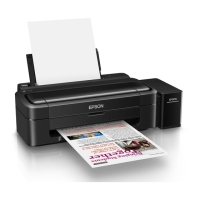
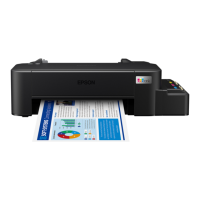
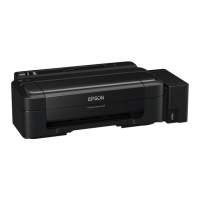
L200/L201/L100/L101 Revision A
Confidential
Appendix Troubleshooting Workflow 46
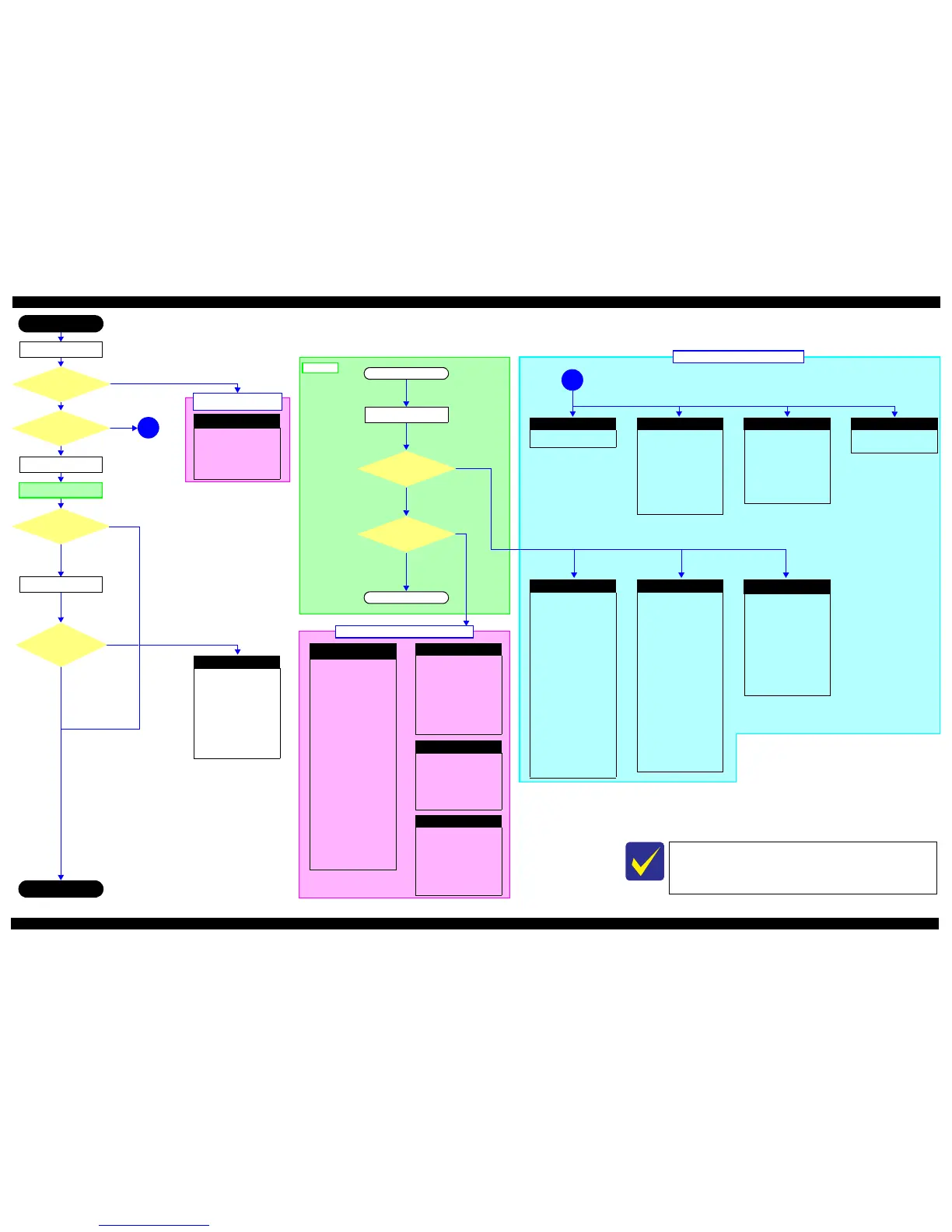
This flowchart is compiled based on the following contents.
Our experience regarding the quality problem.
ESK’s repair data on FY08 / FY09 models.
Printer Mechanism specification for L200/L201/L100/L101.
Fatal error
Please refer to “ 4.3.2 Fatal Error
Code (p47)”for troubleshooting.
Maintenance error
[Occurrence Condition]
This error occurs when
maintenance counter in EEPROM
exceeds the specified value.
[Major Occurrence Timing]
• Power-on timing
• Print start timing
• Cleaning timing
[Troubleshooting]
• Porous Pad replacement
• Tube Assy replacement
• Maintenance counter reset
Ink End error
[Occurrence Condition]
This error occurs when ink in Ink
Cartridge is empty.
[Major Occurrence Timing]
• Power-on timing
• Print start timing
• Cleaning timing
• Print timing
[Troubleshooting]
• Refill the ink(s)
Paper Jam error
Please refer to “ Paper Jam error”
of “Error occurs in printing
operation”.
Paper Jam error
[Occurrence Condition]
This error occurs when top/
bottom of paper is not detected by
PE Sensor in the specified steps of
paper feeding operation correctly.
[Major Occurrence Timing]
• Power-on timing
• Paper loading timing
• Paper eject timing
[Major Troubleshooting]
1 Push “Start” button to eject the
paper.
•Success
Start paper feeding operation
again if printer has print data.
•Fail
Occur paper jam error again.
2 If fail in the above 1), remove
the paper.
3 Push “Start” button again.
•Success
Start paper feeding operation
again if printer has print data.
•Fail
Occur paper jam error again.
4 If fail in the above 3), check
foreign material / part come-
off / PE Sensor Lever / Porous
Pad on Paper Guide Front /
Main board.
No Paper error
[Occurrence Condition]
This error occurs when top of
paper is not detected by PE Sensor
in the specified steps of paper
loading operation correctly.
(No paper / No loading / No
cassette / large paper skew)
[Major Occurrence Timing]
• Paper loading timing
[Major Troubleshooting]
1 Put papers in cassette and push
“Start” button.
2 If a paper stops before reaching
PE Sensor, remove it and
check the paper condition.
3 A) If no damage in the above 2),
set edge guide correctly after
putting papers in cassette and
retry.
B) If damage in the above 2),
check foreign materials /
parts come-off / parts
transformation in paper
path.
4 If not resolved by 3-A) & 3-B),
check foreign material / Part
come-off / surface condition of
LD Roller / PE Sensor Lever /
Main Board / PF Motor.
Double Feed error
*2
[Occurrence Condition]
This error occurs on the following
case.
• A paper is ejected without
printing during paper loading
operation.
• Actual paper length is longer
than theoretical one.
[Major Occurrence Timing]
• Paper loading timing
• Paper feed timing
• Paper eject timing
[Troubleshooting]
• PE Sensor Lever replacement
• Main Board replacement
No Power
*1
[Presumable Cause]
• Power Supply Board damage
• Main Board damage
[Major Troubleshooting]
• Power Supply Board
replacement
• Main Board replacement
Poor Printing
[Phenomenon]
• Poor printing quality
• Ink stain on paper
• Dot missing
• Paper eject without printing
[Presumable Cause]
• Driver / Panel mis-setting
• Contamination of CR scale
• Contamination of Printhead
cover
• Printhead damage
• Ink clogging of Printhead
• Contamination on Cap Unit /
Wiper of Ink System Assy
• Ink System Assy damage
• Float of Porous Pad on Paper
Guide Front
•Narrow PG
• PE Sensor Lever damage
• PE Sensor damage
[Major Troubleshooting]
• Driver / Panel re-setting
• CR Scale replacement
• Printhead cover cleaning
• Printhead cleaning
• Ink Cartridge replacement
• Printhead replacement
• Rubber cleaning of Cap Unit
• Ink System Assy replacement
• Porous Pad re-installation
•PG readjustment
• Printer Mechanism
replacement
• PE Sensor Lever replacement
Poor Paper Loading
[Presumable Cause]
• Use of 3rd party media
• Edge guide mis-setting
• Foreign material
• Part come-off
[Major Troubleshooting]
• Recommendation of EPSON
media
• Edge guide re-setting
• Foreign material removal
• Part re-installation
• Roller replacement
Abnormal Noise
[Presumable Cause]
• Foreign material
• Insufficient grease
•Gear damage
[Major Troubleshooting]
• Foreign material removal
• Lubrication of grease
• Gear replacement
Scanner failure
[Presumable Cause]
• Contamination of Scanner
Glass
• Contamination of Document
Pad
• CIS Unit bonding failure
• CIS Unit damage
• Scanner Motor damage
[Major Troubleshooting]
• Scanner Glass cleaning
• Document Pad cleaning
• Document Pad replacement
• CIS Unit replacement
• Scanner Motor replacement
Finish
*4
Turn on the printer
1
1
Major problem without error message
What is returned reason?
Copy an image
Flow A
Return previous flow
Is printing operation
finished without trouble?
Start
Scanner unit
failure
*3
Printer failure only
No
Yes
Yes
No
Yes
No
Yes
No
Yes
No
Start
Is printing operation
finished without error?
*1: If the printer can turn on but turns off right away, the protection circuit may cut off
the power due to an error such as a circuit failure.
*2: Only for manual duplex print
*3: Only for L200/L201.
*4: In case of “Not Trouble Found”, check fatal error code.
Major problem with error message
Major problem without
error message
Is Power-on sequence
finished without error?
Perform “Flow A”
Standby condition
Is scanning operation
finished without
trouble?
Does printer turn on the
power?
Print check pattern
Blank Printing
[Presumable Cause]
• Valve closes
• Ink tank ventilation film gets
wet
• Ink tube crumples
• Ink tube connection is
incomplete.
[Major Troubleshooting]
• Open valve
• Ink tank replacement
• Ink tube re-installation



 To Next Page