EasyManua.ls Logo

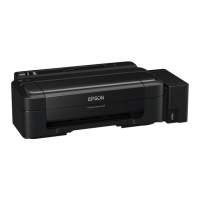
Epson L110 - User Manual

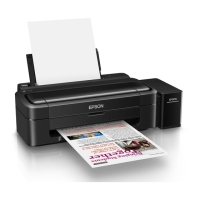
Epson L110
76 pages
Print Icon
To Next Page IconTo Next Page
Loading...
User’s Guide
NPD4687-00 EN

Table of Contents

Other manuals for Epson L110

Questions and Answers

  • C
    Craig MccarthyAug 17, 2025
    Why is my Epson L110 printing incorrect or missing colors?
    • E
      emilynguyenAug 18, 2025
      To resolve incorrect or missing colors on your Epson printer, ensure the initial ink charging is complete and the transportation lock is unlocked. For Windows, clear the Grayscale setting in the printer driver's Main window. On Mac OS X, clear the Grayscale setting in Print Settings. Adjust color settings in your application or printer driver, and run the Head Cleaning utility. If the printer hasn't been used for a while, use the Power Ink Flushing utility. Also, try using genuine Epson ink bottles and paper.
  • S
    Sarah HarrisonAug 20, 2025
    What to do if Epson Printer prints blank pages?
    • O
      ojonesAug 20, 2025
      If your Epson printer is printing blank pages, make sure the printer driver settings are appropriate for your paper size. For Windows, check the Skip Blank Page setting in the printer driver's Maintenance window. For Mac OS X, select On from the Skip Blank Page settings.
  • J
    Jared MillerAug 22, 2025
    Why does Epson L110 Printer paper does not feed?
    • M
      martinezalisonAug 22, 2025
      If your Epson printer is not feeding paper, check that the paper is not curled or creased and that it is not too old. Also, ensure that the paper does not have any binder holes.
  • L
    Latasha JohnsonAug 25, 2025
    How to fix blurry or smeared print on my Epson L110?
    • C
      Colton ElliottAug 26, 2025
      If your Epson printer is producing blurry or smeared prints, try using genuine Epson ink bottles and recommended paper. Ensure the printer is on a flat, stable surface. Check that your paper isn't damaged, dirty, or too old, and that it's dry with the printable side facing up in the rear paper feed. If the paper is curled, flatten it or curl it slightly in the opposite direction.
  • J
    James HicksAug 27, 2025
    Why is my Epson L110 printing so slow?
    • S
      Sarah AlvaradoAug 27, 2025
      If your Epson printer is printing too slowly, for Windows, choose a lower Quality setting in the printer driver's Main window. For Mac OS X, choose a lower Print Quality in the Print Settings dialog box. Close any unnecessary applications. Note that continuous printing for extended periods may also slow down the printing process.
  • J
    Jennifer TownsendAug 30, 2025
    Why is my Epson L110 Printer feeding multiple pages?
    • K
      karlarodriguezAug 30, 2025
      If your Epson printer is feeding multiple pages at once, do not load plain paper above the line just under the H arrow mark inside the edge guide. Make sure the edge guide is snug against the left edge of the paper and that the paper is not curled or folded.
  • K
    kharrisonSep 1, 2025
    How to fix horizontal banding on Epson L110 Printer?
    • R
      Robert SmithSep 2, 2025
      To address horizontal banding on your Epson printer, ensure the printable side of the paper is face up in the rear paper feed. Run the Head Cleaning utility to clear any clogged ink nozzles. Try using genuine Epson ink bottles. Also, make sure the paper type selected in the printer driver is appropriate for the paper loaded.
  • L
    Lisa LyonsSep 4, 2025
    How to fix vertical banding or misalignment on Epson L110?
    • T
      Thomas FarleySep 4, 2025
      To correct vertical banding or misalignment on your Epson printer, make sure the printable side (the whiter or glossier side) of the paper is face up in the rear paper feed.
  • J
    Judith LeeSep 6, 2025
    How to fix paper jam in Epson Printer?
    • M
      matthewacostaSep 6, 2025
      To resolve paper jams in your Epson printer, remove all paper from inside the printer, including any torn pieces.
  • R
    Rachel WilliamsSep 9, 2025
    What to do if all lights are off on Epson L110?
    • J
      Janet CarterSep 9, 2025
      If your Epson printer is showing all lights off, press the power button to ensure the printer is on. Check that the power cord is securely plugged in and that the outlet works and is not controlled by a wall switch or timer.

Summary

Important Instructions

Safety Instructions

Provides crucial instructions for safe use of the product.

Paper Handling

Printing

Refilling Ink

Ink Bottle Safety Instructions, Precautions, and Specifications

Covers safety, precautions, and specs for ink bottles.

Safety instructions

Important guidelines for handling ink safely.

Precautions on refilling ink

Key precautions to observe before refilling ink tanks.

Refilling the Ink Tanks

Step-by-step guide on refilling the ink tanks.

Maintaining Your Product and Software

Checking the Print Head Nozzles

Procedure to check print head nozzles for clogs or missing dots.

Using the Nozzle Check utility for Windows

Instructions for using the Nozzle Check utility on Windows.

Using the Nozzle Check utility for Mac OS X

Instructions for using the Nozzle Check utility on Mac OS X.

Cleaning the Print Head

Steps to clean the print head to resolve print quality issues.

Using the Head Cleaning utility for Windows

How to perform head cleaning using the Windows utility.

Using the Head Cleaning utility for Mac OS X

How to perform head cleaning using the Mac OS X utility.

Aligning the Print Head

Procedure to align the print head for better print quality.

Using the Print Head Alignment utility for Windows

Steps to align the print head using the Windows utility.

Using the Print Head Alignment utility for Mac OS X

Steps to align the print head using the Mac OS X utility.

Cleaning the Paper Guide

Instructions on cleaning the paper guide to remove smudges.

Using the Paper Guide Cleaning utility for Windows

How to clean the paper guide using the Windows utility.

Using the Paper Guide Cleaning utility for Mac OS X

How to clean the paper guide using the Mac OS X utility.

Replacing Ink inside the Ink Tubes

Addresses banding or missing colors by replacing ink in tubes.

Using the Power Ink Flushing utility for Windows

Steps to use the Power Ink Flushing utility on Windows.

Using the Power Ink Flushing utility for Mac OS X

Steps to use the Power Ink Flushing utility on Mac OS X.

Troubleshooting for Printing

Diagnosing the Problem

Outlines a two-step approach to diagnosing and fixing product issues.

Checking product status

How to check the product's operational status and error messages.

Paper Jams

Information and procedures for dealing with paper jams.

Removing jammed paper from inside the product

Step-by-step guide to removing jammed paper from the product.

Preventing paper jams

Tips and checks to avoid frequent paper jams.

Print Quality Help

Guidance on identifying and resolving print quality issues by comparison.

Horizontal banding

Solutions for horizontal banding issues in printouts.

Vertical banding or misalignment

Solutions for vertical banding or alignment problems in printouts.

Incorrect or missing colors

Troubleshooting steps for issues with incorrect or missing colors.

Blurry or smeared print

Solutions for printouts that appear blurry or smeared.

Paper Does Not Feed Correctly

Guides on resolving issues where paper is not feeding correctly.

Paper does not feed

Checks to perform when the product fails to feed paper.

The Product Does Not Print

Troubleshooting steps when the product does not print at all.

All lights are off

Steps to take if all indicator lights on the product are off.

Only the power light is on

Troubleshooting steps when only the power light is illuminated.

Where To Get Help

Epson L110 Specifications

General IconGeneral
ColorYes
Printing colorsBlack, Cyan, Magenta, Yellow
Maximum duty cycle- pages per month
Number of print cartridges4
Maximum resolution5760 x 1440 DPI
Print speed (color, draft quality, A4/US Letter)15 ppm
Print speed (black, normal quality, A4/US Letter)27 ppm
Sound pressure level (printing)38 dB
Paper input typePaper tray
Total input capacity50 sheets
Total output capacity30 sheets
Envelopes sizes10, DL
Maximum print size216 x 356 mm
Paper tray media typesBond paper, Coated paper, Glossy paper, Matte paper, Photo paper, Plain paper
Non-ISO print media sizesExecutive (184 x 267mm), Legal (media size)
ISO A-series sizes (A0...A9)A4, A5, A6
ISO B-series sizes (B0...B9)B5
Photo paper sizes (imperial)4x6, 5x7, 8x10 \
Maximum ISO A-series paper sizeA4
Ethernet LANNo
Standard interfacesUSB 2.0
Windows operating systems supportedWindows 7 Home Basic, Windows 7 Home Basic x64, Windows 7 Home Premium, Windows 7 Home Premium x64, Windows 7 Professional, Windows 7 Professional x64, Windows 7 Starter, Windows 7 Starter x64, Windows 7 Ultimate, Windows 7 Ultimate x64, Windows Vista Business, Windows Vista Business x64, Windows Vista Enterprise, Windows Vista Enterprise x64, Windows Vista Home Basic, Windows Vista Home Basic x64, Windows Vista Home Premium, Windows Vista Home Premium x64, Windows Vista Ultimate, Windows Vista Ultimate x64, Windows XP Home, Windows XP Home x64, Windows XP Professional, Windows XP Professional x64
AC input voltage110 - 240 V
AC input frequency50 - 60 Hz
Power consumption (printing)10 W
Sustainability certificatesENERGY STAR
Product colorBlack
Market positioningHome & office
Weight and Dimensions IconWeight and Dimensions
Depth222 mm
Width472 mm
Height130 mm
Weight2700 g

Videos

How to Fill Ink & Install Setup of Epson L Series Printer (L110)

How to Download & Install Epson L110 Printer Driver in Windows 10 PC or Laptop

Related product manuals