Note:
The availability of this software varies depending on the product.
Starting Epson Easy Photo Print
For Windows
❏ Double-click the Epson Easy Photo Print icon on the desktop.
❏ For Windows 7 and Vista:
Click the start button, point to All Programs, click Epson Software, and then click Easy Photo Print.
For Windows XP:
Click Start, point to All Programs, point to Epson Software, then click Easy Photo Print.
For Mac OS X
Double-click the Applications folder on your Mac OS X hard drive, then double-click in turn on the Epson Software
and Easy Photo Print folders and finally double-click the Easy Photo Print icon.
Product presets (for Windows only)
Printer driver presets make printing a snap. You can also create presets of your own.
Product settings for Windows
A
Access the printer settings.
& “Accessing the printer driver for Windows” on page 17
B
Select a Printing Presets in the Main tab. Product settings are automatically set to the values displayed in the
pop-up window.
2-sided printing (for Windows only)
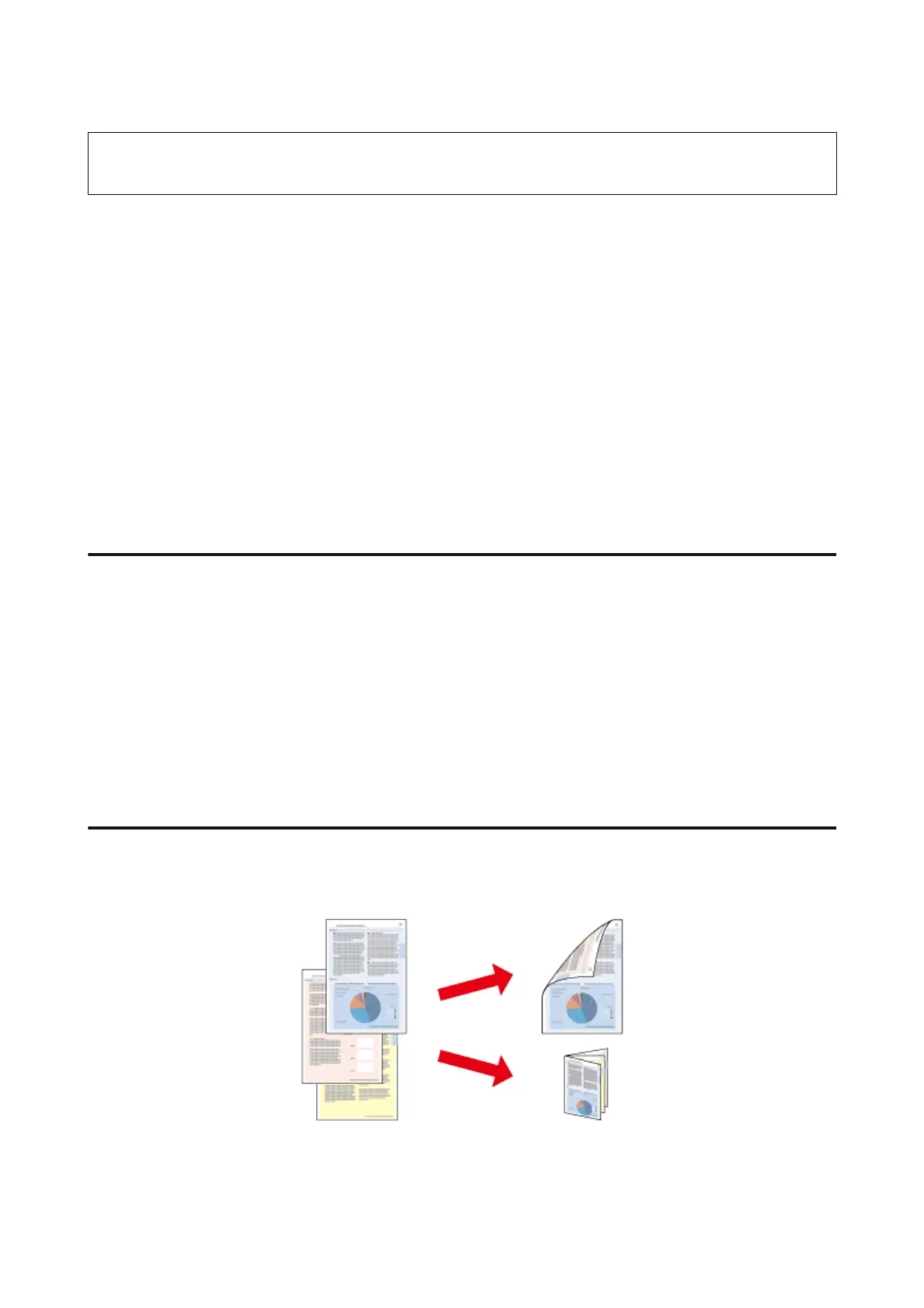
Use the printer driver to print on both sides of the paper.
Two types of 2-sided printing are available: standard and folded booklet.
2-sided printing is only available for the following papers and sizes.
User’s Guide
Printing
24


 To Next Page