EasyManua.ls Logo

Epson L1300 - User Manual

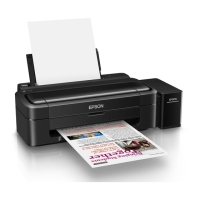
Epson L1300
86 pages
Print Icon
To Next Page IconTo Next Page
Loading...
User’s Guide
NPD4966-00 EN

Table of Contents

Other manuals for Epson L1300

Questions and Answers

  • R
    Rebekah MontesSep 2, 2025
    What to do if my Epson L1300 Printer has a paper jam?
    • J
      Jennifer TaylorSep 2, 2025
      To fix paper jams in your Epson printer: * Open the printer cover. * Remove all paper, including torn pieces. * Close the cover. If paper remains near the rear feed, carefully remove it. * If paper is in the output tray, carefully remove it. * Reload paper and press the b button to resume printing.
  • D
    Dustin ScottAug 31, 2025
    How to fix blurry or smeared print on Epson L1300 Printer?
    • M
      Mary PhillipsAug 31, 2025
      To resolve blurry or smeared prints with your Epson printer: * Use genuine Epson ink and paper. * Ensure the printer is on a flat, stable surface. * Verify your paper isn't damaged, dirty, or too old and is dry with the printable side face up. * Flatten curled paper or curl it in the opposite direction slightly. * Select the correct paper type in the printer driver. * Remove each sheet from the output tray as it prints. * Avoid touching the printed side of shiny paper. * Run the Head Cleaning and Print Head Alignment utilities. * Clean the interior of the printer if the paper is smeared with ink.
  • V
    Victor ArroyoAug 29, 2025
    Why is my Epson printer printing so slow?
    • S
      Shannon JonesAug 29, 2025
      To speed up slow printing on your Epson printer: * Make sure the paper type selected in the printer driver is appropriate for the paper loaded. * For Windows, choose a lower Quality in the printer driver Main window. * Close any unnecessary applications. * If printing continuously, let the printer idle for at least 30 minutes with the power on. * Reinstall the printer driver.
  • E
    Erica RoyAug 27, 2025
    What to do if printed side is smeared on Epson printer?
    • D
      David MillerAug 27, 2025
      To address smeared or scuffed prints from your Epson printer: * Flatten curled paper or curl it slightly in the opposite direction. * For Windows, select Thick paper and envelopes from Extended Settings in your printer driver’s Maintenance tab. * Load and eject plain paper several times. * Reinstall the printer driver.
  • A
    Angela SmithAug 26, 2025
    Why is my Epson L1300 printing incorrect colors?
    • J
      James GutierrezAug 27, 2025
      If your Epson printer is printing incorrect or missing colors: * Ensure initial ink charging is complete. * Check the ink tank and refill if empty, then run the Head Cleaning utility. * Make sure the transportation lock is unlocked. * Clear Grayscale settings in your printer driver (Windows or Mac OS X). * Adjust color settings in your application or printer driver. * Run the Head Cleaning utility. * Use the Power Ink Flushing utility if the printer hasn't been used for a while. * Use genuine Epson ink and recommended paper.
  • J
    johnsonandreaAug 25, 2025
    How to improve print quality on Epson printer?
    • W
      williamspamelaAug 25, 2025
      To resolve print quality issues on your Epson printer: * Ensure the printable side of the paper is face up in the rear paper feed. * Run the Head Cleaning utility to clear clogged ink nozzles. * If the printer hasn't been used for a while, use the Power Ink Flushing utility. * Use genuine Epson ink bottles. * Make sure the paper type selected in the printer driver is appropriate for the paper loaded.
  • K
    kevin34Aug 22, 2025
    What to do if Epson printer paper does not feed?
    • M
      Mark WeberAug 22, 2025
      To resolve the issue of paper not feeding in your Epson printer: * Remove the paper stack and ensure: * Paper is not jammed inside the printer; remove it if it is. * You've followed any special loading instructions for your paper. * The paper does not have any binder holes.

Summary

Copyright and Trademarks

Introduction

Where to Find Information

Details on accessing the latest manuals and support documentation from the Epson website.

Operating System Versions

Lists abbreviations for different Windows and Mac OS X versions used in the manual.

Important Instructions

Safety Instructions

Guidelines for safe use, including power cord usage, electrical safety, and avoiding hazards.

Setting up;using the product

Precautions for setting up and using the product, including ventilation and power sources.

Getting to Know Your Product

Product Parts

Identifies and labels the main physical parts of the printer.

Guide to the Control Panel

Explains the functions of the printer's buttons and status lights.

Paper Handling

Selecting Paper

Details on paper types, sizes, and loading capacities for the printer.

Loading Paper

Step-by-step instructions for correctly loading paper into the rear paper feed.

Loading Envelopes

Step-by-step instructions for loading envelopes into the rear paper feed.

Printing

Accessing the printer driver for Windows

Guides users on how to open and use the printer driver settings on Windows.

Basic printing

Step-by-step instructions for performing a basic print job on Windows.

Canceling printing

Instructions on how to stop or cancel an ongoing print job.

2-sided printing (for Windows only)

Instructions for printing on both sides of the paper using the Windows driver.

Fit to page printing

How to automatically resize documents to fit the selected paper size.

Pages per sheet printing

Instructions for printing multiple pages of a document onto a single sheet of paper.

Sharing the Product for Printing

Guides on setting up the printer to be shared on a network.

Ink Bottle Information

Refilling Ink

Ink Bottle Safety Instructions, Precautions, and Specifications

Detailed safety guidelines, precautions, and specifications for handling ink bottles.

Refilling the Ink Tanks

Step-by-step guide on how to refill the printer's ink tanks using ink bottles.

Maintaining Your Product and Software

Checking the Print Head Nozzles

How to check print head nozzles using software utilities to diagnose print quality issues.

Cleaning the Print Head

Instructions on cleaning the print head to resolve print quality problems like faint or missing dots.

Aligning the Print Head

How to align the print head to correct vertical lines or horizontal banding issues.

Replacing Ink inside the Ink Tubes

Explains the Power Ink Flushing utility to replace ink in tubes for banding or missing color issues.

Cleaning the Product

Instructions for cleaning the exterior and interior of the printer to maintain optimal performance.

Transporting the Product

Guidelines for preparing the printer for safe transportation, including securing parts.

Checking and Installing Your Software

How to check for and install the necessary Epson software on your computer.

Uninstalling Your Software

Procedures for removing Epson software from Windows and Mac OS X systems.

Error Indicators

Troubleshooting for Printing

Paper Jams

Information on identifying and resolving paper jam issues.

Print Quality Help

Guidance on identifying and resolving common print quality problems by comparing to samples.

Horizontal banding

Explains how to resolve horizontal banding issues in printouts.

Vertical banding or misalignment

How to fix vertical banding or misalignment in printouts.

Incorrect or missing colors

Steps to troubleshoot and resolve issues with incorrect or missing colors in prints.

Blurry or smeared print

Solutions for blurry or smeared printouts, including paper and cleaning checks.

Printing is too slow

Solutions for slow printing speeds, including quality settings and application closure.

Paper Does Not Feed Correctly

Comprehensive guide to resolving issues with paper feeding.

The Product Does Not Print

Troubleshooting steps when the printer is not printing at all.

Product Information

System Requirements

Lists the operating systems and PC interfaces supported by the printer.

Technical Specifications

Details technical specifications such as paper path, capacity, and dimensions.

Paper

Notes on paper quality and recommendations for testing samples before large jobs.

Printable area

Illustrates the printable and non-printable margins for single sheets and envelopes.

Mechanical

Provides dimensions and weight specifications for the printer.

Electrical

Details electrical specifications, including input voltage, frequency, and power consumption.

Environmental

Environmental operating conditions such as temperature and humidity.

Where To Get Help

Technical Support Web Site

Provides URLs for Epson's technical support website for drivers and FAQs.

Contacting Epson Support

Guidance on what information to provide when contacting Epson support for assistance.

Help for Users in Taiwan

Contact information and support services for users in Taiwan.

Help for Users in Singapore

Contact information and support services for users in Singapore.

Help for Users in Thailand

Contact information and support services for users in Thailand.

Help for Users in Hong Kong

Information on obtaining technical support from Epson Hong Kong.

Help for Users in Malaysia

Contact information and support services for users in Malaysia.

Help for Users in India

Contact information and support services for users in India.

Help for Users in the Philippines

Contact information and support services for users in the Philippines.

Epson L1300 Specifications

General IconGeneral
ColorYes
Printing colorsBlack, Cyan, Magenta, Yellow
Maximum duty cycle- pages per month
Duplex printing modeManual
Number of print cartridges4
Maximum resolution5760 x 1440 DPI
Print speed (black, normal quality, A4/US Letter)- ppm
Paper input typePaper tray
Total input capacity100 sheets
Total output capacity40 sheets
Total number of input trays1
Envelopes sizes10, C6, DL
Paper tray media typesPhoto paper
Non-ISO print media sizesLegal
ISO A-series sizes (A0...A9)A3, A3+, A4, A5, A6
ISO B-series sizes (B0...B9)B4, B5
Photo paper sizes (imperial)9x13, 10x15, 13x20 \
Maximum ISO A-series paper sizeA3
Ethernet LANNo
Standard interfacesUSB
Mac operating systems supportedMac OS X 10.6 Snow Leopard, Mac OS X 10.7 Lion, Mac OS X 10.8 Mountain Lion, Mac OS X 10.9 Mavericks
AC input voltage110 - 240 V
AC input frequency50 - 60 Hz
Power consumption (off)0.4 W
Power consumption (standby)6.9 W
Power consumption (printing)20 W
Sustainability certificatesENERGY STAR
Product colorBlack
Built-in display-
Country of originIndonesia
Market positioningBusiness
Pallet width800 mm
Pallet height2232 mm
Pallet length1200 mm
Pallet width (UK)1000 mm
Quantity per pallet6 pc(s)
Quantity per pallet (UK)12 pc(s)
Quantity per pallet layer1 pc(s)
Quantity per pallet layer (UK)2 pc(s)
Package depth850 mm
Package width480 mm
Package height345 mm
Package weight15040 g
Weight and Dimensions IconWeight and Dimensions
Depth322 mm
Width705 mm
Height215 mm

Videos

How to Install Epson L1300 Printer Step-by-Step: Complete Setup & Printing Guide

How to Install Epson L1300 Printer Driver in Windows 11 or Windows 10

How to Replace Paper Feed Rubber and Fix Paperjam Error Issue | Epson EcoTank L1300 Printer

How to Perform a Manual Nozzle Check on Epson L1300 Printer

Related product manuals