Turn over
Start Here
EPSON Perfection
®
1670 Photo
Unpack Your Scanner
1 Make sure you have everything for your EPSON
®
scanner:
2 Remove all the packing tape, but leave the large sticker in place until
instructed to remove it.
Install the Software
Wait! You must install your software before connecting the scanner to
your computer. The installation process may take several minutes.
Be sure to close all open programs and turn off any virus
protection programs.
Note: The software works with Windows
®
98, Me, 2000, and XP, and
Macintosh
®
OS 8.6 to 9.x and OS X 10.2.x.
1 Insert the scanner software CD-ROM in the CD-ROM or DVD drive. The
installer starts automatically in Windows; on a Macintosh, the EPSON
folder opens.
If it doesn’t start, do the following:
• Windows XP: Click Start, click My Computer, then double-click EPSON.
• Windows 98, Me, and 2000: Double-click My Computer, then double-
click EPSON.
• Macintosh: Double-click the EPSON CD-ROM icon.
2 If you’re using Mac
®
OS X, double-click the Mac OS X folder, then
double-click the EPSON icon. Enter your Administrator name and password,
and click OK.
If you’re using Mac OS 8.6 to 9.x, double-click the EPSON icon.
3 Read the license agreement, then click Agree.
4 At the Software Installation screen, click Install.
Note: If you’re installing on Macintosh OS 8.6 to 9.x, you may see a prompt
to update your Carbon Library. After the CarbonLib installation is complete
and you’ve restarted your system, double-click the EPSON icon, then
click Install to continue the installation.
5 Follow the on-screen instructions to install each program. Click Next or
Finish (Windows) or Quit (Macintosh) to continue, as needed. Note that
EPSON Smart Panel™ installs in several steps.
6 At the end of the installation, click Exit.
7 If you see a Product Registration screen, register your scanner as instructed.
At the last screen, click Done or close your browser.
Connect the Scanner
After your software is installed, it’s time to connect the scanner.
1 Remove the sticker covering the transportation lock.
Caution: Do not turn the scanner over; this may damage the scanner.
2 Slide the transportation lock to the unlock position.
3 Remove the sticker from the back of the scanner.
4 Connect the cable for the built-in transparency unit.
5 Connect the power cord and AC adapter, as shown.
6 Connect the AC adapter to the scanner.
7 Plug the other end of the power cord into an electrical outlet.
The scanner turns on and the ] Start button light flashes green. It stops
flashing and turns green when the scanner is ready.
Caution:
• It is not possible to change the AC adapter’s input or output voltage. If the
label on the AC adapter does not show the correct voltage, contact your
dealer. Do not plug in the power cord.
• Whenever you unplug the scanner, wait at least 10 seconds before
plugging it back in. Rapidly plugging and unplugging the scanner can
damage it.
8 Use the USB cable that came with your scanner. Plug the square end of
the USB cable into the scanner’s USB port. Then plug the flat end into any
available USB port on your computer.
Note: Your scanner may not work correctly if you use a USB cable other than
the one supplied by EPSON or if you connect your scanner to a hub system.
Scanner Basics
Your First Scan
The ] Start button on your scanner automatically opens EPSON Smart Panel,
making it easy for you to scan your images for many different uses. Here’s how
you can use the ] Start button and Smart Panel to scan photos and save them
as files.
1 Raise the scanner cover and place your photo
face down on the glass. Make sure the top of
the document is against the front edge of the
scanner glass.
Then close the cover.
2 Press the ] Start button on your scanner.
Note: In Windows XP, you may see a message the first time you press
the ] Start button. Select EPSON Smart Panel, click Always use this
program for this action, then click OK.
EPSON Smart Panel opens on your computer.
3 Click the Scan and Save icon.
A progress meter appears on the screen and your document is automatically
scanned.
4 After your document is scanned, the View Image screen opens. Click Next to
continue.
5 When you see the following screen, select a location and file type for your
scanned image, then click Save. Be sure to note the location so you can
easily find it later.
Your scanned image is saved in the location you specified.
Using the Scanner Buttons
The scanner buttons make scanning easy. Just place your document face down
on the scanner and press the button for the type of scan you want. Smart Panel
automatically opens and scans your document. Then follow the easy on-screen
instructions to finish your task.
Note: If you are using OS X, make sure Smart Panel is installed in an OS X
environment, not Classic mode. Otherwise, Classic mode may start when you
press a scanner button.
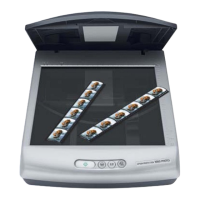
Perfection 1670 Photo scanner
(cover includes transparency unit)
CD-ROM with
EPSON Scan driver,
software, and
electronic manuals
USB cable
Film holder
Power cord and AC adapter
IMPORTANT!
Leave the sticker in
place until you are
instructed to remove it
Click Install
Remove sticker
AC adapter
Power cord
Select a file format
pec
y t
e pat
to
the folder where you
want to save your
scanned image
Click Save
Scan to
Web
CopyScan to
E-mail
Start
4043588-01 XXX Printed in China XX.XX-XX

 Need help?
 General




 To Next Page
