EasyManua.ls Logo

Epson Perfection 1250 - User Manual

Epson Perfection 1250
58 pages
Print Icon
To Next Page IconTo Next Page
Loading...
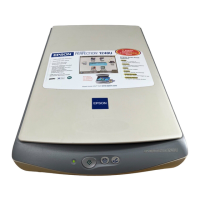
EPSON Perfection 1250/1250 PHOTO
Color Image Scanner
TM-PERF1250
Printed in U.S.A.
®
Service Manual

Other manuals for Epson Perfection 1250

Questions and Answers

  • W
    Wayne WardJul 29, 2025
    Why does my Epson Scanner image isn’t scanned clearly?
    • K
      kenneth91Jul 29, 2025
      If your Epson scanner isn't producing clear images, there are several things you can check: * Ensure the document glass is clean. If necessary, gently clean it with a soft, dry cloth, or a neutral cleaning agent followed by drying. * Inspect the lamp for dirt or dark spots and clean or replace it if needed. * Examine the mirror in the carriage unit and clean it if necessary. If cleaning doesn't resolve the issue, the main board may need to be replaced. If problems persist, the issue might stem from an optical problem in the carriage, mirror unit, or CCD sensor unit, potentially requiring replacement of the entire scanner mechanism.
  • G
    gloverdillonAug 4, 2025
    What to do if Epson Perfection 1250 doesn’t receive data from computer?
    • J
      Joy HuntAug 4, 2025
      If your Epson scanner isn't receiving data from the computer, check these possible solutions: * Make sure the USB controller is enabled. * Reinstall the TWAIN driver user interface via the Add/Remove Programs in the Windows Control Panel. * Try replacing the USB cable, as the current one may be defective. If none of these steps work, the main board may need to be replaced.
  • E
    ernest19Aug 10, 2025
    What to do if Epson Scanner lamp does not come on?
    • S
      Suzanne JohnsonAug 10, 2025
      If the lamp on your Epson scanner doesn't come on, try the following: * Check all connections to ensure they are secure. * Consider that the lamp or inverter board might be worn out, and replace the CR assembly. If the lamp still doesn’t come on, the main board may need to be replaced.
  • S
    Samantha WilliamsAug 16, 2025
    How to fix Epson Scanner carriage that doesn’t move?
    • J
      Jonathan MoodyAug 16, 2025
      If the carriage in your Epson scanner isn't moving, check these potential solutions: * Ensure that CN4 is connected to the main board. * Inspect the carriage motor for short circuits or open coils by disconnecting CN5 and checking resistance: between pins 1 and 3: 18.4 ohms, and between pins 2 and 4: 18.4 ohms. Replace the motor if it's defective. If these steps don't resolve the issue, the main board may need to be replaced.
  • R
    Regina LambAug 22, 2025
    What to do if Epson Scanner optional TPU doesn’t operate?
    • M
      markclarkAug 22, 2025
      If the optional TPU on your Epson scanner isn't operating, verify that CN6 is properly connected to the main board. Also, check if the TPU is receiving power by checking the voltage of the lamp (should be 24 volts) and the sensor circuit (should be 5 volts). Replace the TPU as necessary. If the TPU still doesn’t operate, replace the main board.

Summary

FCC Compliance Statement

Guide to Using This Manual

Symbols Used in This Manual

Explains the meaning of icons used in the manual for warnings and tips.

General Precautions

Product Basics

Features

Details the key features of the EPSON Perfection 1250 scanner, including resolution and speed.

Control Panel

Explains the function of the scanner's control panel buttons and indicator lights.

Technical Overview

Basic Operation

Describes the fundamental operation of the scanner's engine.

Carriage Assembly

Details the structure of the scanner's carriage assembly, including key components.

Carriage Mechanism

Explains the movement and scanning process of the carriage.

Control Circuit Overview

Provides an overview of the scanner's main integrated circuits and their functions.

Troubleshooting

Overview

Outlines the general steps for troubleshooting scanner issues.

Error Processing

Explains how the scanner handles and indicates errors.

Scanner Self-Diagnostics

Details how to diagnose problems using LED indicators.

Unit-Level Troubleshooting

Provides specific procedures for resolving common scanner malfunctions.

Disassembly & Assembly

Overview

Introduces disassembly/assembly safety and general guidelines.

Required Tools

Lists the necessary tools for performing service procedures.

Screws

Provides information on screw types and abbreviations used in the scanner.

Disassembly Procedures

Step-by-step instructions for dismantling major scanner components.

Maintenance

Overview

Guidelines for cleaning and maintaining scanner quality.

Lubrication

Procedures for lubricating scanner parts to prevent noise and ensure smooth operation.

Appendix

Specifications

Provides detailed technical specifications for the scanner and its components.

Interface Specifications

Details the scanner's USB interface configuration and pin layout.

Control Codes

Lists the command set supported by the scanner for operation.

Circuit Diagram

Shows the electrical schematics for the scanner's control circuits.

Parts List and Exploded Diagrams

Lists part numbers and provides visual breakdowns of scanner components.

Epson Perfection 1250 Specifications

General IconGeneral
Optical Resolution1200 x 2400 dpi
Max Document Size8.5 x 11.7 inches
InterfaceUSB 1.1
Scanner TypeFlatbed
Light SourceCold cathode fluorescent lamp
Scan Speed5 ms/line (monochrome), 15 ms/line (color)

Related product manuals