EasyManua.ls Logo

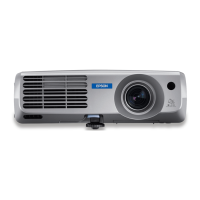
Epson PowerLite 61p - User Manual

Epson PowerLite 61p
116 pages
Print Icon
To Next Page IconTo Next Page
Loading...
Epson
®
PowerLite
®
61p/81p
Multimedia Projector
User’s Guide

Table of Contents

Other manuals for Epson PowerLite 61p

Questions and Answers

  • M
    mossdebbieAug 8, 2025
    Why can't I monitor or control my Epson Software projector?
    • G
      Garrett BrownAug 9, 2025
      If Epson Software EasyMP Monitor cannot monitor or control the projector, first ensure the network cable is correctly connected; if not, reconnect it. Then, verify the settings in the Network configuration menu. Also, confirm that EasyMP Monitor is correctly installed on your computer by uninstalling and reinstalling it. Ensure all projectors are registered. Finally, the projector's Standby Mode should be set to Communication On (or Network On), or Network Monitoring should be set to On in the configuration menu to enable monitoring and control via EasyMP Monitor in standby mode.
  • F
    Felicia EllisAug 25, 2025
    What to do if Epson Software doesn't send e-mail messages when a problem occurs?
    • J
      Jeffrey CooperAug 25, 2025
      If you are not receiving e-mail notifications from Epson Software when a problem occurs, check that the SMTP server IP address, Port Number, and Recipient mail address are correctly configured. Also, ensure the projector's Standby Mode is set to Communication On (or Network On) or Network Monitoring is set to On in the configuration menu. If the projector has momentarily stopped working due to a critical problem, it won't be able to send e-mails; in this case, and if the projector cannot be reset after checking, contact Epson. Finally, verify that the projector is receiving power and that the circuit breaker hasn't tripped.

Epson PowerLite 61p Specifications

General IconGeneral
BrandEpson
ModelPowerLite 61p
CategoryProjector
LanguageEnglish

Related product manuals