E
Start printing by dragging and dropping the data.
Printing Files from a
Shared Folder (Print from
Folder) (SC-T3100M
Series Only)
Function Summary
You can select and print a file from a shared folder on
the network that has been setup in advance.
Do the settings for the shared folder on the printer's
screen or on Web Config.
U “Preparing a Shared Folder” on page 98
The following files can be printed from a network
folder/FTP.
❏ JPEG
❏ HP-GL/2
❏ TIFF
❏ PDF (only data created on an Epson printer)
Preparing a Shared Folder
Setup from the printer
A
Touch Settings on the Home screen.
B
Touch General Settings - Network Settings -
Advanced - Shared Folder.
The shared folder settings screen appears.
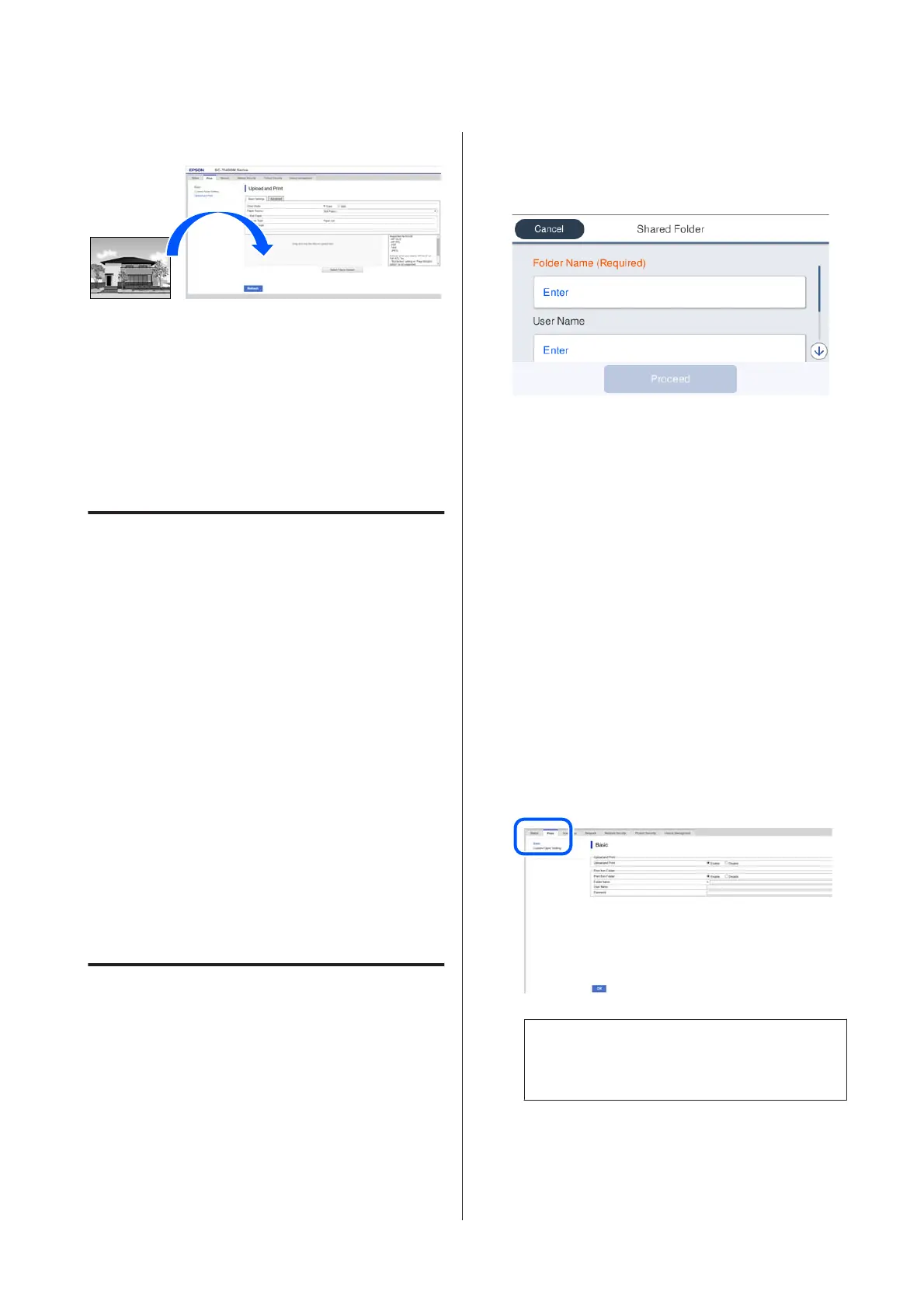
C
Enter each item.
❏ Folder Name: Within 255 characters, enter
the network path for the shared folder.
❏ User Name: Enter the user name that you use
to log into the computer.
❏ Password: Enter the password that you use to
log into the computer.
D
Touch Proceed to complete the settings for the
shared folder.
Setup from Web Config
A
Start Web Config.
U “How to Start” on page 25
B
The Print tab appears. Click Basic.
Note:
If the Print tab does not appear, contact your
system administrator.
C
Enter each item for Print from Folder.
❏ Print from Folder: Select enable.
❏ Folder Name: Enter the network path for the
shared folder.
SC-T3100M Series/SC-T5100 Series/SC-T3100 Series/SC-T5100N Series/SC-T3100N Series/SC-T2100 Series User's Guide
Printing without Using the Printer Driver
98


 To Next Page
 Loading...