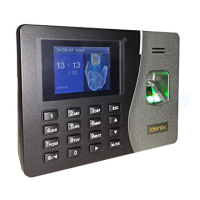
Getting Start
2)Input the enrolling number (the range is 1 to 65534), press [OK],
The following appears:
3)If the test is successful three times in a row, the following
appears:
4)Press [OK], the previous message continues to be displayed
while the template is created. If your identity cannot be verified,
you are prompted to try again. And you must restart the verification
procedure (Step 2).
4.1.2 Password Enrollment
1)Press the MENU button to enter the User enroll,Access the
password enrollment, press [OK], the following appears:
Note:00005-0
The last number 0 means
The first fingerprint
New Enroll
00011-0
ESC OK [Save]
New Enroll
00011-0
Place Finger……
ESC
Enroll Pwd
New Enroll?
ESC OK



 To Next Page