
 Need help?
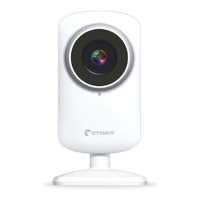
Do you have a question about the eTIGER ES-CAM2A and is the answer not in the manual?
Instructions to download the iSecurity+ app for Android and iOS.
Steps to plug in the camera and turn on its Wi-Fi switch.
Guide to connecting your smartphone to the ES-CAM2A's Wi-Fi network.
Launch the app and detect the camera for setup.
Follow the installation assistant steps to configure the camera.
Select the option to connect the camera to the internet.
Choose the Wi-Fi network for the camera's internet connection.
Input the password for the selected Wi-Fi network.
Create a new iSecurity+ account with necessary details.
Access your account by entering username and password.
Name and describe your camera for iOS and Android interfaces.
Turn off the Wi-Fi switch to complete the installation process.
Confirmation of successful setup; access camera via app.
Interface for taking pictures, managing sound, and recording video.
Rename camera, share access with friends via web browser.
Manage camera status, view rotation, and infrared LEDs.
Configure picture frequency, quality, video size, and microphone.
App notifications for detected intrusions or movements.
Access camera feed from a computer via a provided link.
Instructions for physically mounting the camera on a wall.
Meaning of LED lights for Wi-Fi, network, and power status.
How to reset the camera using its reset button.
Detailed technical specifications of the IP camera.
Important safety instructions for using the camera.
Warnings regarding electric shock, opening the device, and exposure.
FCC rules and interference guidelines for US users.
Information on app updates and website for more details.
 General
| Brand | eTIGER |
|---|---|
| Model | ES-CAM2A |
| Category | Security Camera |
| Language | English |

 To Next Page
