7
STEP2: Select the functions when needed:
FUNCTION ICON DESCRIPTION
Resolution
--
Select the video resolution for the DPTZ function. Only “VGA” and “QVGA” are available.
Take snapshots
Click to take a snapshot of the current view on a new window. Right click on the picture and re-save it to the
location you want.
Alarm Out*
Click to force your alarm-out device to work. For example, when your alarm device is a buzzer, click this button
and your buzzer will start to sound even if there’s no alarm event.
* For selected models only
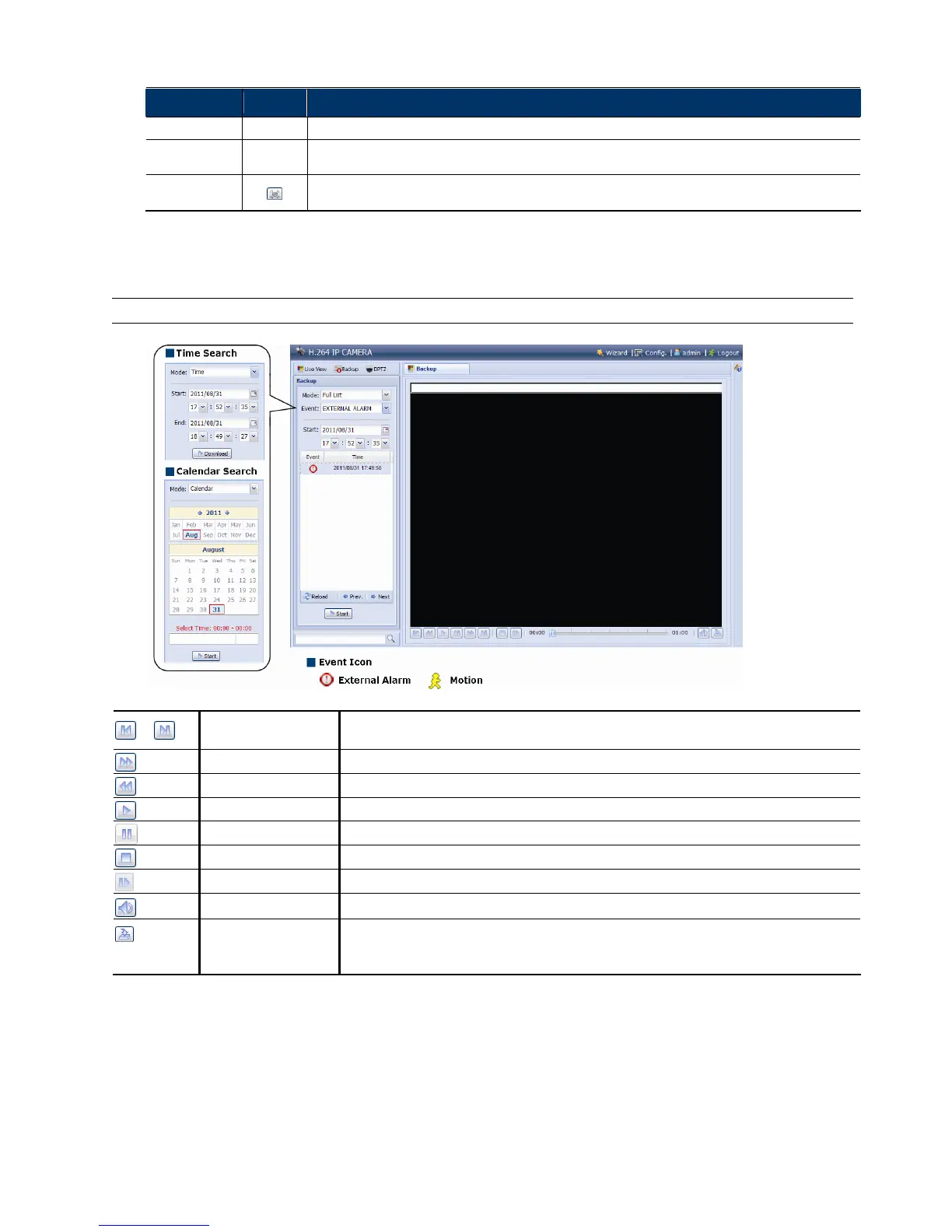
2.4 Event Record Search & Playback
Note: To save more recorded data, it’s recommended to use this camera with a compatible NVR.
/
Previous / Next Hour
Click to jump to the next / previous time interval in an hour, for example, 11:00 ~ 12:00 or 14:00
~ 15:00, and start playing the earliest event video clip recorded during this whole hour.
Fast Forward Increase the speed for fast forward. Click to get 2X, 4X, 8X & 16X speed forward eventually.
Fast Rewind Increase the speed for fast rewind. Click to get 2X, 4X, 8X & 16X speed rewind eventually.
Play
Click to play the current video clip.
Pause
Click to pause the video playback.
Stop
Click to stop the video playback.
Step In the pause mode, click to get one frame forward.
Audio Click to mute the playback if necessary, and click again to restore.
Download
Click to download the current video clip to the specified path in your PC.
The downloaded video can only be opened by our own video player. Please go to “General”
→
“Maintenance” to
download the video player, or get the player from the CD supplied with the sales package.



 To Next Page