18
3.2.13 Network Share (For selected models only)
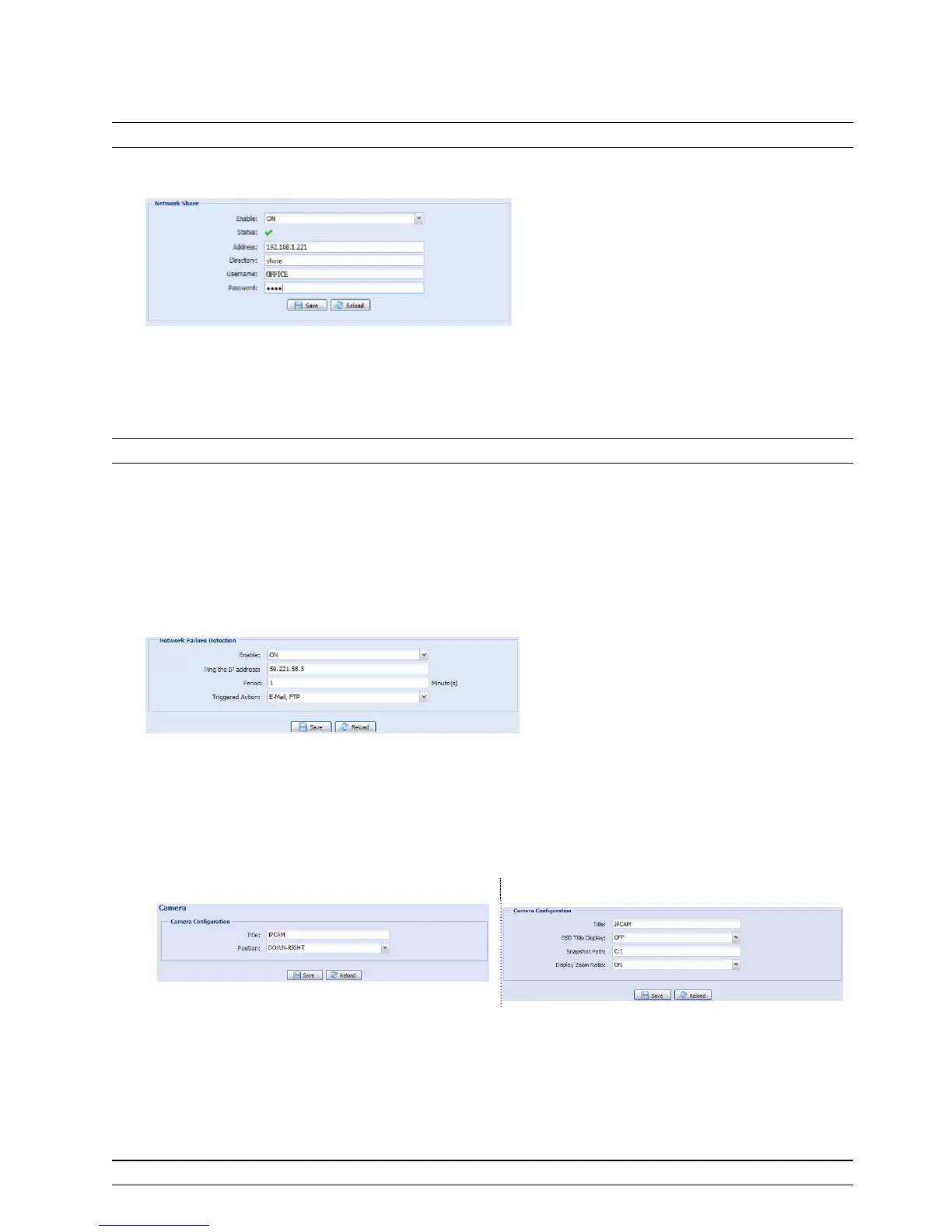
This function is used to assign a location in the LAN environment to save the snapshot of events.
Note: This function is available only for Windows operating systems.
The information you set here will be applied when “Network Share” is selected in “Trigger” → “Snapshot” →
“Storage Mode”.
To use this function, make sure:
A PC is installed in the same LAN environment as this camera, and you know the IP address of the PC.
A PC account is created as “Administrator” with a user name and password.
A folder in the PC is opened as shared to the user account you assigned.
Note: Please check “APPENDIX 9 PREREQUISITES FOR NETWORK SHARE” at page 50 for more details.
Enable this function, and enter the address of the PC, the folder being shared, and the user name and password
to access the PC. If the information is all correct, you'll see a check in the “Status” column, and you’re ready to
go to “Trigger” → “Snapshot” for further configurations.
3.2.14 Network Failure Detection (For selected models only)
Configure this camera to check the network connection of other device periodically, and send notifications via
Email or FTP for disconnection events.
3.3 Camera
3.3.1 Camera
Rename the camera, and change the place where the camera name is shown on the screen, UP-LEFT /
UP-RIGHT / DOWN-LEFT / DOWN-RIGHT. "Snapshot Path” is used to specify the path to save snapshot files.
Type A Type B
3.3.2 Video
Adjust video-related settings in different video format.
“Quality” is related to image clearness.
“FPS” is related to the fluency of the video. The more the FPS, the more fluent the video.
“Max Bit Rate” is the maximum limitation of data transmission in the selected image format and resolution.
Take 2 megapixel model as an example below. For 1.3 megapixel model, please refer to its actual display.
Note: QQVGA is for mobile surveillance only.



 To Next Page