48
APPENDIX 8 ENABLE PUSH VIDEO
A8.1 What’s Push Video
“Push Video” is an active notification system, different from traditional FTP & Email notification methods. It’s more
active and stable, but also easier to be affected by your network bandwidth.
When “Push Video” is enabled and any alarm event occurs, you’ll be able to receive notifications on your iPhone /
iPad / Android mobile device within 5 seconds.
A8.2 Prerequisites
Before configure Push Video, make sure you have checked the following:
You have an iOS or Android mobile device with our self-developed APP, “EagleEyes”, installed.
You have configured the IP address of your camera in the EagleEyes address book, and it’s accessible from
your iOS or Android mobile device.
A8.3 Enable Push Video
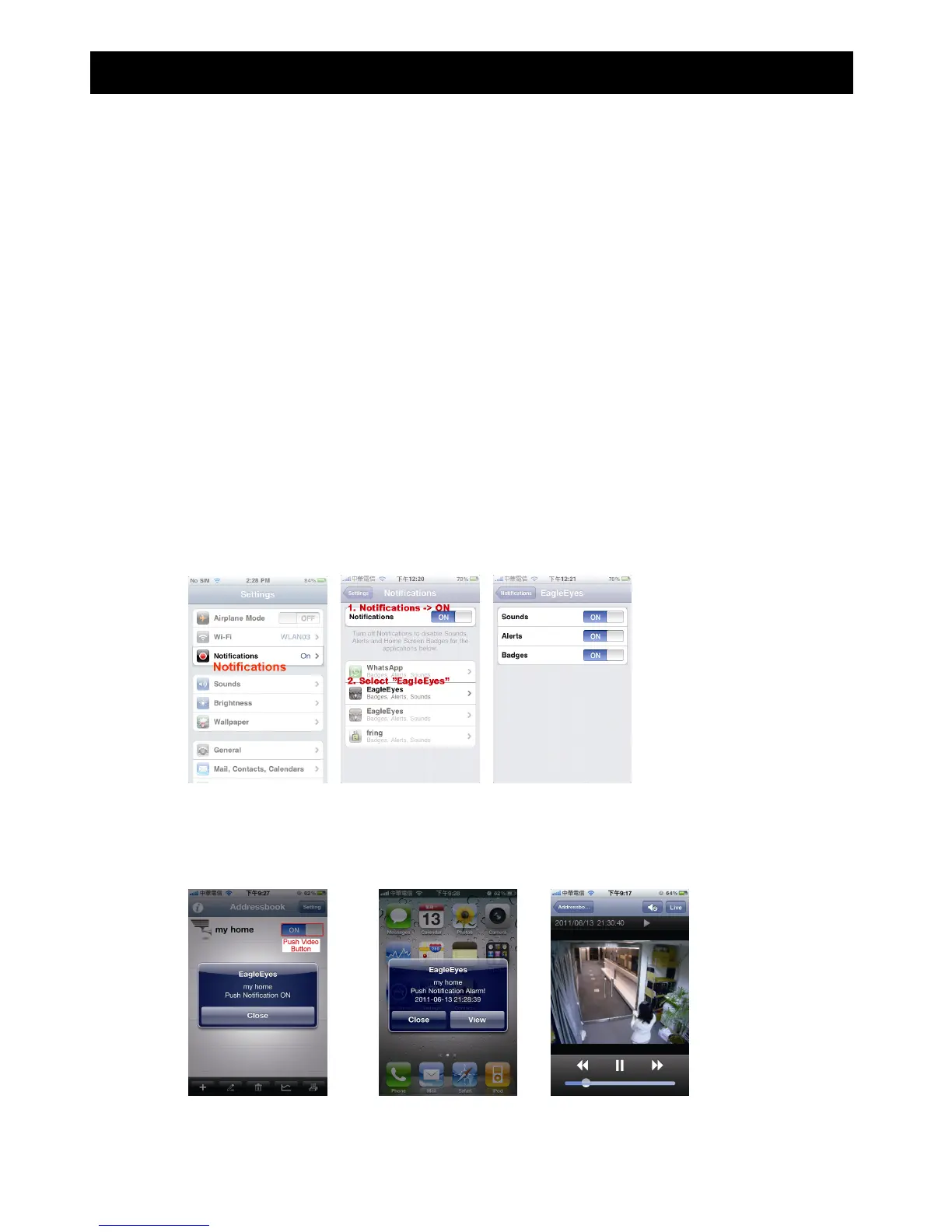
A8.3.1 From iOS devices
Step1: In the main screen, select “Settings” “Notifications”.
-- Make sure “Notifications” is set to “ON”.
-- Select “EagleEyes”, and make sure its settings are set to “ON”.
Step2: Open “EagleEyes”, and switch the Push Video button to “ON”. You’ll receive the message indicating that
Push Notification (Push Video) is on.
Step3: Return to the main menu of your iPhone / iPad. You’ll receive event notifications when there’s a human
detection event. Select “View” to immediately play the recorded clip.



 To Next Page