NOTES
The app supports iOS versions 13.0 and above and
Android versions 8.0 and above. The app is not available
for use with tablets.
This model does not support a WEP encrypted router.
The home wireless network name and password must
contain only letters, numbers and standard symbols.
The network accessing configuration of the robotic vacuum
requires a wireless network of 2.4GHz frequency range.
The robotic vacuum must be connected to wireless network
to enable controlling the robotic vacuum using the app.
Once you have set up the app and connected the robotic
vacuum to wireless network, the app can be used to control
the robotic vacuum in the wireless network/2G/3G/4G/5G
network environment.
If your home wireless network password is changed or the
router is replaced, the robotic vacuum will show as oine in
the app; you will need to reconnect the robotic vacuum to
the wireless network following the wireless network
connection instructions.
●
●
●
●
●
●
In the App Store or Google Play, search for eureka
robot, download and install the app.
Open the Eureka app and complete the
registration process, which includes an email
address confirmation, and once you have
confirmed your email address you can log in
and follow the setup instructions in the app.
Connect your phone to your home wireless
network.
In the app select Add Devices and choose
the device NER E10s.
Connect your robotic vacuum to your wireless
network. After assembling and powering on the
robotic vacuum, press and hold the " " button
for 3 seconds until a beep is heard.
The network indicator light should start flashing
white. Follow instructions on app for next steps.
1.
2.
3.
4.
5.
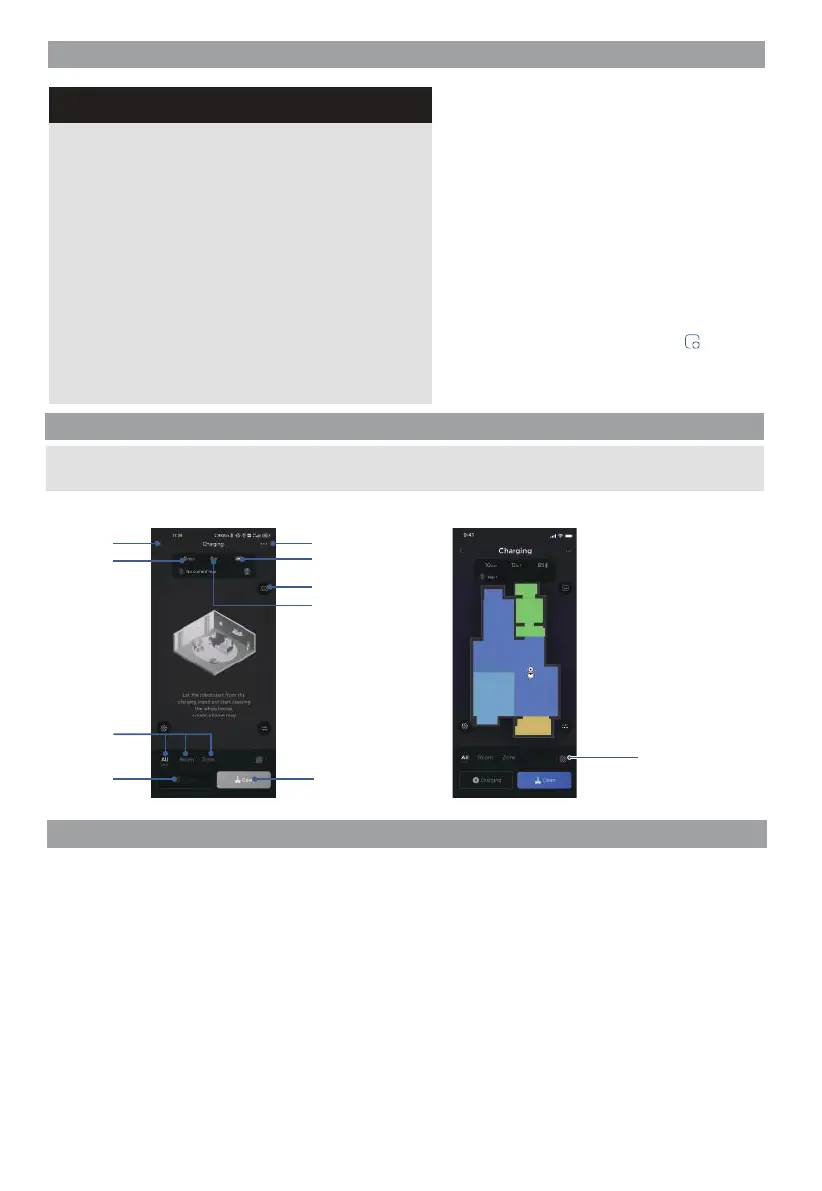
Setting Up App and Connecting the Device
Using Eureka Robot App
Back to
previous
page
Robotic Vacuum
settings
Cleaning area
Start cleaning
Battery
Cleaning
mode
Recharge
Cleaning
time
Map album
Amazon Alexa
1. Open Amazon Alexa App
2. Select ‘Skills & Games’ and search for
Smart Eureka Robot and select
3. Enable the Smart Eureka Robot skill
4. Your Eureka Robot app will then open and you
will login using your Eureka Robot app credentials
5. The Smart Eureka Robot skill and the app should now
be successfully linked, and this will be indicated on the
Amazon Alexa app.
6. You can now use the following commands to
control the robotic vacuum:
“Alexa, turn on vacuum”
“Alexa, turn o vacuum”
“Alexa, set charge mode on”
Google Home
1. Open Google Home App
2. Search for Smart Eureka Robot and select
3. Link Smart Eureka Robot skill
4. Your Eureka Robot app will then open and you will
login using your Eureka Robot app credentials
5. The Smart Eureka Robot skill and the app should
now be successfully linked
6. You can now use the following commands to
control the robotic vacuum:
“Hey Google, Start the vacuum”
“Hey Google, Stop the vacuum”
“Hey Google, Charge the vacuum”
Using Amazon Alexa or Google Home
NOTE: If the wireless network in your home is unstable, it may cause issues with the operation of the Eureka Robot App.
The content of the Eureka Robot App may change when the version is updated. Please refer to the Eureka Robotic
Vacuum interface for details. This interface will be upgraded later, this interface is for reference only.
www.eureka.com
13
Custom regions
NOTE: When you start clean,
the machine automatically
scans and creates a map.


 To Next Page