ECOR960 4F2 / 8F2 / 16F2
4.2 Layout Switching
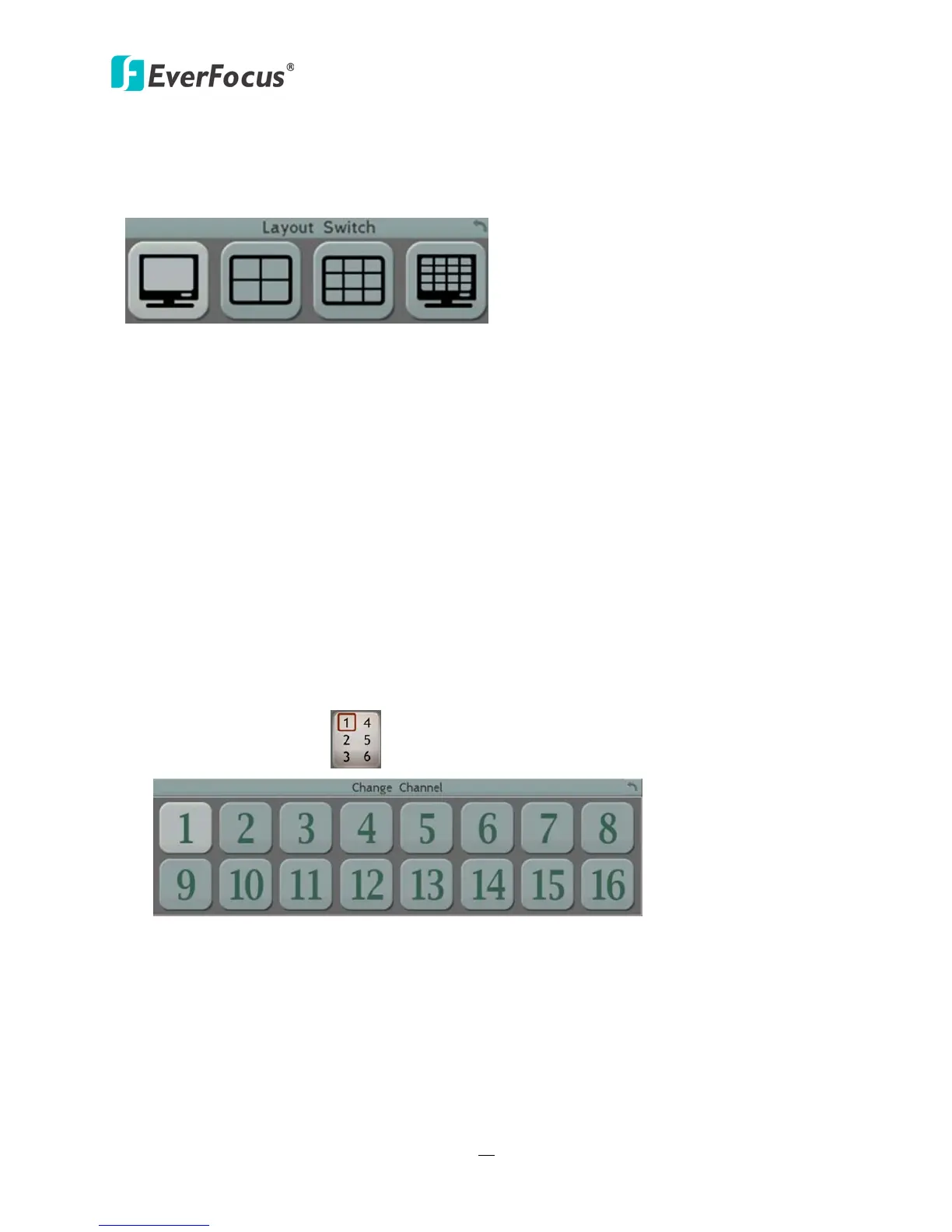
The TUTIS DVR have 4 screen division types available. The four layouts are shown as below:
Figure 4-4
To change layout, follow the steps below:
By mouse: Right-click to bring up the OSD Root Menu and click the Layout icon. Click on the
desired layout.
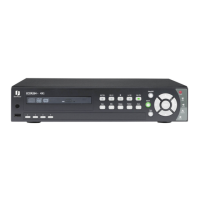
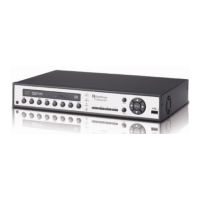
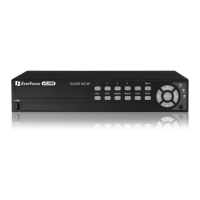
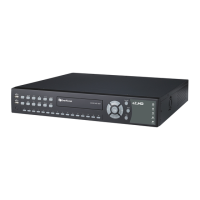
By front panel: Press the View button on the front panel of the DVR to switch to a desired
layout. To display a channel in full-screen, press the channel buttons on the front panel.
4.3 Channel Switching
You can switch the selected camera to a specific channel. Follow the steps below:
1. On the live view screen, select a camera, the selected camera will be highlighted with a red
frame.
2. Right-click to display the OSD Root Menu.
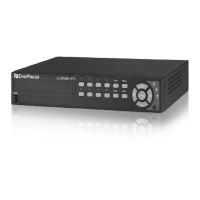
3. Click the Channel icon , the Channel Bar appears.
Figure 4-5
4. Select a channel, the selected camera will be switched to that channel.



 To Next Page