11
eXact iDip
®
app overview
Download the App
Using your smart device, download the eXact iDip
®
app. To see if your smart device is compatible, please
see our compatibility list at sensafe.com/compatible-devices/.
We are constantly improving the eXact iDip
®
app and welcome your suggestions to help make our
product even better. Visit www.sensafe.com/idip or e-mail your feedback to exactidip@sensafe.com.
Menu
The Menu slide-out is available from any screen within the app. The Menu allows you
to access any of the app’s features with ease.
HOW TO VIEW YOUR GPS LOCATION
ln the Settings screen you can view your current GPS coordinates.
ABOUT
Access the End-User License Agreement and contact information to reach our offi ces in the USA and
Europe from the
About section located in the Menu slide-out.
Located in the About section you can fi nd which version of the app you are running. Be sure to check
for updates and install the latest version before running a test as we are constantly updating and adding
more features to the app!
Test
You can utilize two different testing methods under Test; Manual Entry or Bluetooth Device.
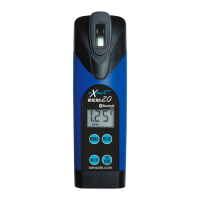
BLUETOOTH TEST
Tests will be performed with your eXact
®
Micro 20.
MANUAL TEST
This feature allows you to utilize other testing methods and manually enter your results into the app. Begin
by selecting
‘Test’, ‘Manual entry’, then ‘Change value’ to enter.
History
The History stores all your saved test result information and allows you to sort by date,
customer name, or test type.
HOW TO SORT BY CUSTOMER
To sort by Customer begin by clicking ‘RESULTS’, then ‘Sort by’, ‘Customer’. You can then scroll
through your list of customers, by name, to fi nd a specifi c test result.
HOW TO SORT BY DATE
To sort by Date begin by clicking ‘RESULTS’ then ‘Sort by’, ‘Date’. You can then scroll through a list of
tests performed by date. You can also set a specifi c date range period by selecting
‘Date range’.
Then set your
From and To date ranges.
HOW TO SORT BY TESTS
To sort by Test begin by clicking ‘RESULTS’ then ‘Sort by’, ‘Test’. You can then scroll through a list of
tests sorted in alphabetical order.
HOW TO ACCESS HISTORY MAP
The History Map stores GPS locations of testing sites. See page 13 for instructions on utilizing this feature.


 To Next Page