52
Viewing Snapshots and Movies
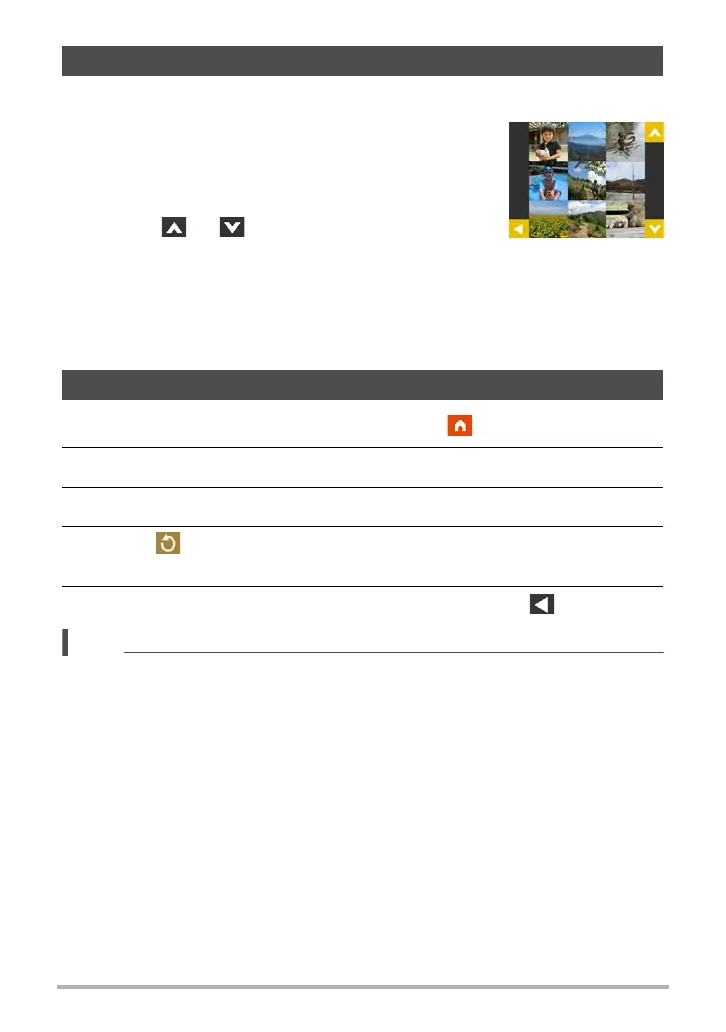
The image menu shows multiple images on a single screen.
1. On the PLAY mode main screen, touch “]”.
This displays the image menu.
• While the main screen is displayed, spread (to
enlarge) or squeeze (to reduce) your fingers on
the screen to zoom the displayed image.
• Touch “ ” or “ ” or flick upwards or
downwards to scroll to the next page of images.
• To view the normal (single image) display mode,
touch the image your want to view.
• In the case of a movie, the first image in the movie is displayed.
• A question mark (?) will be displayed for images that cannot be displayed for
some reason.
1. On the PLAY mode main screen, touch the “ ” (Home) icon.
2. On the home screen, touch “MENU”.
3. Touch “Rotation”.
4. Touch “ ”.
This will rotate the image 90 degrees to the left.
5. When the image is in the orientation you want, touch “ ”.
NOTE
• For information about menu operations, see page 42.
Viewing the Image Menu
Rotating an Image (Rotation)


 To Next Page