19
English
LED Keyboard
Your system supports 2 types of keyboards:
• Multi-Color LED Keyboard - You can change the color
for the multi-color LED keyboard.
• Full Color “Per Key” LED Keyboard (Factory Option) -
You can change the colors for individual keys on the full
color “Per Key” LED Keyboard.
The LED Keyboard application can be accessed by click-
ing LED Keyboard in the Control Center (or by press-
ing the Fn plus key) or from the Start menu in
Windows .
The keyboard LED may be configured using the Fn + key
combination outlined in the table below.
Table 4 - Keyboard LEDs
Multi-Color LED Keyboard
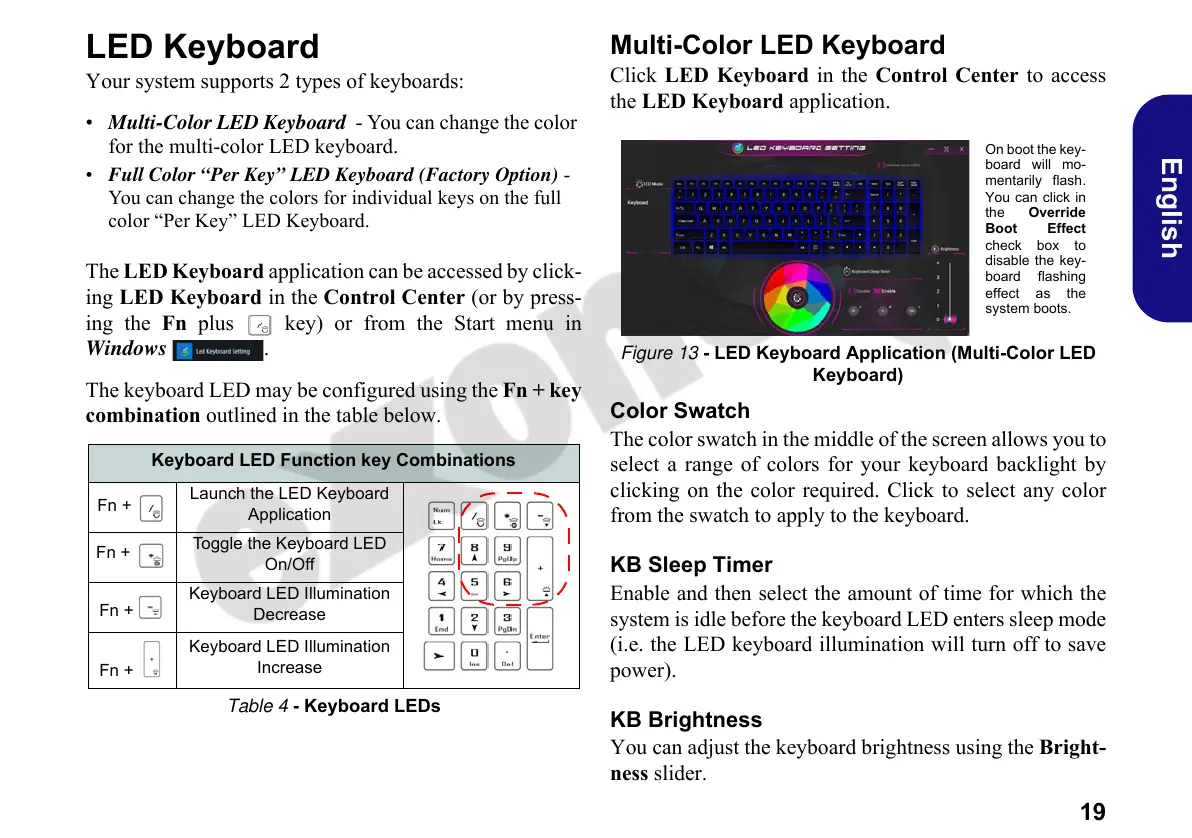
Click LED Keyboard in the Control Center to access
the LED Keyboard application.
Figure 13 - LED Keyboard Application (Multi-Color LED
Keyboard)
Color Swatch
The color swatch in the middle of the screen allows you to
select a range of colors for your keyboard backlight by
clicking on the color required. Click to select any color
from the swatch to apply to the keyboard.
KB Sleep Timer
Enable and then select the amount of time for which the
system is idle before the keyboard LED enters sleep mode
(i.e. the LED keyboard illumination will turn off to save
power).
KB Brightness
You can adjust the keyboard brightness using the Bright-
ness slider.
Keyboard LED Function key Combinations
Fn +
Launch the LED Keyboard
Application
Fn +
Toggle the Keyboard LED
On/Off
Fn +
Keyboard LED Illumination
Decrease
Fn +
Keyboard LED Illumination
Increase
On boot the key-
board will mo-
mentarily flash.
You can click in
the Override
Boot Effect
check box to
disable the key-
board flashing
effect as the
system boots.
PC 5070 DDDFDN book v2.book Page 19 Thursday, July 30, 2020 4:29 PM



 To Next Page