11
12
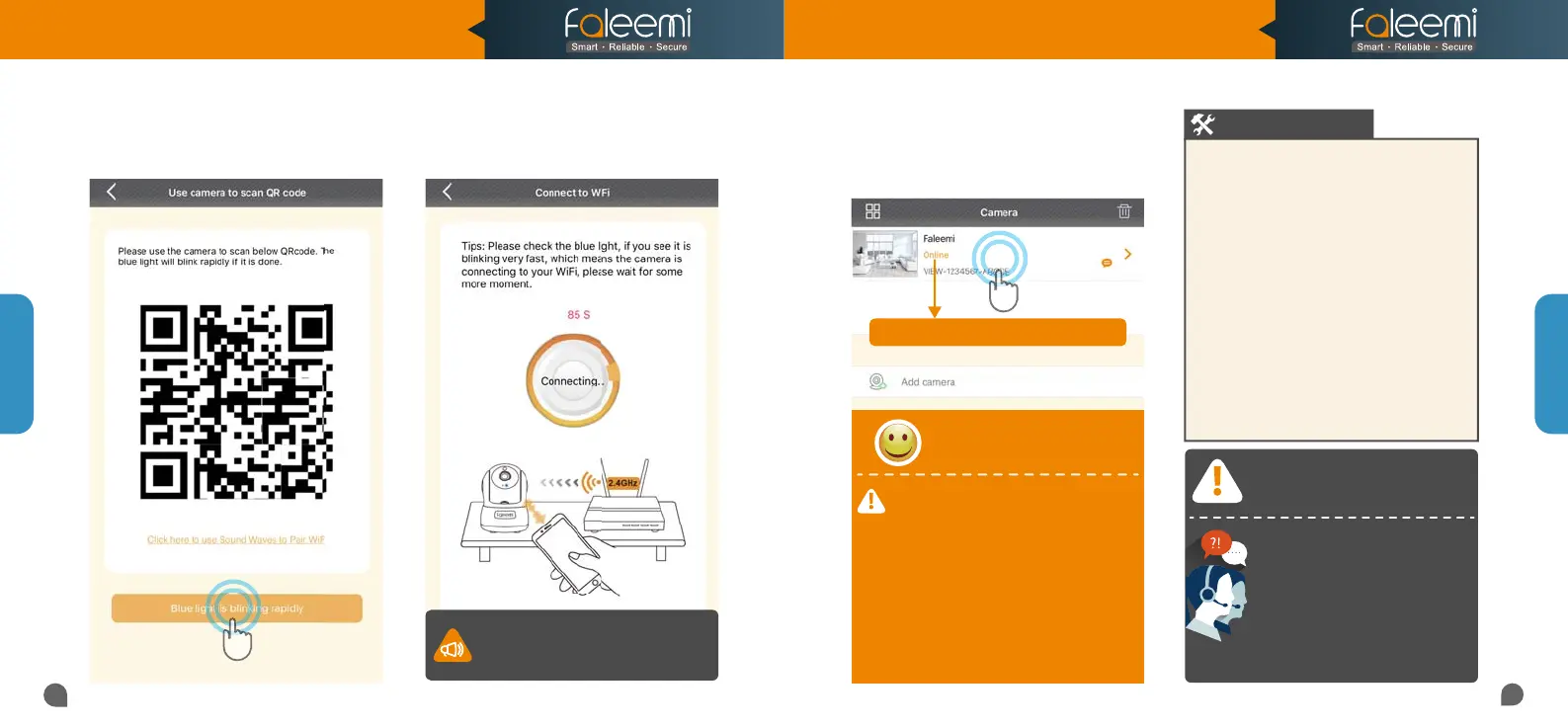
You will see it says the camera is Online.
You will see it says the camera is Online.
12.You will see it says the camera is Online.
Congratulations! Your camera is all set up.
Click on the image to enjoy viewing and
controlling it now.
1. To ensure the security of your camera,
1. To ensure the security of your camera,
you
are suggested changing the default password.
are suggested changing the default password.
Please refer to the instruction in
Please refer to the instruction in
Page 26.
2. You can relocate the camera now. Please just
2. You can relocate the camera now. Please just
unplug it and move it to the new location and
unplug it and move it to the new location and
plug it in, the camera will connect to your WiFi
plug it in, the camera will connect to your WiFi
automatically, no need to set it up again.
automatically, no need to set it up again.
* But please make sure the new location will be
* But please make sure the new location will be
not far from your router.
not far from your router.
Congratulations!
Your camera is connected now
Your camera is connected now
Setup Option B
Setup Option B
If the setting is failed, please find
below solution or contact us by
Email: support@faleemi.com
Skype: support@faleemi.com
Phone: 213 293 3560
EDT: 6am~11am, 8pm~11pm
PDT: 6am~8am, 5pm~12pm
When you call us, please wait some more
When you call us, please wait some more
moment until we pick up the phone.
moment until we pick up the phone.
Troubleshooting
1. If you see the blue light goes off instead
of solid on, the WiFi password you just
input may be wrong. Please hold the reset
button down for 3 seconds again until you
see the blue light is blinking and do the
setup again.
2. If your WiFi password was correct but
still failed, the WiFi you were connected
may be 5GHz WiFi.
3. If all your WiFi and password were
correct, it is still failed, there may be the
special characters # ; \ in your WiFi SSID or
password.
11. Connect to WiFi.
10. When you see the blue light blinks very
rapidly,
click on [Blue light is blinking rapidly].
When the camera receives the WiFi
When the camera receives the WiFi
signal, it will sound with 2 beeps.
signal, it will sound with 2 beeps.
When the connection is successful, it
When the connection is successful, it
will take you to the camera page.
will take you to the camera page.
Model: FSC776B/W
Quick Start Guide
HD Pan/Tilt Wireless Network Camera



 To Next Page