11
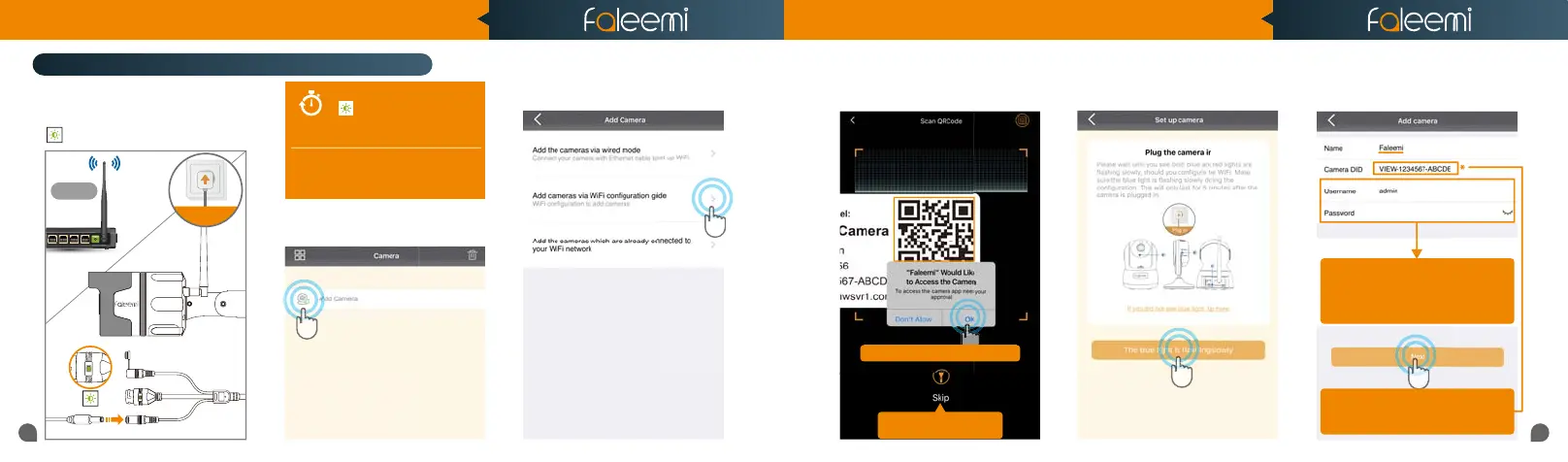
Setup Option C: Add cameras via WiFi configuration guide
12
5. Click on [The blue light is flashing
slowly].
6. Type in the name you have selected for
your camera and click on [Next].
123456
Router
2.4GHz
3. Click on [Add cameras via WiFi
configuration guide].
2. Open the Faleemi App,
click on [Add Camera].
QR Code
1. Please put your camera close to your
WiFi router and plug it in, and then you
will see the green light is blinking slowly.
NOTE
5 mins
Only when it blinks green slowly
, should you start to do the
setup. It lasts only 5 mins after the
camera is powered up.
If you don’t do the setup in 5 mins, please
unplug the camera and plug it in again to
get another 5 mins setting time.
4. Please scan the QR Code at the bottom
of the camera.
If you see this, please click on
If you see this, please click on
[OK]
If you can’t scan the QRcode,
If you can’t scan the QRcode,
please click on
[Skip]
if you can't scan the QR code, please enter the
if you can't scan the QR code, please enter the
DID (something like
VIEW-1234567-ABCDE
in the label on the camera manually.
in the label on the camera manually.
Please use the default username of
Please use the default username of
admin
and password of
123456
here.
You can change them when the camera is all
You can change them when the camera is all
set up. You will find the instructions in
set up. You will find the instructions in
Page 26
Quick Start Guide
1080P Weatherproof WiFi Security IP Camera
Model: FSC861



 To Next Page