22
Section 3: Software Operation
It is recommended that the user familiarize themself with
the software by reading this section prior to using any
portion of it.
3.1 Falex 400 Software Program
GENERAL NOTES: Various software screens have
similar buttons which are discussed below.
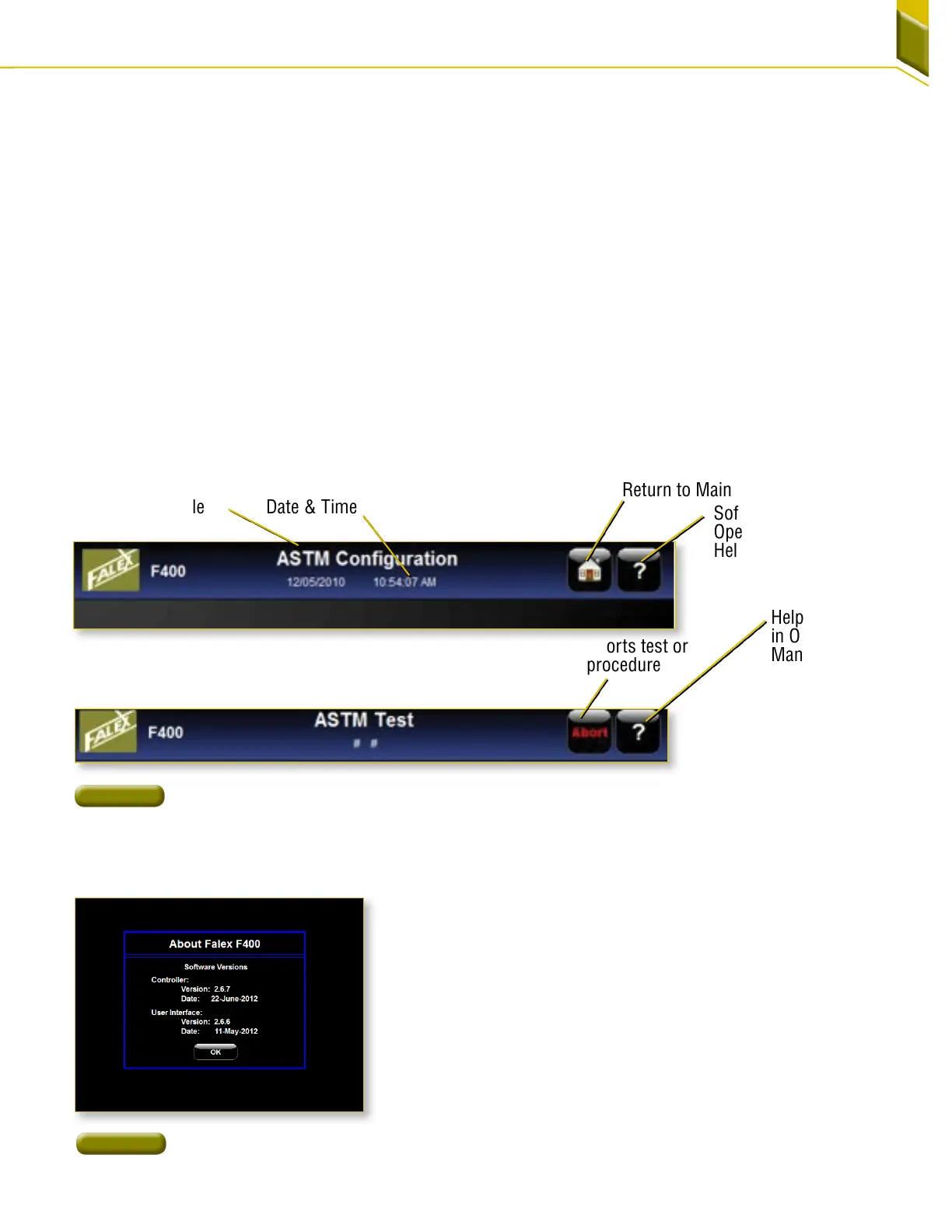
HEADER: Each screen has a blue shaded header.
The center of the header has the screen title with the
date and time displayed underneath. The time is shown
in standard or military format depending on the user
preference. The headers right side may have an abort
button or a home button. The home button returns to
the Main screen while the abort button will end the
current process. The ‘?’ invokes the software version on
the main screen [Figure28]. The '?' invokes a reference
for help on all other screens [Figure27].
Lower right corner buttons: Usually there is a back-
ward arrow, forward arrow or both [Figure29]. The back-
ward arrow directs the user to the previous screen and
the forward arrow advances to the next screen. In many
instances the forward arrow will not appear until certain
conditions are met on the current screen (such as; man-
datory test information entered, a button pushed, a tem-
perature value reached).
Lower left corner buttons: Buttons in the lower left are
for user assistance [Figure29]. Various screens during a
running test have a 'Status’ button which activates a Sta-
tus screen. The Status screen shows live feedback of
critical test data and where that data is taken from.
Aborts test or
procedure
Help Location
in Operation
Manual
Software version or
Operational Manual
Help
Return to Main Screen
Date & Time
Screen Title
Figure 27
Header Bars
Figure 28
Software Build



 To Next Page