28
Section 3: Software Operation
3.3 Data
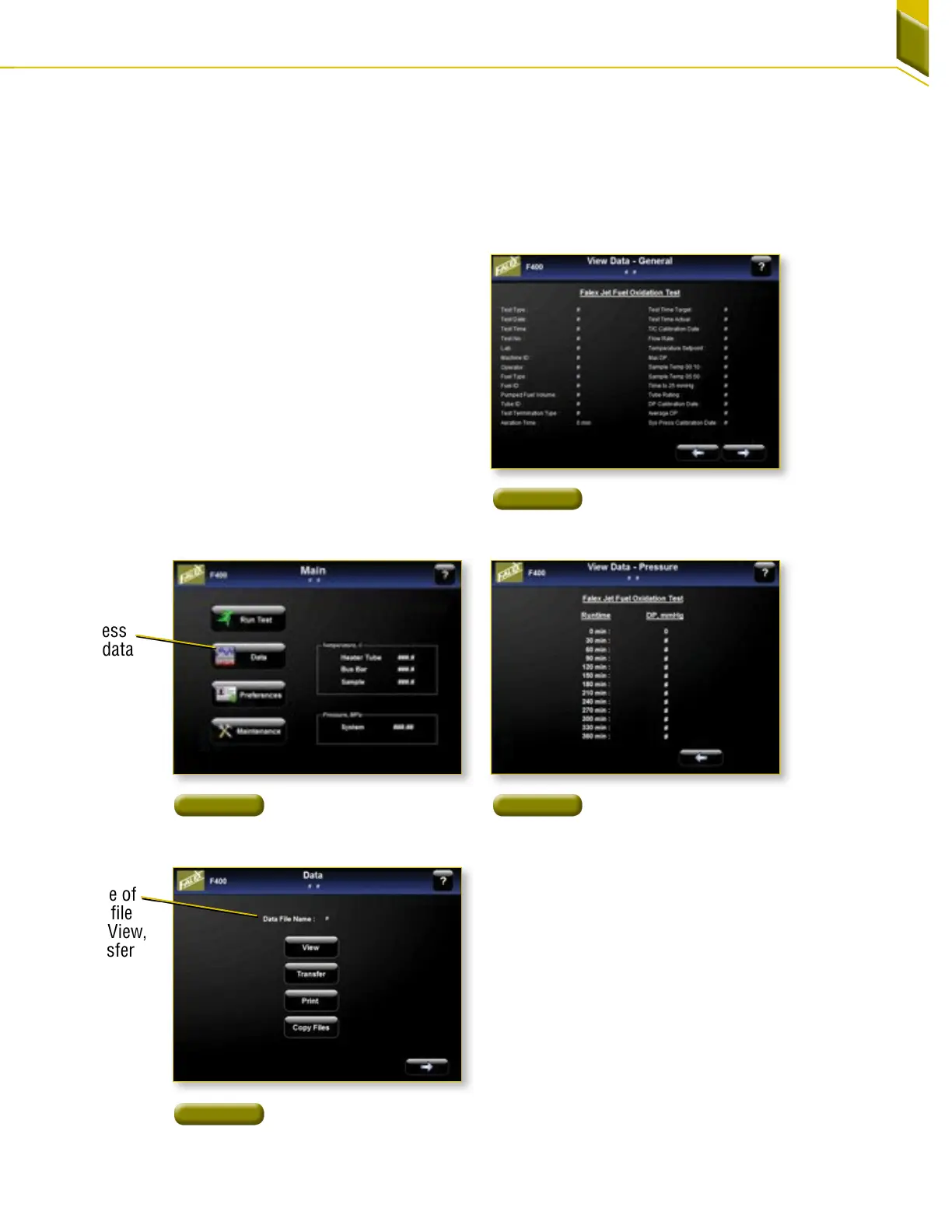
Data: The ‘Data’ screen is accessed from the ‘Main’
screen [Figure 44] or it will automatically appear at the
completion of a successful test. The ‘Data’ menu allows
the user to retrieve the data file from the last test whether
successfully completed or not.
NOTE: If the Falex 400 has had a power cycle since the
last test, data transfer cannot be performed.
The name of the last test run is on the top line on this
screen. This is the file that the first three buttons refer to
[Figure45]. The user can view the test data on the touch
screen, transfer the data from the PLC storage onto the
computer, print this report and/or copy files from the
touch screen to a USB device or Ethernet connection.
Complete data records of DP mmHg, heater tube tem-
perature and system pressure are taken every minute
during a test and are stored in the data file. To retrieve
the data file the operator needs to ‘Transfer’ the data file
and then ‘Copy’ the file to an external device. Data files
are saved in .csv format and can be viewed using ap-
propriate software.
Figure 47
Viewing Data
Page 2 - DP Values
Figure 46
Viewing Data
Page 1 - Test Information
Figure 44
How To Access
Test Data
Figure 45
Data File Name
Name of
data file
that View,
Transfer
and Print
refer to
Access
the data
1. View: This initiates a display of the printout
information from the last run test. There are two
screens. The first ‘View Data –General’ screen
displays test information on the test [Figure46].
Press the forward arrow to advance to the “View
Data-Pressure” screen to see the DP readings
taken every 30 minutes during the test [Figure47].



 To Next Page