25 Section 3: Software Operation
____
________________________________________________________________________________
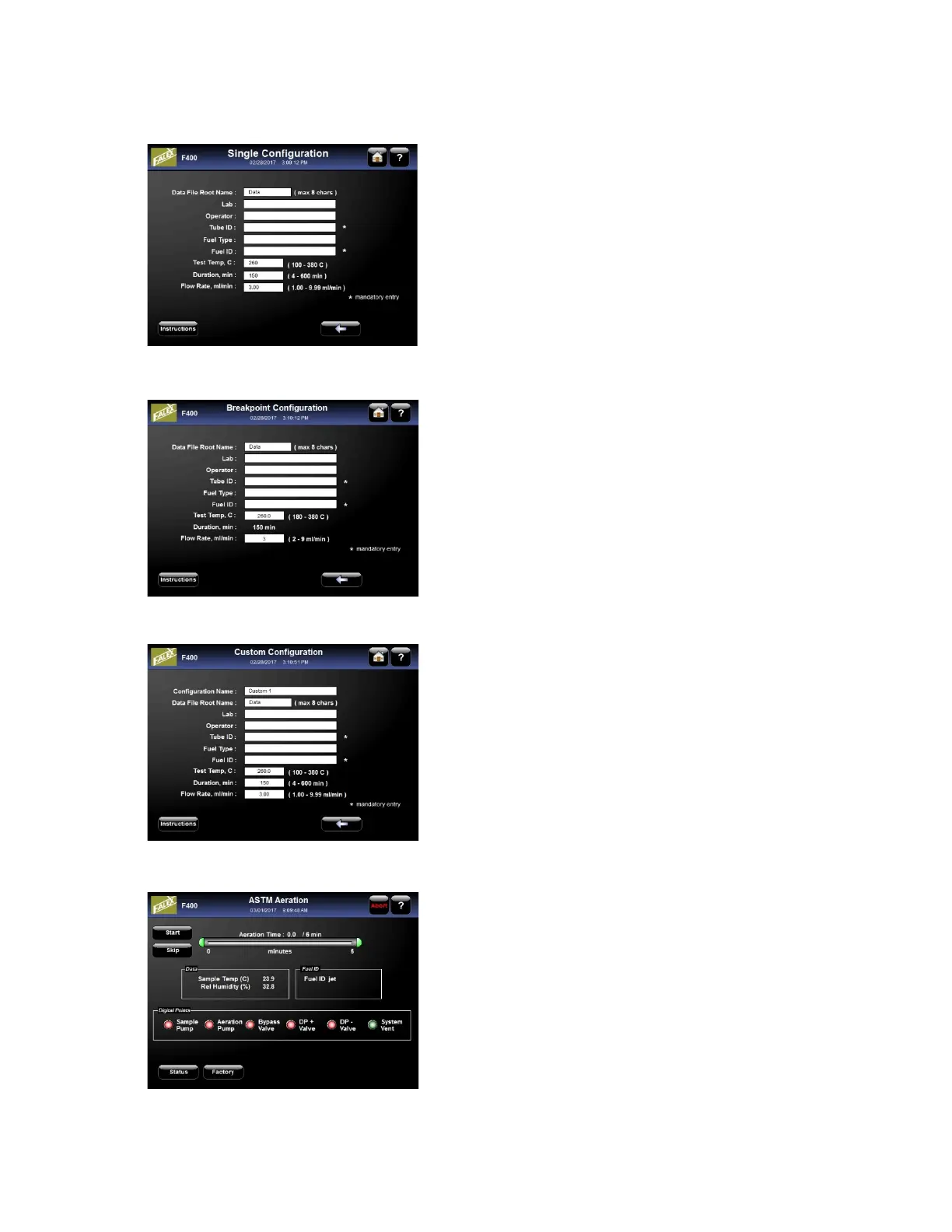
F
igure 35: Single Configuration
F
igure 36: Breakpoint Configuration
Figure 37: Custom Configuration
F
igure 38: Aeration Screen
A. Data File Root Name: The Data File Root
Name can be entered (maximum of 8
characters) or left with the default value. Every
time any configuration screen is entered the
Data File Root Name is Data. This can be
overwritten. Every test run has a sequential
number added to the root name. Once any
combination of 99 tests are run, the sequential
number resets to 01.
B. Lab: A lab name may be entered up to 29
characters in length.
C. Operator: An operator name may be entered
up to 29 characters in length.
D. Tube ID: A Tube ID entry is a mandatory entry.
The value can not exceed 15 characters. The
Tube ID number can be found on the specimen
tube.
E. Fuel Type: A Fuel Type may be up to 29
characters in length.
F. Fuel ID: A Fuel ID entry is required. It may be
up to 15 characters in length.
G. Test Temperature, C: Enter a temperature.
The test will control the temperature of tube
between 100-380°C. Single and Custom test
configurations allow this to be an operator
entry, Breakpoint min temperature is 180°C .
But on ASTM tests this is a fixed value.
H. Duration, min: Enter a time for the test
duration between 4-600 minutes. The timer
begins once the unit has reached the
temperature set point. Single and Custom
configurations allow this to be an operator entry
but is a fixed value in both ASTM and
Breakpoint tests.
I. Flow Rate, ml/min: Enter a pump flow rate
between 1.00-9.99 ml/minute. Single,
Breakpoint and Custom configurations allow
this to be an operator entry but it is a fixed
value for an ASTM test.
4. Aeration Screen: Proceeding from the
Configuration screen the Aeration screen appears
[Figure 38]. The user has the choice to start aeration or
skip aeration.



 To Next Page