3: Detailed User Interface Features
34
8. Selecting this icon will open the selected file within the internal storage of the
corresponding display, or double clicking the selected file (Measurement or Validation).
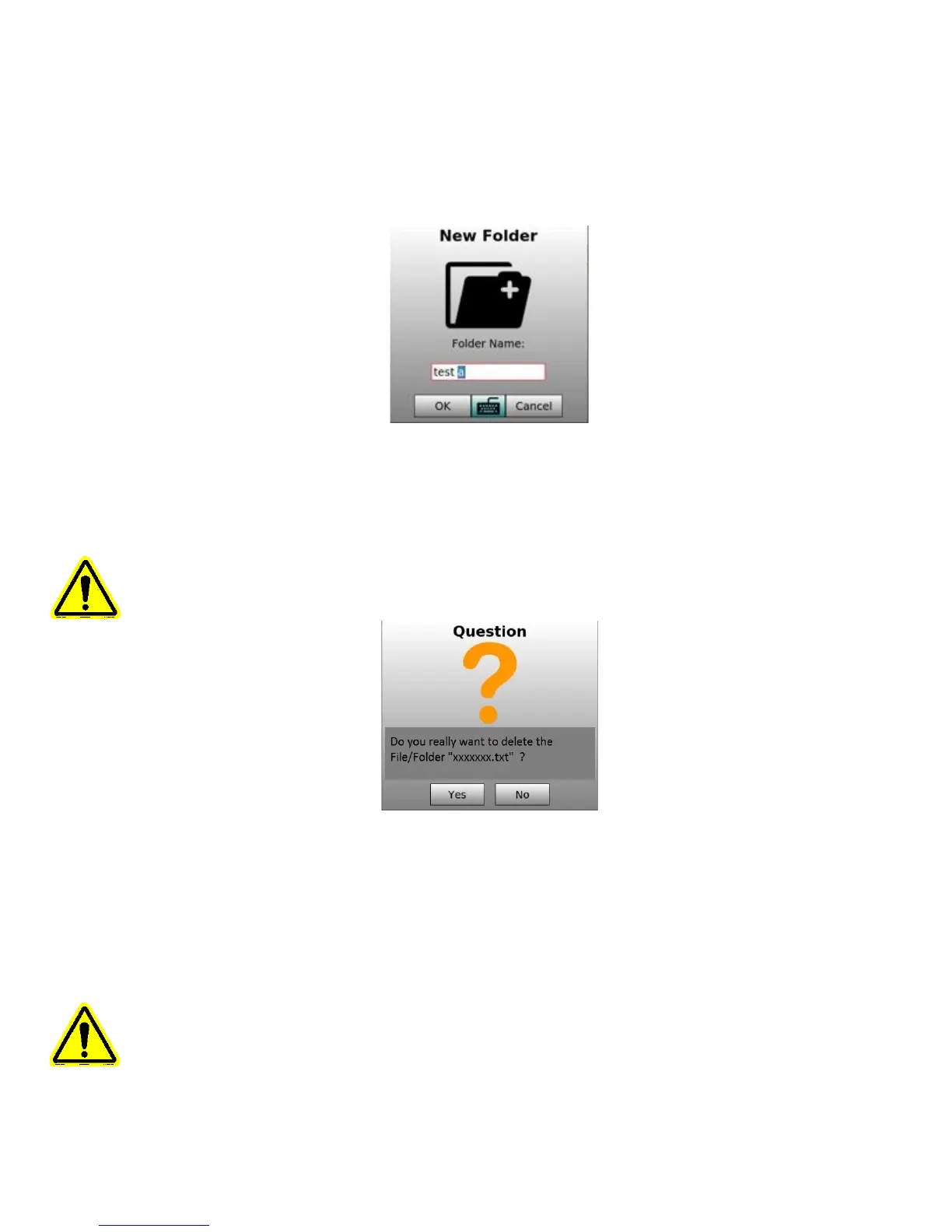
9. Selecting this icon will open the dialog window pop-up (figure 3-8) for creating a new folder
at the selected place within the internal storage.
Figure 3-8 – New Folder Pop-up
10. Selecting this icon will open the dialog window (figure 3-9) for deleting the selected
file(s)/folder within the internal storage.
Note: The file(s)/folder will be permanently deleted.
Figure 3-9 – New Folder Pop-up
11. Selecting this icon will open the selected file within the external storage of the
corresponding display (Measurement or Validation).
12. Selecting this icon will open the dialog window (figure 3-8) for creating a new folder at the
selected location within the external storage device.
13. Selecting this icon will open the dialog window (figure 3-9) for deleting the selected
file(s)/folder of the external storage device.
Note: The file(s)/folder will be permanently deleted.
3.5.4 Activate Service Mode Display


 To Next Page