Control Mode
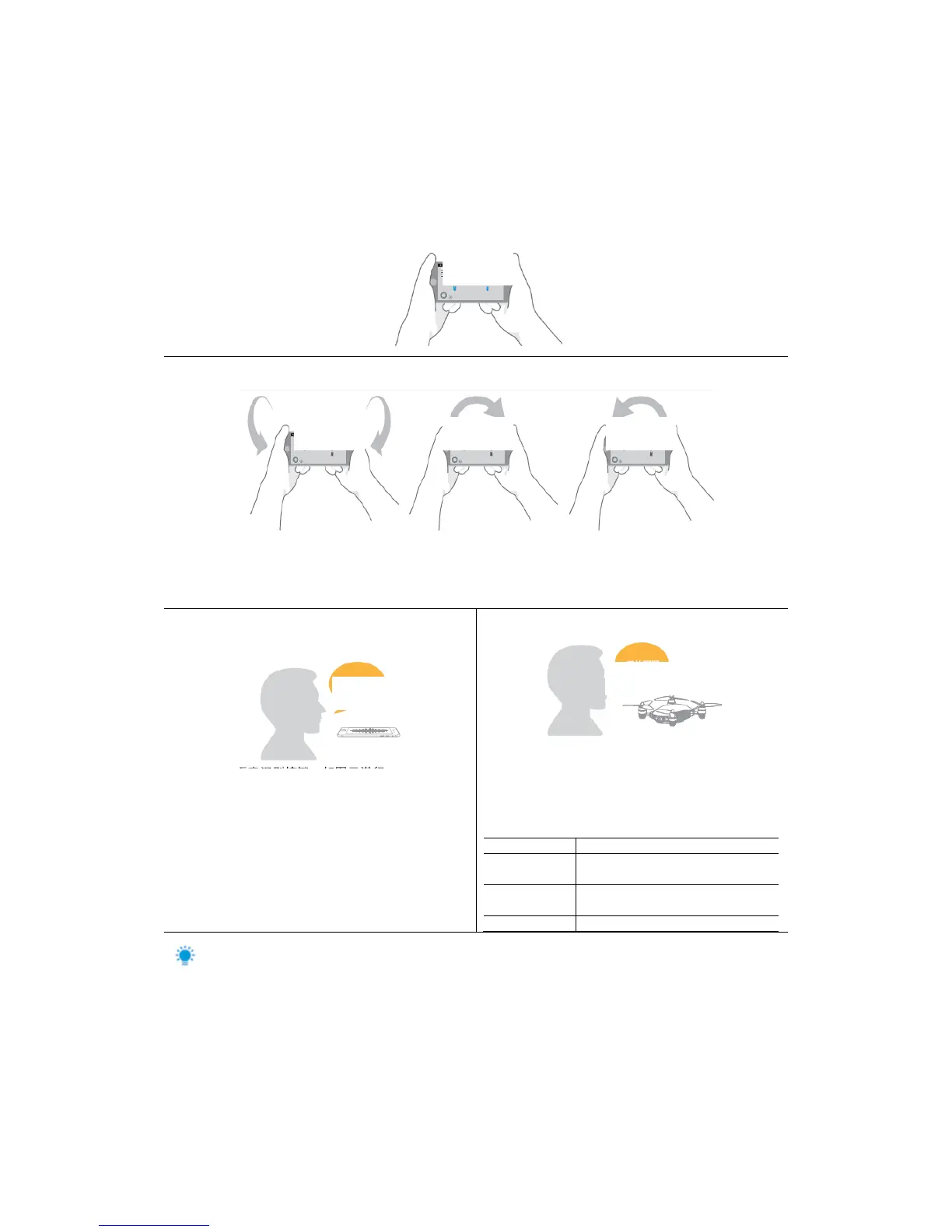
Control of Virtual Remote Sensing Rod
Slide the upper slider of main interface with your finger and the aircraft can move at the direction
you require; for example, if you slide “forward” slider, the aircraft will move forward immediately
till you loosen the rocker.
Motion Sensing
After entering motion sensing control, long press the screen and the aircraft will move forward,
backward, left or right correspondingly when the mobile equipment moves forward, backward,
left or right.
Voice Operation
APP voice control
Press voice recognition key and give a voice
command as per the picture above; for specific
commands, click voice command instructions.
Intelligent J.ME
J.ME supports intelligent open voice chat;
speak out the following commands to J.ME
(aircraft), the J.ME senior functions can then be
enabled.
After confirmation, reset SSID and
default password of J.ME.
J.ME will enter voice chat mode
under non-flying mode.
Besides the above commands, the user can also click in mobile phone APP to start chatting;
after the user enters voice chat mode, J.ME will close flight function and APP will be unable to
connect J.ME. Long press the power key of aircraft and J.ME can also enter or exit voice chat
mode.



 To Next Page