XS
2 DUOX VEO XS AMBIANCE MONITOR
99
START GUIDE FOR DUOX VEO XS AMBIANCE MONITOR
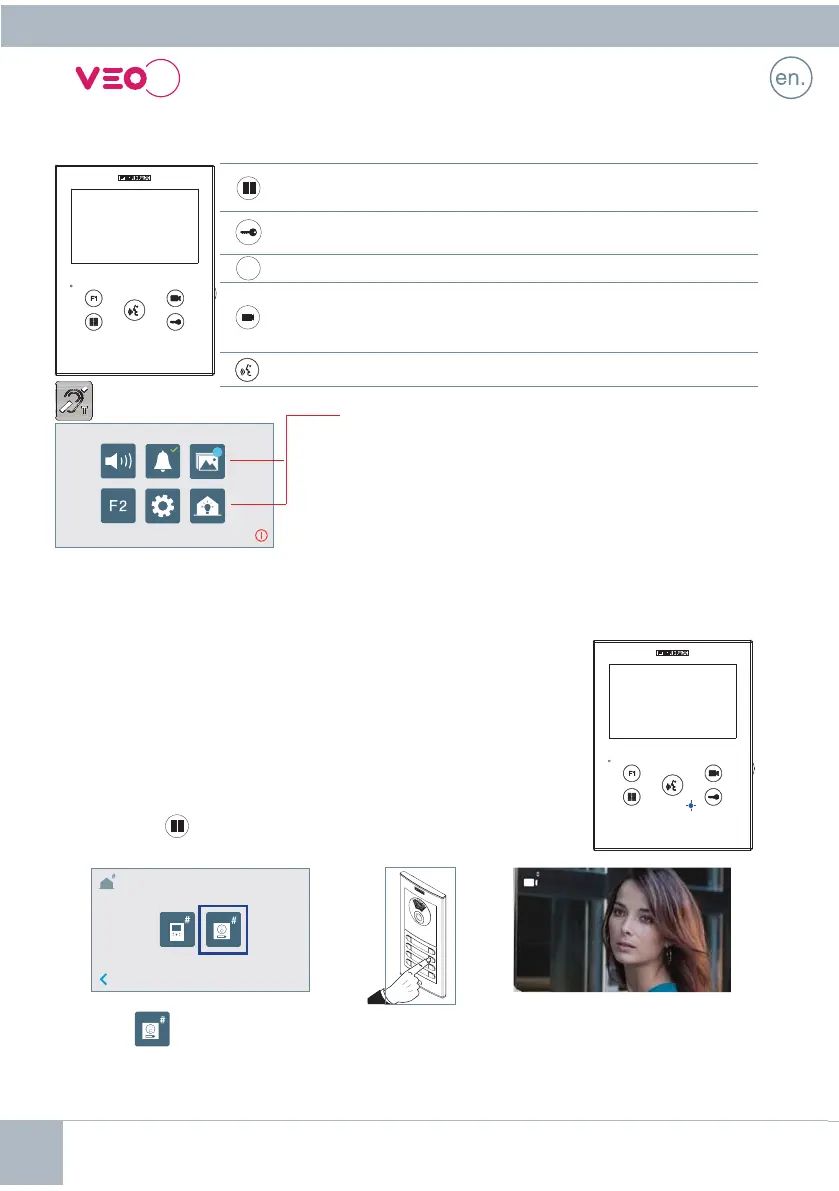
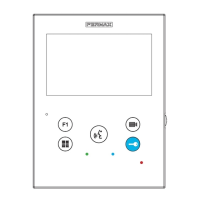
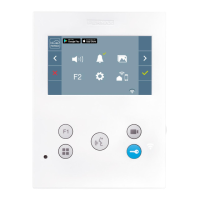
CONTROL BUTTONS
CONFIGURING AS MASTER PANEL
HOW TO PROGRAM VEO XS MONITOR
Press the SW1 button 3 consecutive times quickly. After 2 seconds, a confi rmation tone is heard,
and the master panel is activated. Once having completed the monitors’ programming, we
recommend deactivate the MASTER panel by pressing the SW1 button 3 consecutive times.
Monitor powered for the fi rst time.
The blue led blinking slowly indicates that the monitor has not been
programmed.
1. INSTALL
Press the
button to access the «programming menu».
2. ENTER PROGRAMMING MENU
Press
on the screen, you’ll hear a beep on the monitor.
Enter the calling code for this monitor from the panel (calling code for this monitor). A different
call tone sounds, confi rming the monitor´s programming. After a few seconds the monitor
returns to standby.
PROGRAMMING MENU
PROGRAMMING FROM THE PANEL
Digital menu for internal parameter settings and confi guration.
(When the monitor has already been programmed)
In conversation, press to open the door.
In standby, call to guard unit (if applicable).
Auxiliary function, (contact your installer).
In standby, press and it displays the option of auto-starting with
different panels. By sequentially pressing Panel 0, Panel 1, General
Panel, (depending on the available panels).
Audio activation and hang-up (hands-free functions).
F1
Inductive loop label
(depending on the model)
Cod. 970104b V06_18
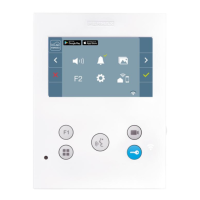
Navigation icons
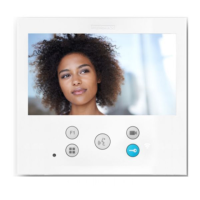
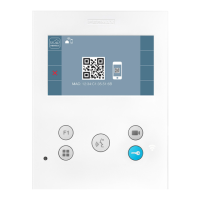
The VEO XS AMBIANCE monitor includes a touch screen.
The monitor’s touch screen displays the options with
graphic icons.
You can browse through the icons and select them by
pressing the on-screen buttons.






 To Next Page