4 5
DESCRIPTION AND FEATURES BASIC ACTIVATION
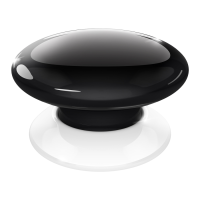
Main features of FIBARO Button:
• Compatible with any Z-Wave or Z-Wave+ Controller,
• Supports Z-Wave network Security Mode with AES-128 encryption,
• Completely wireless with battery power and Z-Wave
communication,
• May be installed anywhere in your home,
• Extremely easy installation - simply add and put on desired surface,
• Many colour variations: black, white, red, green, blue, yellow,
orange and brown.
FIBARO Button is a compact, battery-powered, Z-Wave Plus
compatible device. It allows you to control devices through the
Z-Wave network and run various scenes dened in FIBARO System.
Dierent actions may be triggered with one to ve clicks or by holding
the button down. In panic mode, each press of the button results in
triggering the FIBARO Alarm.
With its small design and wireless communication, the FIBARO Button
can be conveniently mounted on any surface and in any position or
location at home, e.g. beside the bed or under the desk.
#1: Description and features
FIBARO Button is a fully
compatible Z-Wave PLUS device.
NOTE
This device may be
used with all de-
vices certied with
the Z-Wave Plus cer-
ticate and should be
compatible with such
devices produced by
other manufacturers.
#2: Basic activation
1. Press and turn the button counter-clockwise to open the casing.
2. Remove the paper strip underneath the battery.
3. Press and turn the button clockwise to close the casing.
4. Place the device within the direct range of your Z-Wave controller.
5. Set the main controller in (security/non-security) add mode (see
the controller’s manual).
6. Click the button 6 times at least.
7. Wait for the device to be added into the system, successful adding
will be conrmed by the controller.
8. Install the device in desired location using the attached
self-adhesive pad.
9. Click the button 4 times to wake it up.
NOTE
Z-Wave Controller
must support Z-Wave
Security Mode in
order to fully utilize the
product.



 To Next Page