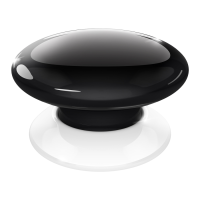
6 7
ADDING/REMOVING THE DEVICE OPERATING THE DEVICE
Adding (Inclusion) - Z-Wave device learning mode, allowing to add
the device to existing Z-Wave network.
To add the device to the Z-Wave network:
1. Place the Button within the direct range of your Z-Wave controller.
2. Set the main controller in (Security/non-Security) add mode (see
the controller’s manual).
3. Click the Button at least six times.
4. Wait for the adding process to end.
5. Successful adding will be conrmed by the Z-Wave controller’s
message.
Removing (Exclusion) - Z-Wave device learning mode, allowing to
remove the device from existing Z-Wave network.
To remove the device to the Z-Wave network:
1. Place the Button within the direct range of your Z-Wave controller.
2. Set the main controller in remove mode (see the controller’s
manual).
3. Click the Button at least six times.
4. Wait for the removing process to end.
5. Successful removing will be conrmed by the Z-Wave controller’s
message.
#3: Adding/removing the device
NOTE
Adding in Security
Mode must be per-
formed up to 2 meters
from the controller.
NOTE
Removing the Button
from the Z-Wave net-
work restores all the
default parameters of
the device.
NOTE
In case the device is
not added, repeat the
adding procedure.
#4: Operating the device
Waking up the device:
The Button needs to be woken up to receive information about the
new conguration from the controller, like parameters and associa-
tions.
Click the Button 4 times to wake it up.
Operating the Button:
1 click:
2 clicks:
3 clicks:
4 clicks:
5 clicks:
6 or more
clicks:
Hold:
Release:
send action to associated devices (switch on/o by de-
fault) and/or trigger a scene
send action to associated devices (switch on maximum
level by default) and/or trigger a scene
send action to associated devices (no action by default)
and/or trigger a scene
wake the device up and/or trigger a scene
start reset procedure (press and hold for 5s to conrm)
and/or trigger a scene
learning mode (adding/removing)
send action to associated devices (start level change up/
down) and/or trigger a scene
send action to associated devices (stop level change)
and/or trigger a scene
Scene ID:
Every action with the
Button is send to the main
controller with Scene ID
equal to 1. Controller recog-
nizes type of action using the
attribute assigned to it.
Reset procedure of the Button:
Reset procedure allows to restore the device back to its factory set-
tings, which means all information about the Z-Wave controller and
user conguration will be deleted. In order to reset the device:
1. Click the Button exactly ve times.
2. Press and hold the Button for at least 5 seconds.
Action Attribute
1 click Key Pressed 1 time
2 clicks Key Pressed 2 times
3 clicks Key Pressed 3 times
4 clicks Key Pressed 4 times
5 clicks Key Pressed 5 times
Hold Key Held Down
Release Key Released
NOTE
If notications are
enabled, each press
of the button results
in sendng a com-
mand (Notication
Type=HOME_SECURI-
TY, Event=Intrusion,
Unknown Location).



 To Next Page