1
1-68 Installing User Software on a Windows Computer
3. To delete any of the displayed printers, select the printer name and click Delete.
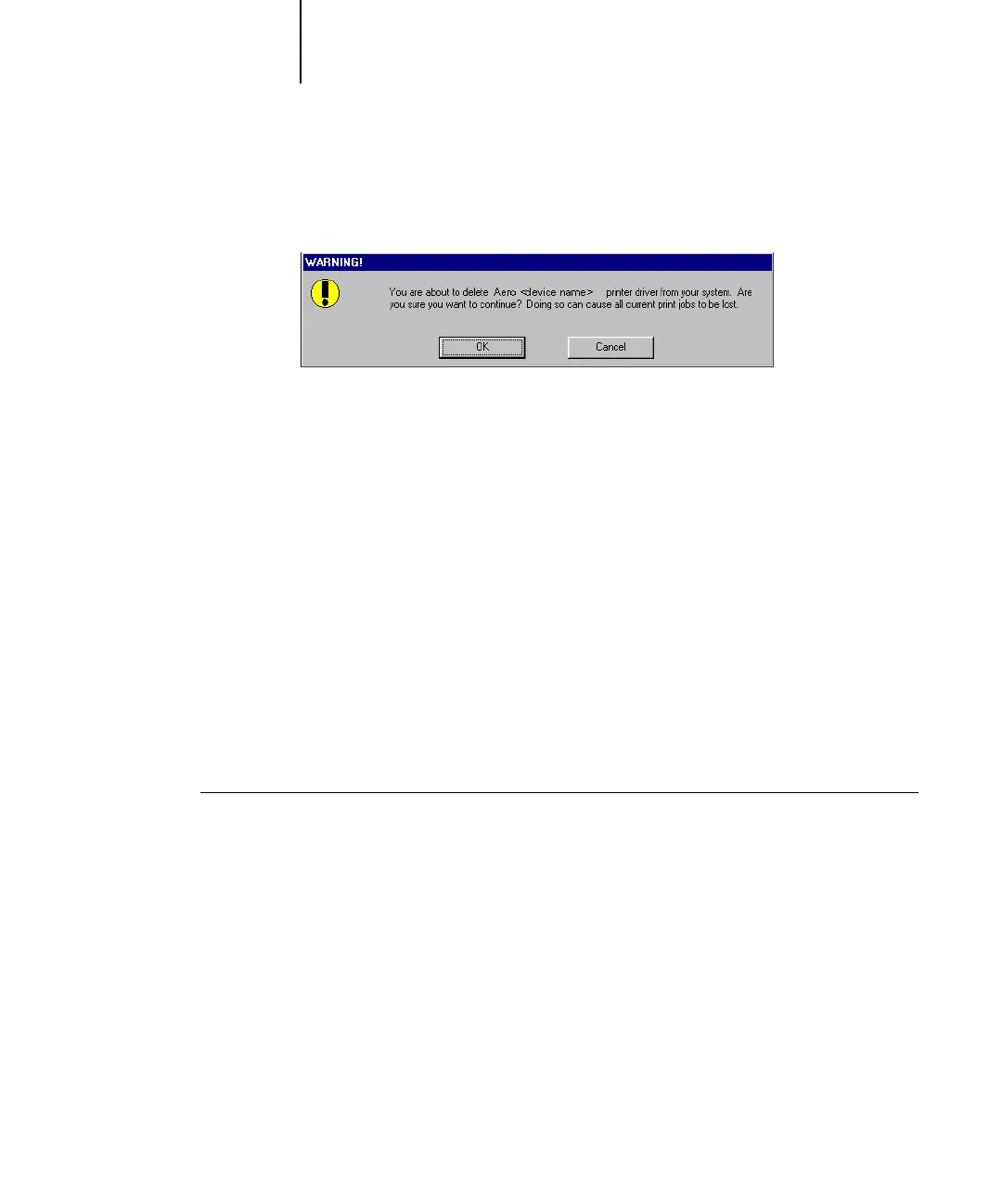
A warning message appears.
4. Click OK to delete the selected printer driver.
A dialog box recommending that you restart your system appears after the printer
driver is deleted.
5. Click OK to restart, or, to delete another printer driver, click Cancel to return to the
Fiery Driver Uninstall Tool dialog box. Restart when you finish deleting printer drivers.
Configuring the connection for Fiery utilities
The first time you start one of the Fiery utilities, you must configure the connection to
the Fiery X3e. Similar configuration is used for all Fiery utilities, so any change in one
configuration affects all the other connections. Configuration for most Fiery utilities is
described in the following procedure.
For configuration of specific Fiery utilities, see “Configuring the connection for
Command WorkStation” on page 1-71.
BEFORE YOU BEGIN
• Print the Configuration page from the Fiery X3e Control Panel.
This page contains information you need when configuring the connection, such as
the IP address. For TCP/IP installations, you can use the DNS name of the Fiery X3e
instead of the IP address. Make sure the Fiery X3e is already registered in a Domain
Name Server (DNS) on your network. For more information, see your Windows
system documentation.



 To Next Page