1
1-77 Installing color files from the User Software CD
TO LOAD THE RGB WORKING SPACE PROFILE FOR PHOTOSHOP 5.X
1. Start Photoshop.
2. Choose Color Settings from the File menu and choose RGB Setup from the Color
Settings submenu.
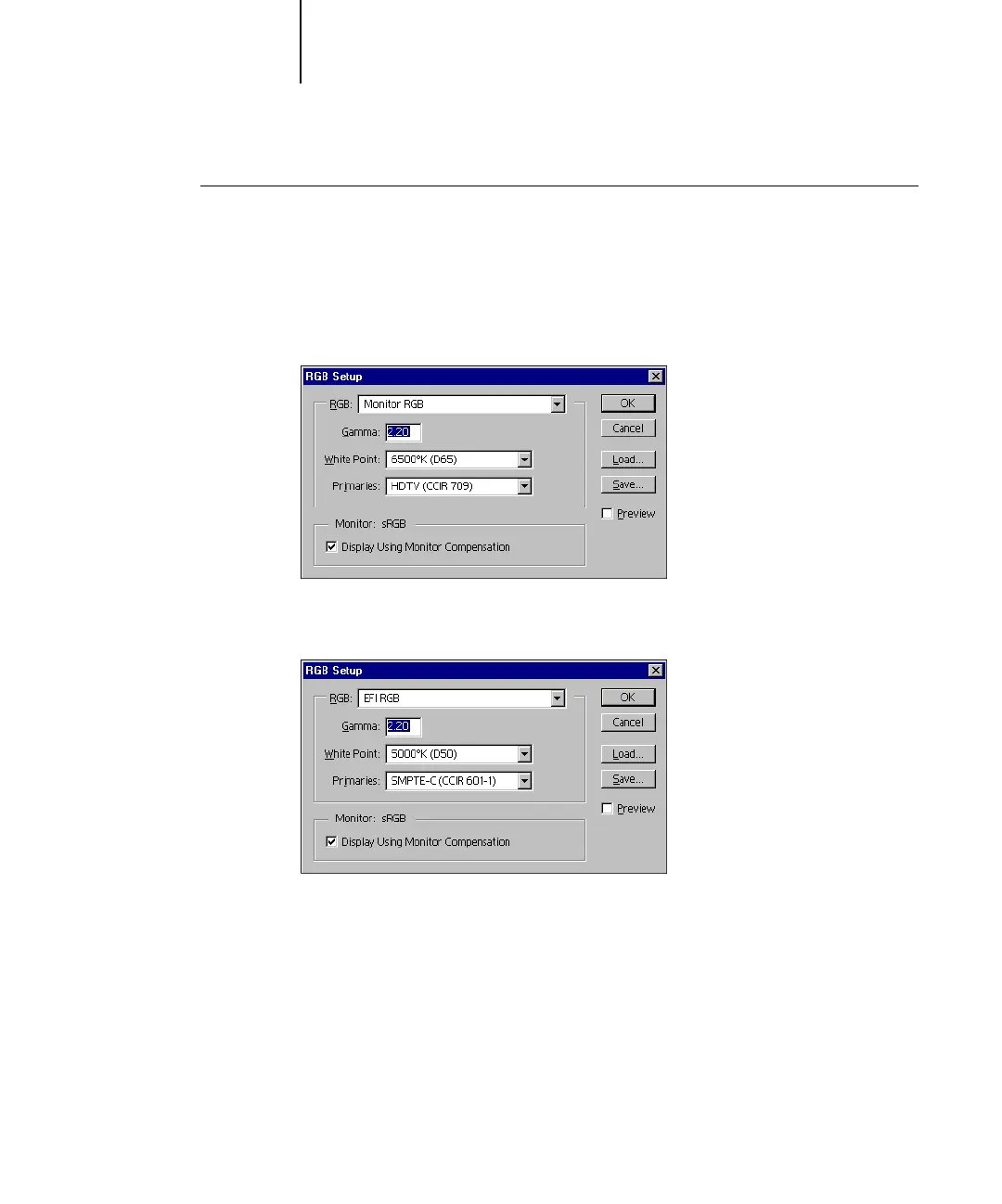
3. In the RGB Setup dialog box, click Load.
4. For Windows 98/Me, browse to the Windows\System\Color folder, select Efirgb.icc, and
then click Load.
For Windows NT 4.0 or Windows 2000, browse to the Winnt\System32\Color folder,
select Efirgb.icc, and then click Load.
For Windows XP/Server 2003, browse to the Windows\System32\spool\driver\color
folder, select Efirgb.icc, and then click Load.
The Efirgb v1f file is displayed in the RGB menu of the RGB Setup dialog box.
5. Click OK.
For more information about ICM profiles, see your Photoshop documentation.



 To Next Page