13
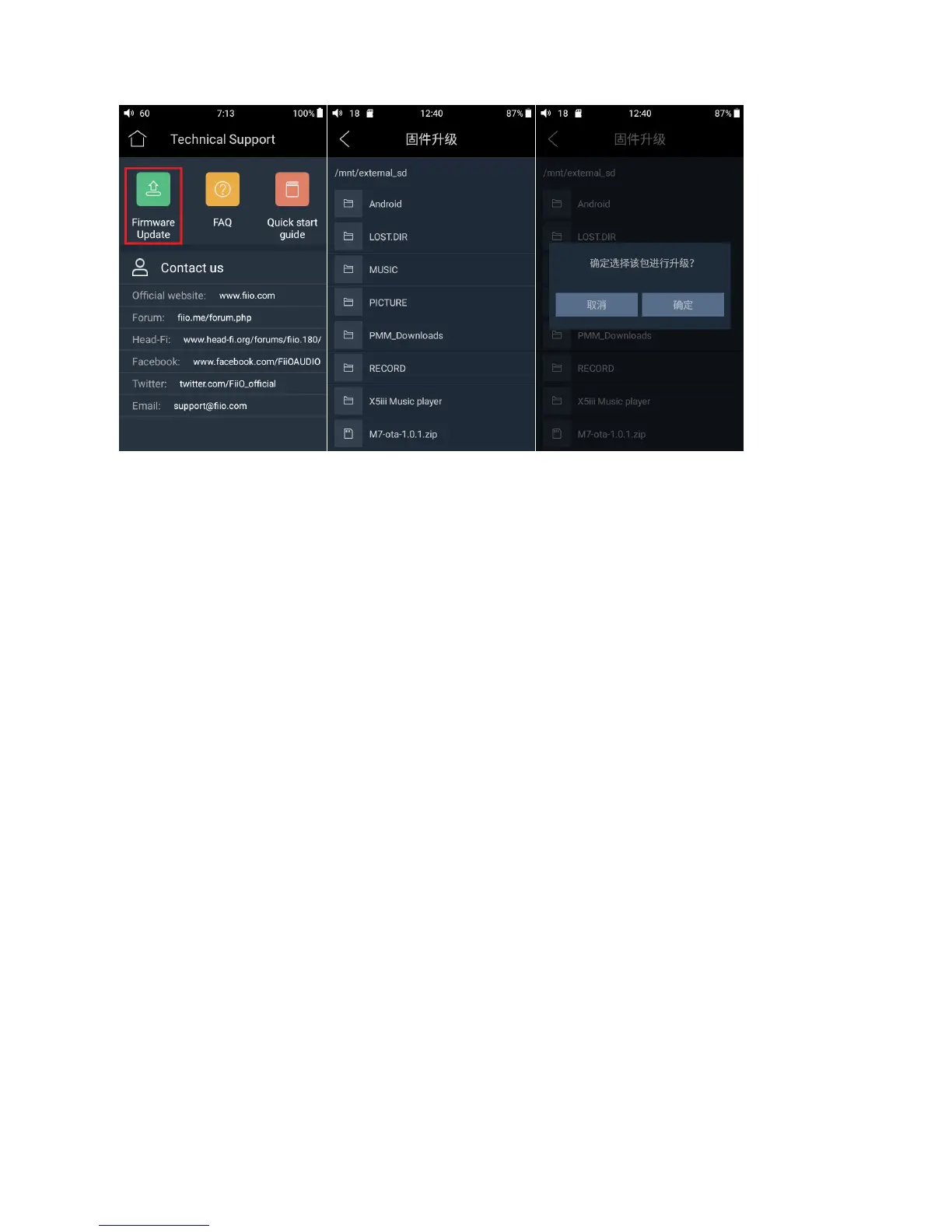
3. Press “confirm" button on the prompt window, and then M7 will be rebooted and the update will
be completed automatically.
Attention
1. Please ensure the battery power is more than 30%, or the device is connected to a power supply.
2. Please ensure the firmware file is selected.
3. Please do not perform any operation on M7 while updating, and if the update is not successful,
you can hold POWER and PLAY buttons simultaneously to reboot the device.
●Language setting
1. “Settings”-“General”- “Language & input”, and “Languages” in sequence, which will bring you to
the “Language preference setting” interface.
2. Press “Add a language”
3. Select a language
4. After selecting the language, you should press the “=” icon on the right side of the target language
and drag the language to the head of the list. Switching language can only be completed after this
operation.


 To Next Page