10 / 35
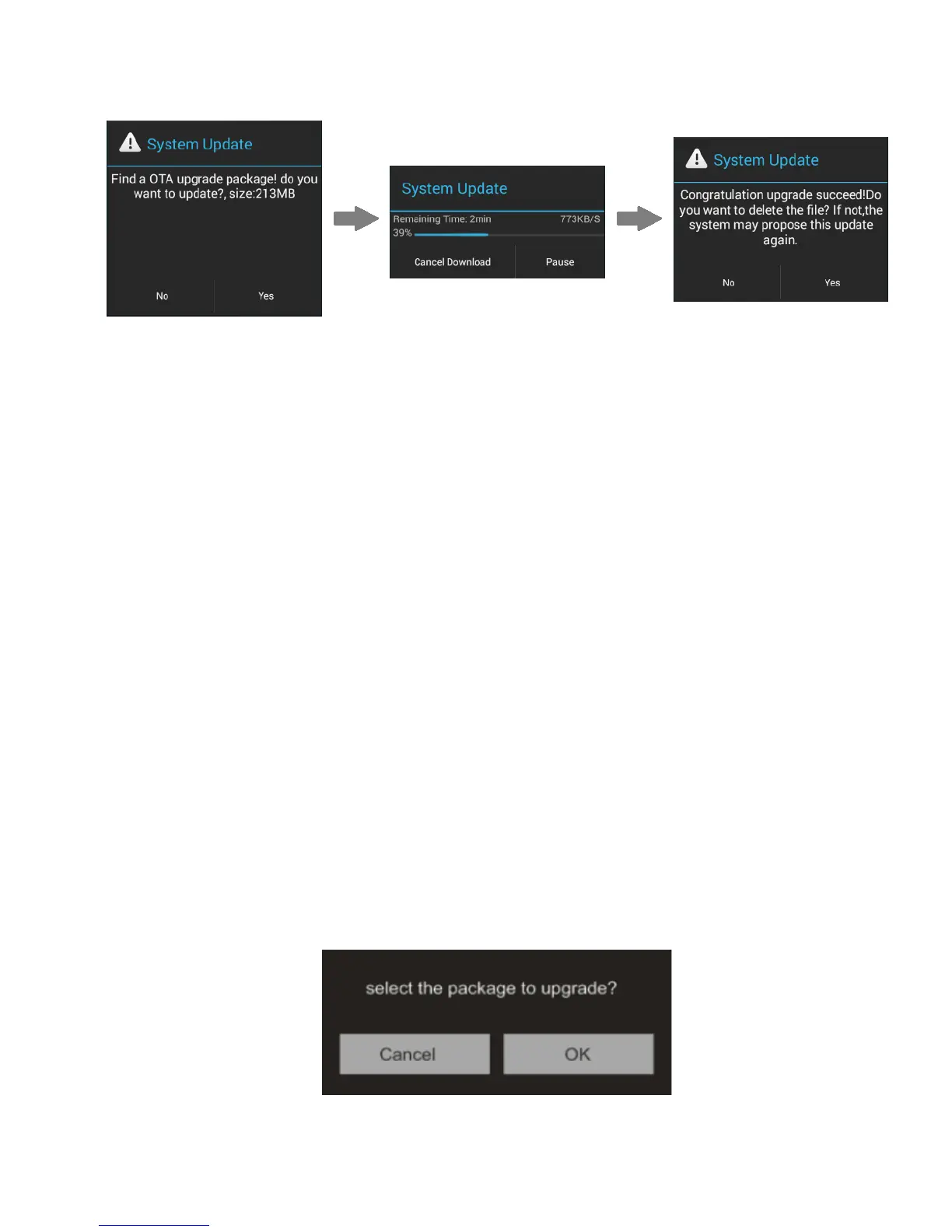
4) After the update is complete, please delete the update package as prompted.
2. Local Updates
1)
Copy the update zip file provided by FiiO to the internal storage or the SD card inserted into the SD
card slot 1 of the X5. (it is recommended to copy to the root directory of either; firmware updates will not
affect the files or music contained in the X5.)
Do not rename or extract the zip file.
To copy files to the X5:
Connect the X5 to the computer via the provided USB cable.
The “USB connected” screen should pop up automatically. Tap “Turn on USB storage” near the
bottom.
If the “USB connected” screen does not appear automatically, pull down the notifications
panel from the top of the touchscreen and tap on “USB connected” to bring it up.
The internal storage and SD cards of the X5 will appear as USB drives on the connected computer.
Copy files (e.g. the update zip) to the Internal Storage or to the Micro SD card 1.
Safely eject the two drives from the computer (e.g. right-click each drive and choose “Eject”).
2) Go to the Android homescreen, tap “Technical support”->Firmware Update. In the file browser, find
the downloaded zip file in internal_sd or external_sd1 and tap on it. The system will prompt you to
confirm whether to update the X5 with the selected zip file:


 To Next Page