5 / 35
2. Buttons and ports explained
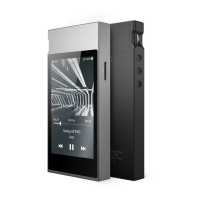
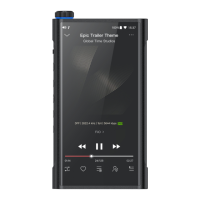
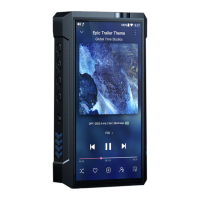
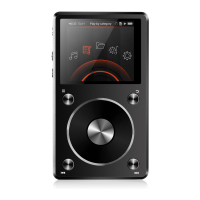
1) Touchscreen (16.7 million colors, 480x800 pixels): Displays the user interface and other information; for
operating the unit via screen touches and/or in conjunction with buttons on the unit;
2) Play / Pause: Press while playing to pause music, press while paused to continue playback;
3) Volume knob: Scroll up to turn up the volume, scroll down to turn down the volume.
4) Previous / next track: Press to skip to the previous or next track;
5) Power / Lock: While X5 is powered off, hold for 2s to turn on; while powered on, hold to display power off
/ reboot menu; press briefly while powered on to turn screen on / off; Press and hold for 15 seconds to
reset.
6) Micro SD card slot: Dual micro SD card slots each supporting up to 256GB capacity
7) 3.5mm headphone port: Connect your headphones here. CTIA-spec headsets with in-line remote
control supported with the following remote control operation (single button remotes and main
button of multi-button remotes supported):
Volume Up/Down: click to turn up/down the volume by one step, hold to turn up/down the volume
continuously to Max volume/Mute
Play / Pause: press main button once briefly to toggle between play and pause;
Next track: double-click main button quickly;
Previous track: triple-click main button quickly;
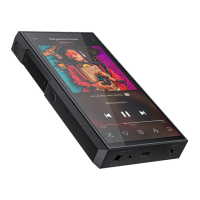
8) 2.5mm balanced headphone output: Supports 2.5mm TRRS balanced headphone
9) Micro USB port (11-pin): for charging, data transfer, USB DAC function and connection to FiiO docks; It's
recommended to use a Quick Charge adapter (DC9/12V 2A) for charging. X5's supposed to be fully charged
within 2 hours when in Quick Charge mode. With DC5V/2A adapter, it's supposed to be fully charged within
4 hours.
10) 3.5mm line / S/PDIF coaxial output: Shared line / coaxial output port. Switch between the two outputs in
X5 settings -> Sound Settings -> Multifunctional Output.


 To Next Page