11 / 35
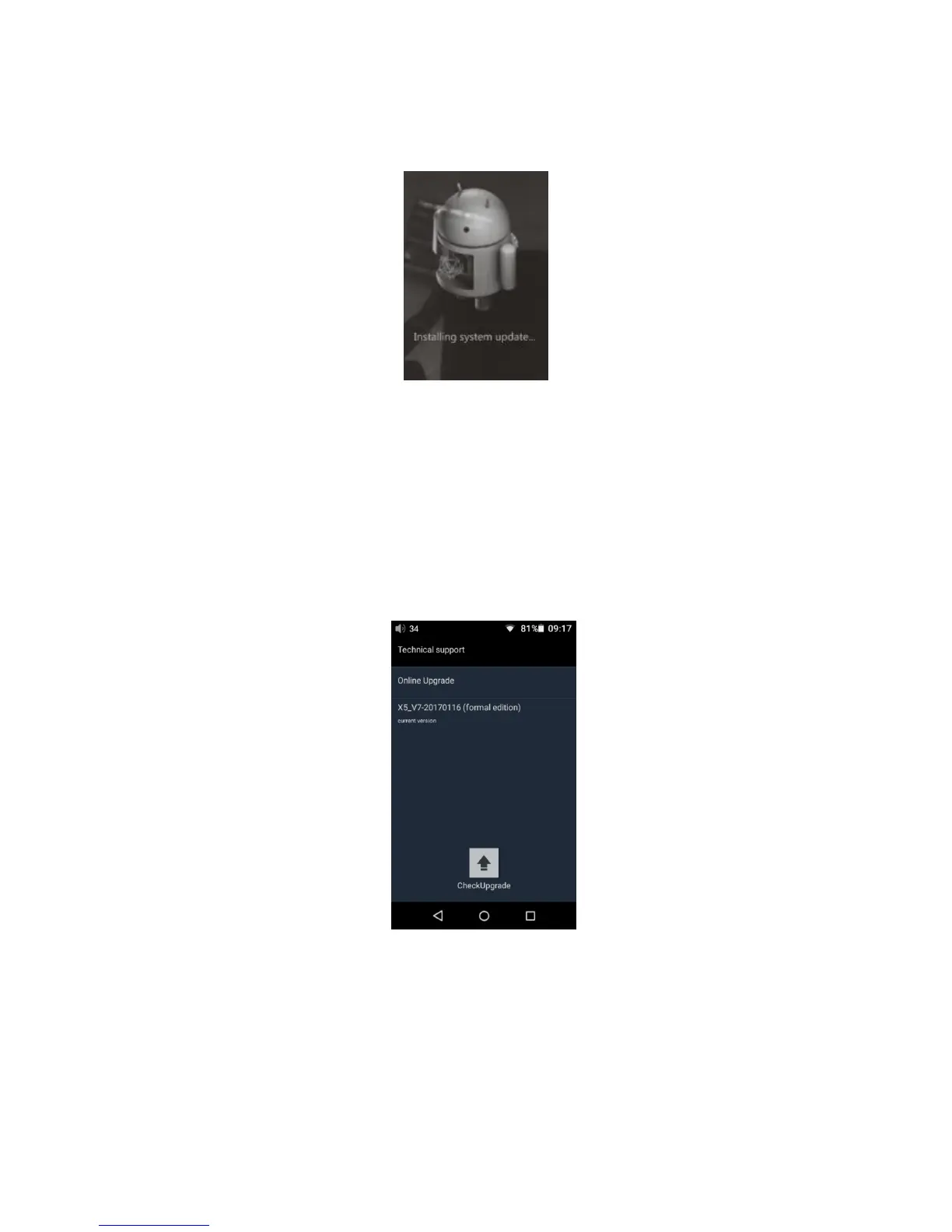
3) Tap “OK” to start the update. Do not attempt to operate the X5 while the update is ongoing.
4) The X5 will reboot twice, once in update mode, then back into Android mode. The update process is
complete when the Android lockscreen appears.
3. Over-the-air manual updates
If you have cancelled the over-the-air automatic firmware update and want to upgrade to the latest
firmware later, you can choose to manually start the upgrade.
1) Turn on the X5’s WiFi and connect to the internet with a suitable hotspot
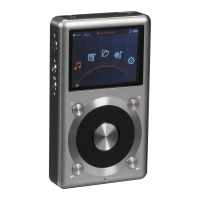
2) Select "Technical support" on the desktop >"Firmware update"> "Online Upgrade" under android
mode, choose the update file and following dialogue would pop up.
3) Click “Check Upgrade” then The X5 would check for over-the-updates and prompt for updating automatically if a
newer firmware version is found:
4) Tap “Yes” and the X5 will download the update and install it automatically when download is
complete.
5) After the update is complete, please delete the update package as prompted.


 To Next Page