6 7
Connecting with Ultra Low Latency
Turning OFF the Power
When the battery level of the charging case is sufficient, placing the earbuds back into the
charging case and closing the lid will turn the power OFF. For approximately 3 seconds after
closing the lid, the charging case will show its battery level. Please refer to the table on Page 4 for
details on the charging case’s battery level indication.
* If the LED Indicator on the charging case does not light up when the lid is closed, the charging
case is out of battery, and the power of the earbuds will not turn off automatically. In this case,
please charge the charging case promptly.
When playing games via Bluetooth connection, there may be delays in audio, video, and actions, which
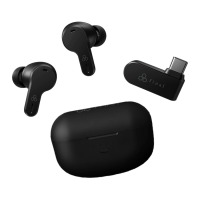
can negatively impact your gaming experience. By using the included Ultra Low Latency USB-C
Transceiver, you can significantly reduce latency and enjoy a more comfortable gaming experience.
When the Transceiver is connected to a gaming device or PC with a USB-C port, the power will turn ON,
and the transceiver’ s indicator will flash Purple. When you turn ON the power of the earbuds in this
state, the earbuds and the transceiver will connect automatically, and the transceiver’ s indicator will
turn OFF.
* If you are using the Bluetooth connection with another device, that connection will take priority. To use
the included transceiver, please stop the playback or disconnect the Bluetooth connection before
connecting the transceiver to the compatible PC or gaming device.
* Bluetooth connection and ultra low latency wireless connection cannot be used simultaneously.
* To switch from ultra low latency wireless connection to Bluetooth connection mode, remove the
transceiver and the earbuds will automatically switch to Bluetooth mode.
Disconnecting from Ultra Low Latency Wireless Connection
When the Ultra Low Latency USB-C Transceiver is removed from the connected device, the ultra low
latency wireless connection will be disconnected.
Please refer to “Pairing with Bluetooth” for detailed instructions on pairing the earbuds via Bluetooth.
To reconnect the transceiver with the earbuds, ensure that the earbuds are not currently connected via
Bluetooth and plug the transceiver back into the compatible gaming device or PC. This will restart the
transceiver and put it into pairing mode. With the earbuds powered ON, they will automatically connect
to the transceiver, enabling ultra low latency wireless connection.
Audio Mixer:
This feature allows you to set the volume for game audio and third-party voice chat software separately
when using a Windows PC.
Setup Instructions:
1. Plug the transceiver into the USB-C port of the PC.
2. When connected to the PC, the following two audio devices will appear:
・
VR3000 Wireless - Game
・
VR3000 Wireless - Chat
3. In the game’ s audio output settings, select “VR3000 Wireless - Game.”
4. For third-party voice chat software, select “VR3000 Wireless - Chat” for both audio output and
microphone input. For in-game chat, select “VR3000 Wireless - Chat” for the microphone input.
5. Adjust the volume for the game and chat separately using the “Volume Mixer” on the Windows PC.
* Depending on the gaming device or PC, you may need to change the audio output settings to this
product in the device settings.
* The operation for volume control and other functions may vary depending on the device the
Transceiver is connected to.
* Connecting the transceiver through a USB hub may cause the device to function incorrectly.
Connecting with Ultra Low Latency


 To Next Page