Fluance Ai41 User Manual 11
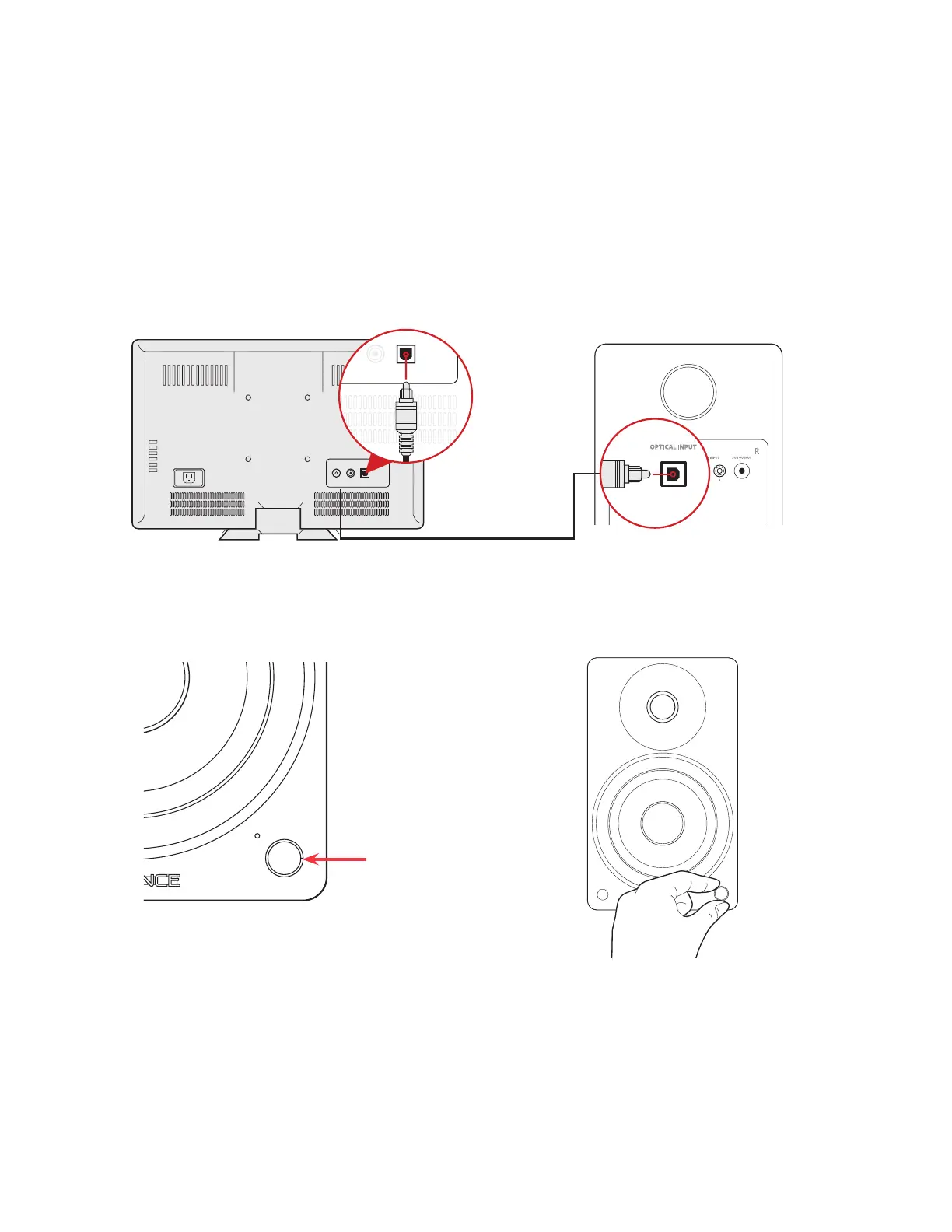
Optical Input
1. Connect the Optical cable to your
source device (TV, Computer, Game
Console...). Ensure protective caps
are removed from the ends of the
Optical cable.
3. Press the Control Knob to select
the Optical Input (White LED).
2. Connect the other end of the
Optical cable to the back of the
Active Speaker.
4. Adjust the volume on Ai41 as well
as source device.
*Optical cable not included
Optical Audio Signal Compatibility
The Ai41 does not support Dolby Digital Audio or DTS Audio. Locate the audio output
settings on your source device and ensure Dolby Digital is turned off. The correct audio
output setting is commonly referred to as PCM or Stereo.
Some TVs also require that audio output be enabled. This setting may be referred to as
External Speakers. Ensure this is selected as your speaker/audio output.
For instructions on a specic device, please consult the device’s user manual.


 To Next Page