13
Operating Your Television
Audio Menu Options
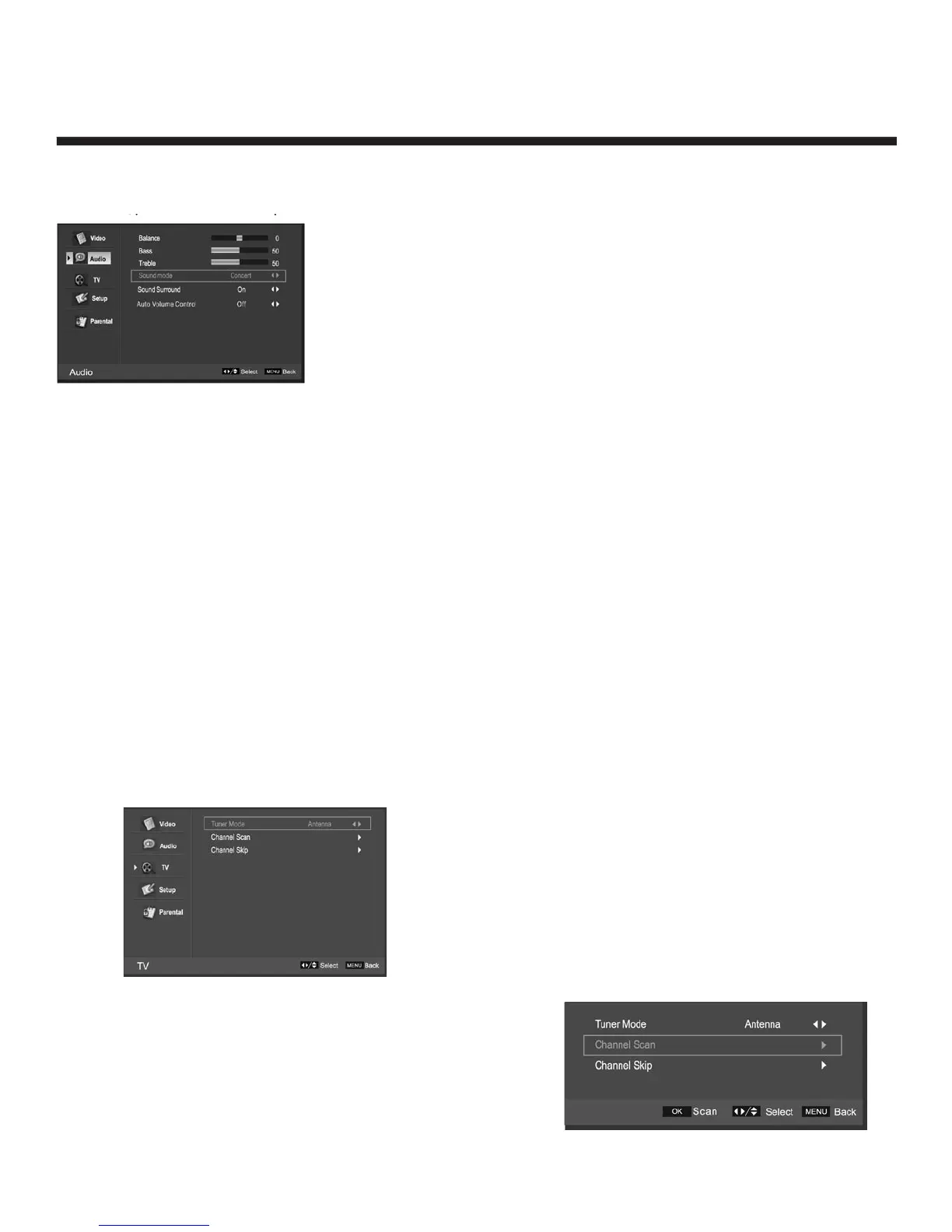
Press the MENU on the front panel or MENU on the remote control and then use e / d to select the AUDIO
menu, press g or OK to enter (see picture below).
1. Use
e / d to select the option you want to adjust
in the Audio menu.
2. Press OK or f / g to adjust (according to the hint below)
3. When you are satisfied with your adjustment, press MENU.
Audio Mode
You can select the type of sound which best corresponds to your listening requirements by selecting
Sound in SOUND menu.
Balance
Press e / d and then use f / g to adjust the audio output between left and right speakers.
Bass
Press e / d and then use f / g increase or decrease the level of the lower-pitched sounds.
Treble
Press e / d and then use f / g to increase or decrease the level of higher-pitched sounds
Sound Mode
Press f / g to select one of the modes options: Concert, Jazz, User, Voice
Sound Surround
Press f / g to switch Sound Surround On or Off
Auto Volume Control
Press f / g to select auto volume control On or Off
TV Menu Options
Press the MENU on the front panel or MENU on the remote control and then use e / d to select the TV
menu, press > or OK to enter (see picture below).
1. Use
e / d to select the option you want to adjust
in the TV menu.
2. Press OK or f / g to enter the desired function.
3. When you are done, press MENU to exit.
Tuner Mode
Select the signal input mode: Antenna or Cable
Channel Scan
Select “Channel Scan”; press OK to start the channel scan.
Press MENU to stop or continue until the scan is complete;
Stopping in the middle of a scan will save the scanned
channels up to the stop point.


 To Next Page