15
Operating Your Television
Caption
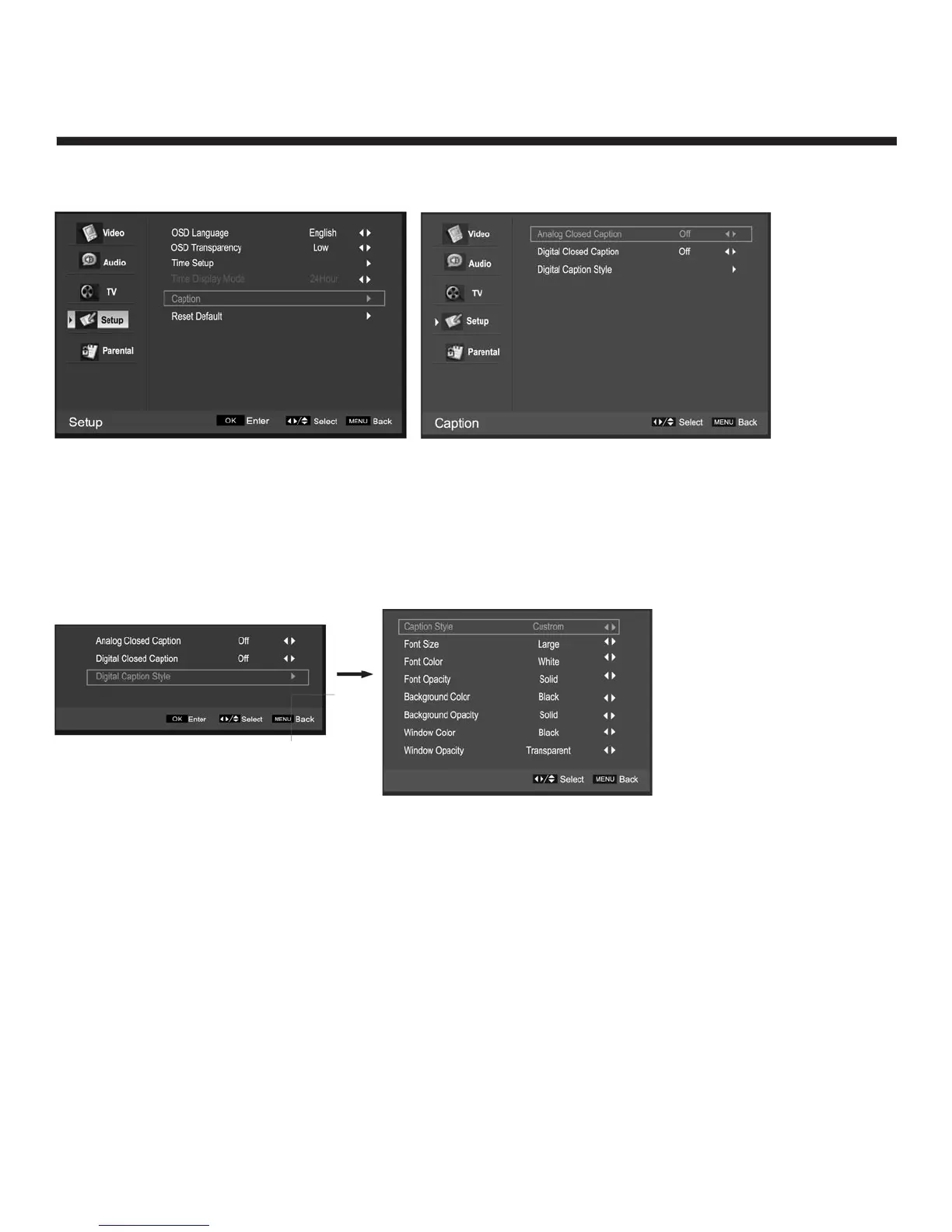
Select “Caption”, press OK to enter the submenu (see below)
Analog Closed Caption
Press f / g to select CC1/CC2/CC3/CC4/TEXT1/TEXT2/TEXT3/TEXT4, or select Off.
Digital Closed Caption
Press
f / g to select Service1/Service2/Service3/Service4/Service5/Service6, or select Off.
Digital Caption Style
This item allows you to set the closed caption, press OK to enter Digital Caption style menu:
• Caption Style: press f / g to select Automatic or Custom. When you select automatic, others are
disabled and can not be adjusted.
• Font Size: press f / g to select Medium/Large or Small.
• Font Colour press f / g to select Red/Green/Blue/Yellow/Magenta/Cyan/Black or White.
• Font Opacity: press f / g to select Solid/Transparent or Translucent.
• Background Colour: press f / g to select Black/White/Red/Green/Blue/Yellow/Magenta/ or Cyan.
• Background Opacity: press f / g to select Solid/Transparent or Translucent.
• Window Colour: press f / g to select Black/White/Red/Green/Blue/Yellow/Magenta/ or Cyan.
• Window Opacity: press f / g to select Solid/Transparent or Translucent.


 To Next Page