Need help?
Do you have a question about the FlyDigi APEX 2 and is the answer not in the manual?
Explains how to connect via Bluetooth, 2.4Ghz wireless, and USB wired connections.
Guide on switching between connection modes using button combinations.
Steps to download and install the companion app from Google Play or App Store.
Guide to connecting the controller to a phone or tablet via Bluetooth.
How to customize button configurations, store them on the cloud, and adapt to various operations.
Connect and play PC games using 360 mode or Android mode via wireless or wired connection.
This document describes the Apex 2 gamepad, a versatile controller designed for gaming across multiple platforms including mobile phones, tablets, and PCs. The Apex 2 offers a range of customizable features and connection options to enhance the user's gaming experience.
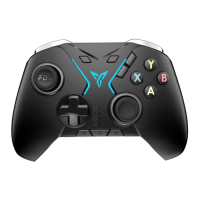
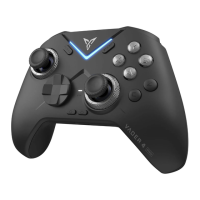
The Apex 2 gamepad serves as a primary input device for playing games. It features a standard set of controls including a D-pad (Cross Button), ABXY buttons, left and right joysticks, shoulder buttons (RB, LB, RT, LT), and additional M buttons (M1-M6) for enhanced functionality. Unique to the Apex 2 is a "Wheel Button" which can be triggered as a button or dragged as a joystick within a limited range, offering flexible input options. The controller also includes a "CZ" button, "SELECT," "START," "PAIRING," "HOME," and "RETURN" buttons for navigation and mode switching. Status and power lights provide visual feedback on the controller's state.
The gamepad supports various connection modes: Bluetooth for mobile devices, 2.4GHz wireless via a USB dongle for PCs, and a wired connection via USB cable for PCs. This multi-platform compatibility allows users to seamlessly switch between different gaming setups. The controller is designed to work with the Flydigi Game Center App, which facilitates game management, controller connection, and advanced button mapping.
A key feature of the Apex 2 is its "Flymapping Technology." This technology allows users to customize button configurations and store them in the cloud. Flydigi continuously updates these mappings to adapt to various gaming operations. Each button can be assigned attributes such as click, swipe, motion sensing, left- and right-joystick linkage, and Macro functions, providing a highly personalized control scheme. This is particularly useful for optimizing gameplay in different genres and titles.
The Apex 2 also incorporates somatosensory control, allowing for motion-based input. If the somatosensory or flying mouse functionality becomes erratic, the controller can be recalibrated by keeping it still on a flat surface for a short period.
The Apex 2 offers several user-friendly features that enhance its versatility and comfort:
Dismountable Top Cover: The gamepad's dual-side top cover can be easily disassembled and reassembled. Users can pry the side edge to remove the cover and press it back into position for reassembly. This feature might be useful for customization, cleaning, or accessing internal components if needed.
Wheel Button Customization: The unique Wheel Button can function as a rotatable wheel or a fixed button. By disassembling the top-right cover, users can place a wheel ring into a limited position, effectively changing the wheel's behavior from a rotating input to a standard button. This adaptability allows users to tailor the controller to specific game requirements or personal preferences.
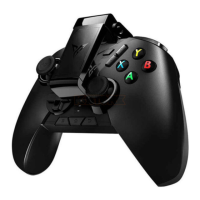
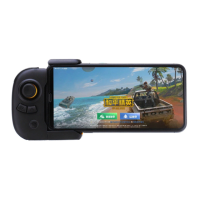
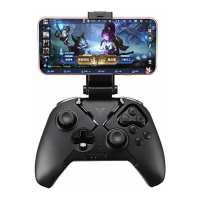
Dual-segment Detachable Phone Stand: The controller comes with a phone stand that features two adjustable rotating axes. This design allows users to easily adjust the phone's center of gravity, reducing strain on the hands during mobile gaming. The stand can be pushed out of its card slot for disassembly and adjusted to various angles to support the phone on a table, providing a comfortable viewing and gaming experience.
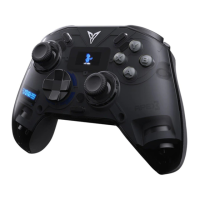
Replaceable Joysticks: Both the left and right joysticks are replaceable, allowing users to customize them based on their habits or to replace worn-out components. The joysticks can be easily plugged out and in, offering flexibility and extending the controller's lifespan.
Connection and Mode Switching:
Lighting Mode Adjustment: The Apex 2 offers 16.8 million colors for its multi-lighting feature. Users can switch between three default dazzling modes by pressing the pairing button and the RETURN button. Further customization of the dazzling light color and other configurations can be done through the Flydigi space platform, accessible from the official website.
The manual provides guidance on maintaining specific components of the controller to ensure longevity and optimal performance:
Wheel Button Maintenance: To prevent dust accumulation, users are advised to protect the wheel area during daily use. If the wheel becomes jammed, a thin hairbrush can be used for cleaning. For long-term storage, installing the wheel ring is recommended to protect the mechanism.
Somatosensory Recalibration: If the somatosensory or flying mouse functionality experiences drift or becomes uncontrollable, the controller can be recalibrated by simply placing it still on a table for 10 seconds. This helps reset the motion sensors.
 General
| Vibration | Dual Vibration Motors |
|---|---|
| Compatibility | Android |
| Features | Motion sensing |
| Analog Sticks | 2 |
| D-Pad | 8-Way D-Pad |
| Connectivity | Bluetooth 4.0, Wired |

 To Next Page