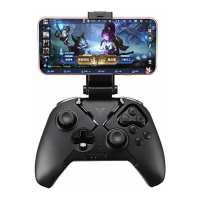
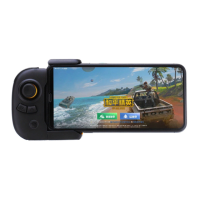
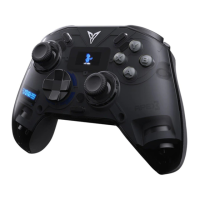
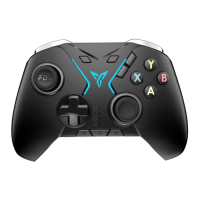
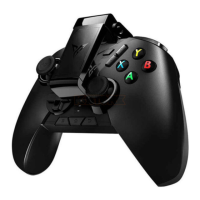
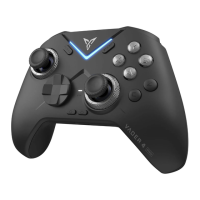
The Flydigi Direwolf 2 Game Controller is a versatile gaming peripheral designed for use across multiple platforms, including PC, Android/iOS devices, and Nintendo Switch. It offers various connection methods, including wireless dongle, Bluetooth, and wired USB, providing flexibility for different gaming setups.
Function Description
The primary function of the Flydigi Direwolf 2 is to provide a comprehensive and customizable gaming experience. It features a standard controller layout with a spindle cross key, Hall rocker, ABXY buttons, L/R/ZL/ZR triggers, D-pad, and two expansion back buttons. The controller also includes a FN button and a mode gear for switching between different connection types and functionalities.
Usage Features
Connecting to Computer:
- Wireless Dongle Connection: To connect wirelessly via the dongle, first plug the dongle into an available USB port on your computer. Then, dial the back mode gear to the PC icon. Press the home button on the controller; it will automatically connect, and the first indicator light will remain white. For subsequent uses, simply press the home button once, and the controller will reconnect automatically.
- Wired Connection: For a wired connection, simply connect the controller to your computer using a USB cable. The indicator light will turn white, signifying a successful connection.
- Bluetooth (BT) Connection: To connect via Bluetooth, turn the back mode gear to the Bluetooth icon. Then, go to your computer's Bluetooth settings and connect to the "Xbox Wireless Controller."
Connecting to Switch:
- To connect to a Nintendo Switch, first navigate to the Switch homepage and select the controller icon to enter [Change grip/order]. Next, shift the back mode gear on the controller to "NS." Press the home button; the controller will connect automatically, and the first indicator light will remain blue. For future connections, pressing the home button once will automatically connect the controller.
- In Switch mode, the controller offers specific key mappings:
- A (Controller) maps to B (Switch)
- B (Controller) maps to A (Switch)
- X (Controller) maps to Y (Switch)
- Y (Controller) maps to X (Switch)
- SELECT (Controller) maps to - (Switch)
- START (Controller) maps to + (Switch)
- Home button (Controller) maps to home page (Switch)
- Screenshot button (Controller) maps to Screenshot (Switch)
Connecting to Android/iOS Device:
- To connect to an Android or iOS device, shift the back mode gear to the Bluetooth icon. Press the home button once to wake up the controller. On your device, turn on Bluetooth and connect to the "Xbox Wireless Controller." The controller indicator light will be solid white upon successful connection. For subsequent uses, pressing the home button once will automatically connect the controller.
Turbo Function:
- Set up turbo: Press the home button and the Target button simultaneously to assign a burst function to a button.
- Clear turbo: Press the home button and the burst buttons simultaneously to clear the burst function.
- Adjust frequency: Hold down the home button while pushing the left stick left or right to decrease or increase the burst frequency.
- Supported buttons: The turbo function supports ABXY, L, ZL, R, ZR, D-pad, and left/right stick press down.
Macro Setting:
- Recording Macro: Long press the home button and M1/M2 for three seconds to enter recording mode. The indicator light will flash blue and white alternately. Operate the controller to record your desired actions, then press the M1/M2 buttons once to complete the recording. If only one button is recorded, M1/2 will be mapped to that button.
- Clear Macro: Press and hold the home button and M1/M2 simultaneously to clear the set Macro/mapping.
Vibration:
- To adjust vibration force, hold down the home button while pushing the left stick down (to decrease) or up (to increase).
Basic Operations:
- Power on: Press the home button once.
- Power off: Switch the back mode gear. The controller will automatically turn off after 5 minutes of inactivity.
- Low battery: The second indicator light flashes red.
- Charging: The second indicator light remains red.
- Fully charged: The second indicator light remains green.
Flydigi Space Station for More Customize Setting:
- For advanced customization, users can visit the official Flydigi website (www.flydigi.com) and download the "Flydigi Space Station" software. This application allows for customizing buttons, macros, body feeling, trigger settings, and other functions. The software provides options for home page settings, macro definition, somatosensory mapping, and joystick adjustment.
Maintenance Features
Troubleshooting Connection Issues:
- Controller cannot be connected: Ensure the back mode gear is set correctly for your desired platform. Press and hold the home button for three seconds; the indicator light should flash quickly, indicating the controller has entered pairing state.
- Pairing receiver (dongle): Plug in the dongle and use a pin to press its pair button to complete pairing.
- Pairing Bluetooth: On your device, unpair the controller from the Bluetooth settings page, then toggle Bluetooth off and on, and try reconnecting.
Firmware Upgrade:
- To upgrade the controller firmware, install the "Feizhi space station" software on your computer or the "Feizhi game hall" app on your mobile phone. Follow the in-app instructions to upgrade the firmware.
Joystick/Trigger/Body Feeling Abnormality:
- If you experience issues with the joystick, trigger, or body feeling, install the "Feizhi space station" software on your computer. Enter the test page within the software and follow the guide to calibrate the controller.

 Need help?
 General

 To Next Page